A repayment is a credit issued by a retailer or distributor — a return of funds previously deducted. Repayments can arrive as positive line items on a check or as a standalone credit memo. In Vividly, repayments must be entered into the Deductions Reconciliation Module (DRM) and then resolved, just like a deduction.
Once entered, repayments can be resolved in three ways: cleared to a promotion, written off to a fund type, or offset directly against an existing deduction.
Click here to review transaction upload steps
Note: The upload template is available in the Upload module.
- If using the Lump Sum by Check method (recommended), repayments should be included in the total transaction amount along with deductions.
- Example:
Repayment = $1,250.00
Correct credit memo amount = $36,705.85
- If using the Individual one-to-one Deduction/Repayment method, the template supports repayments by accepting negative dollar amounts. The system will automatically interpret these as repayments during import.
Resolving a Repayment
Once uploaded, a repayment must be resolved using one of the three methods below.
Option A: Offset Against an Existing Deduction (Recommended)
If the repayment is a direct return of a previously cleared deduction, use the Offset action to link and resolve the repayment against the original deduction — or, if the deduction is still open, resolve both together in one step. This is the recommended approach when a retailer or distributor returns funds for a specific deduction.
Steps
- Select the repayment invoice header line within the transaction.
- Add one or more invoice lines in the Invoice Lines section.
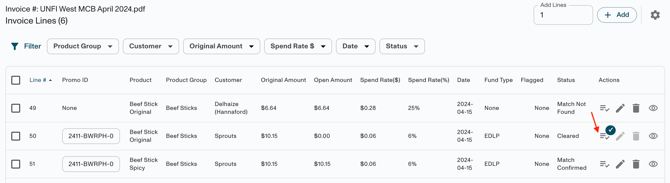
- Click the Resolve Line
 button on the right side of the invoice line.
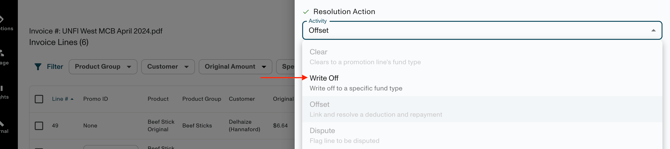
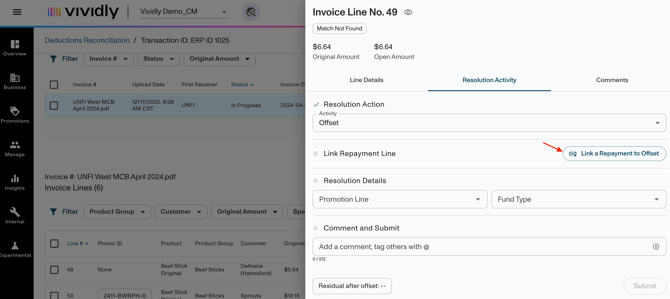
 - In the Resolution Action dropdown, select Offset.
- Click Link a Deduction to Offset.
- The Offset Resolution window will open, displaying the repayment invoice line details at the top.
- Search for the Original Deduction
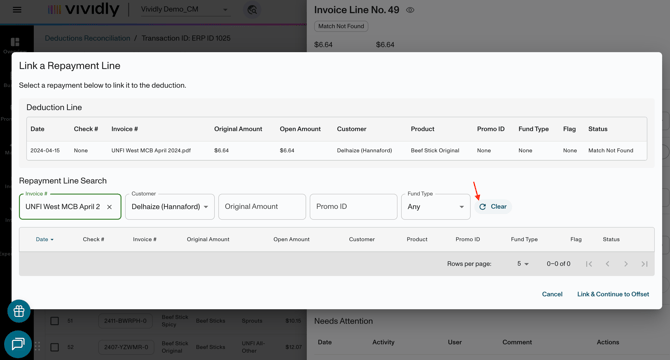
- Adjust search criteria: Manually enter search criteria such as: Original Amount, Invoice number, Customer, Promo ID & Fund Type. If the pre-populated search doesn't return results, click Clear to remove all filters
- Select the appropriate deduction line.
- Click Link and Continue to Offset.
-
Original deduction details can be reviewed by expanding the linked deduction line, (Transaction ID, Invoice Number, Line Date, Customer, Promotion Line ID, Fund Type). Use View Transaction to open the linked deduction in a separate window if needed.
-
In the Resolution Detail section, confirm or update the Promotion ID.
- Best practice is to keep the repayment tied to the same promotion or GL account as the original deduction whenever possible.
- Add a comment including the original transaction ID or invoice number. Comments appear in the Settlement Report and support audit tracking.
- Review the Residual After Offset amount.
- Click Submit
Result
The repayment is now:
- Cleared
- Linked to the original deduction
- Associated with the original promotion or GL account
Repayments will appear in the Settlement Report showing the offset relationship.
Note: If the repayment amount does not exactly match the deduction, a residual will remain. Resolve the residual amount separately using a Clear or Write Off action, if it is still open.
Option B: Clear to a Promotion
If the repayment is tied to a specific promotion, clear it the same way you would clear a deduction — select the appropriate promotion line and use the Clear action. The repayment will appear in the Settlement Report as a Clear activity.
Option C: Write Off to a Fund Type
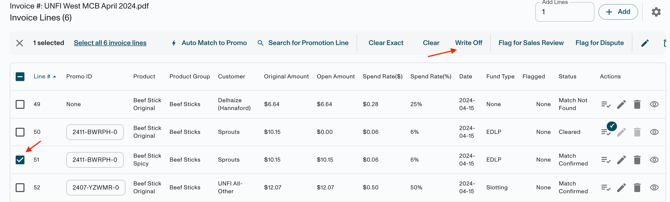
If the repayment is not tied to a promotion, write it off directly to a GL account via a fund type. Select the repayment line, click "Write Off," choose the appropriate fund type, should match where the original deduction was coded, enter a required comment, and submit.
Tips & Best Practices
- Use the same promotion or GL for Write Offs whenever possible: Unless there is a specific business reason not to, offset repayments against the same promotion or GL account as the original deduction to maintain accurate ROI and reporting.
- Check residual amounts carefully: Always verify the residual after the offset calculation. If the balance is not zero, investigate the reason before submitting and complete any required reclassifications through journal entries as needed.
- Use comments to maintain an audit trail: Detailed comments are important for future audits and help finance teams understand the history and reasoning behind transactions when reviewing settlement reports later.
Troubleshooting
Problem: Cannot Find the Deduction to Link During Offset
Likely cause: Searching with the wrong filter or the deduction is not in DRM.
Fix: Clear the pre-populated filter and search by amount or customer. Confirm the deduction has been uploaded to DRM before attempting to link.
Problem: The Promotion ID and Fund Type are Grayed Out and Not Editable in the Offset Flow
Likely cause: The linked deduction has already been fully resolved (cleared or written off), which locks those fields.
Fix: If a correction is needed, void the resolution on the linked deduction first, then re-offset.