
Deductions Spend - Overview
Deductions Spend is where you record and review actual dollars paid against specific customers and promotion lines.
Use it to answer: What did we actually spend on this promotion line, and how does it compare to the plan?
Note: Deductions Spend entries are most commonly created by clearing invoice lines in the Deductions Reconciliation Module.
Note: The Deductions Reconciliation Module does not capture Off-Invoice (OI) spend. You can upload your OI spend to the Deductions Spend module to capture all promotional activity.
Why it Matters
- Single place for actuals: Spend lines are the system’s record of actual trade spend tied to promotions.
- Better reporting: These actuals feed promotion performance and ROI views, so planned vs. actual comparisons stay accurate.
- Cleaner reconciliation: Some spend lines can be created automatically from deductions reconciliation, reducing manual work.
Where Does My Deductions Spend Data Go?
- Promotions Planning (Actual Spend in the Analytics tab)
- Promotion Analytics (Spend Analysis)
- Budgeting (Actuals)
- Accruals
- Deductions Dashboard
When to Use Deductions Spend
Use this screen when you need to:
- Find spend tied to a customer, promotion, check number, or date range.
- Add spend that needs to be tied to a promotion line.
- Upload many spend lines at once.
- Export filtered spend to CSV.
- Clean up spend lines you own (with the important caveat below for auto-created lines).
How to Navigate
1. Go to Business → Deductions Spend
2. Find the Spend You Need
- Quick search: Turn on search, type your query, and run the search.
- Advanced search: Use advanced search to narrow by things like customer, product or product group, fund type, promotion name/key, month or year, check number, and date range.
3. Click on a Spend Row to See Details
Click a row to open the side drawer. Use it to confirm:
- The spend amount and date
- The customer
- The promotion and promotion line it is tied to
- Optional fields like units, spend rate, and check number
4. Add Spend Manually
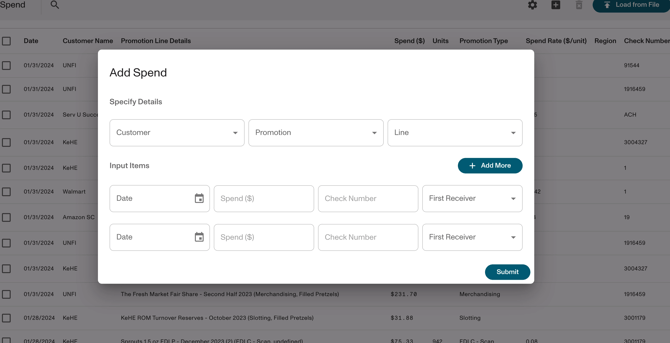
Use + Add Spend when you need to enter a line by hand.
- Select Customer.
- Choose the Promotion.
- Select the Promotion line(s).
- Enter the amount, date, and any optional fields (check number, units, spend rate).
5. Upload Spend from an Excel File
Use Load from File when you have many lines. Download and populate the Sample File available in the Deductions Spend Upload page.
Watch this video to learn more:
6. Export to CSV
Open the toolbar settings menu and choose Download Spend.
Your current filters and search are applied to the export.
7. Delete spend (important)
You can select rows and delete them, but:
- Spend lines that were auto-generated from deductions reconciliation are not deleted from this screen, even if selected.
- If you are doing a bulk cleanup workflow, use Advanced Deletion from the same settings menu.
Troubleshoot Deductions Spend Upload Errors
The following errors are the most common issues encountered when uploading a Deductions Spend file. After clicking "Finish" on the upload screen, any rows that failed validation will be highlighted. Review the error description below that matches what you see.
Error 1: Line Key Is Empty
The highlighted entries in the Line Key column are invalid because the field is blank. A valid, non-empty Line Key is required for every row in the upload file.
-
Fix: Open your upload file and enter the correct Line Key for each highlighted row. You can find the Line Key by opening the relevant promotion in Vividly and copying it directly from the promotion line.
Error 2: Vividly Was Unable to Match the Promotion Key
The Line Key in the file does not match any existing promotion line keys in Vividly. This usually means the key was entered incorrectly or contains a typo.
-
Fix: Navigate to the relevant promotion in Vividly and copy the exact Line Key from the promotion line. Replace the incorrect value in your file with the exact key and re-upload. Vividly requires an exact match.
Error 3: Customers Are Not Accounting Source Customers
The highlighted customers in the file are indirect customers and cannot be uploaded. All customers in a Deductions Spend upload must be accounting source customers.
-
Fix: Replace each indirect customer with the associated accounting source customer. If you are unsure which one to use, check the promotion in Vividly or contact your Administrator.