
Note: If you have an API Integration enabled, you will not need the Settlement Report to reconcile transactions in your ERP System.
The Settlement Report is a downloadable Excel file that summarizes all deductions you have validated and resolved in Vividly. It contains the information your accounting team needs to clear those deductions in your ERP system and post them to the correct expense GL accounts.
The report is your bridge between Vividly and your ERP — it tells you what was cleared, to which promotion or GL account, for how much, and by whom.
How to Access the Settlement Report
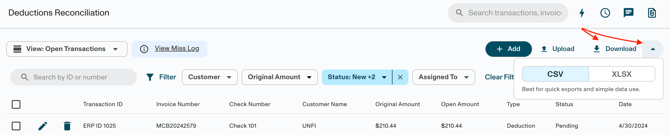
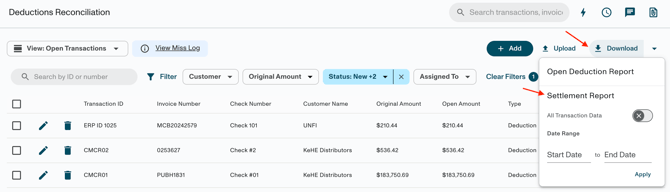
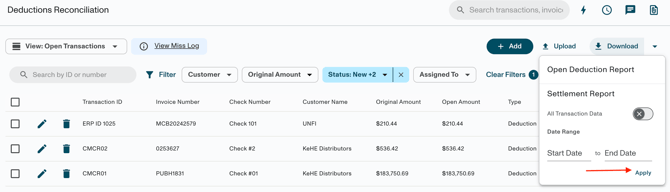
- Click Download > Select a Date Range in the Settlement Report section > Click on Apply
- An Excel spreadsheet will download automatically.
- Alternatively, toggle on "All Transaction Data" then click Settlement Report to download all resolved deductions regardless of timeframe.
The Three Activity Types
The first column in the Settlement Report is Activity Type. Every row in the report belongs to one of three types:
| Activity Type | What It Means | How to Identify It |
|---|---|---|
| Clear | The deduction line was matched and cleared to a promotion. | The Promotion Line ID column is populated with the associated line ID. |
| Void | A previously cleared or written-off transaction was reversed. | The amount appears as a negative number. |
| Write Off | The deduction was cleared directly to a GL account (not to a promotion). | The GL Account column is populated; the Promotion Line ID is blank. |
Settlement Report Columns — Full Reference
Some of the columns that appear in this file are the following:
| Column | Description |
|---|---|
| Activity Type | Clear, Void, or Write Off (see above). |
| Date Imported | The date the transaction was uploaded into Vividly. |
| Transaction ID | The unique identifier number for the deduction transaction in Vividly. |
| Credit Memo / Transaction Number | The reference number generated by your ERP system for this deduction (e.g., the check or credit memo number from your accounting platform). |
| Invoice Number | The invoice number associated with the deduction. |
| Customer | The customer the deduction came in with (e.g., UNFI, KeHE, or a direct retailer). |
| Amount Cleared | The dollar amount resolved in this activity. Voids will show as negative amounts. |
| Date Cleared | The date the resolution action (clear, write off, or void) was performed in Vividly. |
| Promotion Line ID | The ID of the promotion line the deduction was cleared to. Populated for Clear activities; blank for Write Offs. |
| Product / Product Group | The product or product group associated with the promotion the deduction was cleared to. |
| Fund Type | The fund type of the promotion (for Clears) or the write-off fund type (for Write Offs). This determines the GL account. |
| GL Account | The expense GL account associated with the fund type. Use this to post the deduction to the correct account in your ERP. |
| Cleared By | The Vividly user who performed the resolution action. |
| Comments | Any comments entered at the time of resolution. Comments are required for Write Offs and offset repayments, and will appear here for reference. |
How to Use the Settlement Report in Your ERP
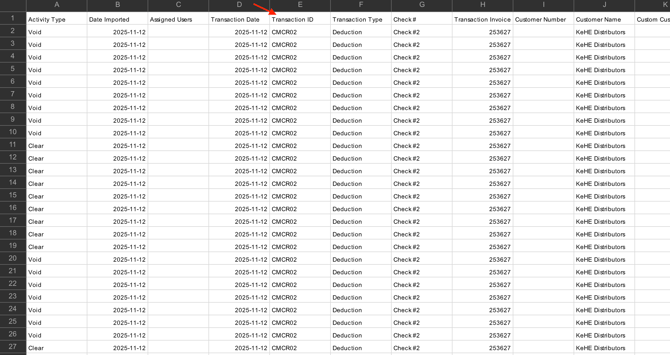
The Settlement Report is designed to contain everything you need to complete your ERP reconciliation without leaving the spreadsheet. The most common workflow is:
-
Download the Settlement Report from DRM.
-
Filter or sort by the date range relevant to your current reconciliation period.
-
Use the GL Account and Fund Type columns to identify the correct expense account for each deduction.
-
Use the Transaction ID and Credit Memo / Transaction Number to match each row back to the corresponding entry in your ERP.
-
Post the deductions to the correct GL accounts in your ERP system.
Using a Pivot Table for Bulk Posting
For high volumes of deductions, building a pivot table from the Settlement Report can significantly speed up ERP posting. A common pivot structure uses:
-
Rows: Transaction ID
-
Columns: GL Account, Fund Type
-
Values: Amount Cleared (sum)
-
You can also include Promotion Line ID for additional reference
This lets you quickly see the total amount to post per GL account and per transaction — ready to be entered directly into your ERP.
Note: The Settlement Report reflects resolved activity only. Open or pending deductions will not appear until they are cleared, written off, or voided in Vividly.
Troubleshooting
Problem: A Deduction Resolved in Vividly is not Appearing in the Settlement Report
Likely cause: The download may have been generated before the resolution was completed, or the date filter applied excludes the activity date.
Fix: Re-download the Settlement Report and confirm the resolution date falls within your selected period.
Problem: The GL Account Column is Blank for Some Rows
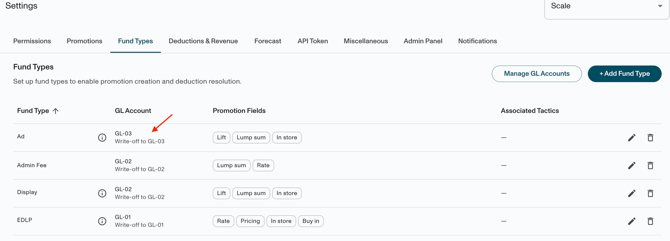
Likely cause: The fund type used for the resolution does not have a GL account mapped.
Fix: Go to Settings → Account Settings → Fund Types and confirm a GL account is assigned to each relevant fund type.
Problem: A Row Shows a Negative Amount and is Hard to Reconcile
Likely cause: This is a Void — a reversal of a previously cleared or written-off transaction.
Fix: Match the Void row to the original positive Clear or Write Off row using the Transaction ID. Both entries should net to zero if no other action has been taken.