
Error 1: "Spend Rate / Total Expected Units Combination Is Invalid"
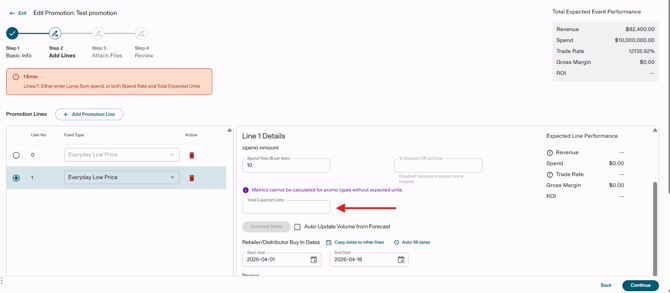
Why it happens: When a promotion uses a per-unit Spend Rate, Vividly also requires a Total Expected Units value. Leaving any of these fields blank causes this error.
How to fix it:
-
Open your upload file and find the Total Expected Units and the Spend Rate columns.
-
Enter a number for each affected row — 0 is acceptable, but the field cannot be blank.
-
Save the file and re-upload.
Error 2: Duplicate Promotion Name
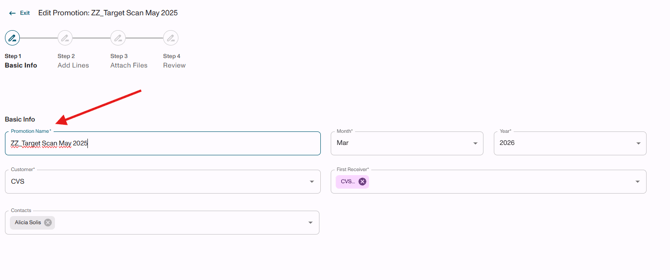
Why it happens: All promotion names in Vividly must be unique. Uploading a name that already exists will block that row.
How to fix it:
-
In your file, find any promotion names that may already exist in your portal.
-
Rename them — a good format is: Customer + Fund Type + Month + Year (e.g., "Target Scan May 2025").
- Best Practice: Before uploading, add "ZZ_" at the beginning of the name of the existing promotion in Vividly in case you want to replace it for the one in your file.
-
Save and re-upload.
Error 3: "Product Group Not Found"
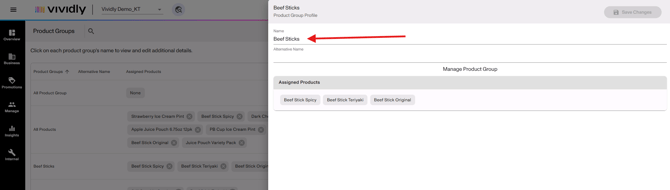
Why it happens: When uploading promotions, the product group name in your file doesn't exactly match what's in Vividly — even a small typo or extra space will trigger this error.
How to fix it:
-
In Vividly, go to Manage > Product Groups.
-
Copy the exact product group name from the system.
-
Paste it into your upload file, replacing the flagged name.
-
Save and re-upload.
Error 4: Line Key Required For Updating Existing Promotions

Why it happens: When using Update Existing option, Vividly needs the Line Key to identify which promotion lines to update. From all the columns on your file, this one is the only one that's a MUST.
How to fix it:
-
Export your promotions from Promotion Planning.
-
Keep only the "Promotion Breakdown" tab and delete all other tabs — the uploader only accepts single-tab files.
-
Confirm the Line Key column is present for every row.
-
During field mapping, make sure to include only the Line Key and the columns you are changing.
After that, you should be able to update your promotion lines without this error.
Error 5: "Either Enter Lump Sum Spend, Or Both Spend Rate And Total Expected Units" error - Lump Sum And Spend Rate On The Same Row
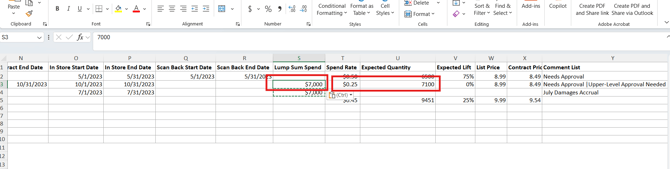
Why it happens: The lump sum value looks correct, but you also entered either Spend Rate and/or Total Expected Units. Vividly only needs either the Lump Sum or Spend Rate and Total Expected Units.
How to fix it:
- Find any promotion line in your file that contains these three values
- Choose either one of the options mentioned above and remove the other
- Save and re-upload.
Error 6: Date Format Not Recognized
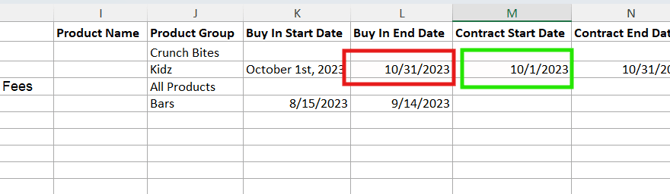
Why it happens: The dates in your file don't match the format Vividly expects, causing those rows to fail.
How to fix it:
-
Check all date fields in your file (Buy-in dates, Scan dates, In-store dates).
-
Make sure dates follow the correct format — typically MM/DD/YYYY for date range fields.
-
Save and re-upload.
Error 7: Expected Lift Field Is Required
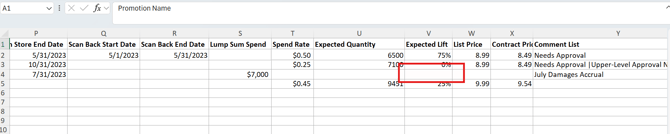
Why it happens: Some fund types require an expected lift value. Leaving the field blank will block those rows from uploading.
How to fix it:
-
Identify any rows where the expected lift field is blank.
-
Enter 0 if you don't have a lift value — the field cannot be left empty.
-
Save and re-upload.
Error 8: "No Match" Columns Appearing During Field Mapping
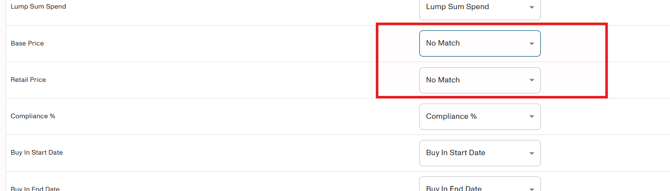
Why it happens: During the mapping step, some columns in your file show "No Match" — meaning Vividly couldn't automatically detect which field they correspond to. This is not always an error.
How to fix it:
-
Review each "No Match" column carefully.
-
If the column is needed for your upload, use the dropdown to manually map it to the correct Vividly field.
-
If the column isn't needed for this promotion, leave it as "No Match" — it won't affect the upload.
Still Need Help?
If you're still seeing an error, contact Vividly Support via a live chat or emailing at support@govividly.com.