
Overview
If a promotion isn't appearing when you search for it inside a deduction transaction, it's usually because the search filters were automatically populated from the invoice line and are limiting the results, or the promotion is already closed.
In most cases, the solution is simple:
- Reset the search filters
- Search using the Promotion Line Key
- Reopen the closed Promotion
This article walks through that process and covers common reasons a promotion may not appear.
When To Use This
-
Use this guide if:
- A promotion exists in Vividly but doesn't appear when you select Search for Promotion Line.
- The Auto Matcher returned no match or matched the wrong promotion.
- You need to manually assign a promotion to an invoice line.
Why This Happens
When you open Search for Promotion Line, Vividly automatically filters the search based on information from the invoice line, including:
- Customer
- Product or Product Group
- Fund Type
- Performance Month
- First Receiver (when applicable)
If any of these values don't match the promotion exactly, the promotion may not appear even though it exists.
Before You Begin
Before troubleshooting, confirm:
- The promotion already exists in Vividly (regardless of status).
- You have the Promotion Line Key (e.g.,
2605-ABCDE-1), or you know the promotion's customer and approximate dates.
Tip: The Promotion Line Key is the most reliable way to locate a promotion.
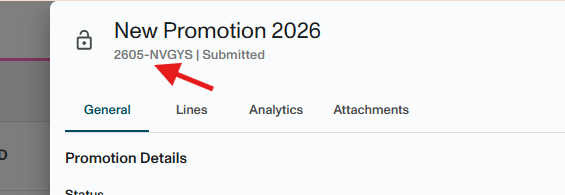
Steps To Find Promotion Lines - General Key Process
Step 1 — Open The Promotion Search From The Invoice Line
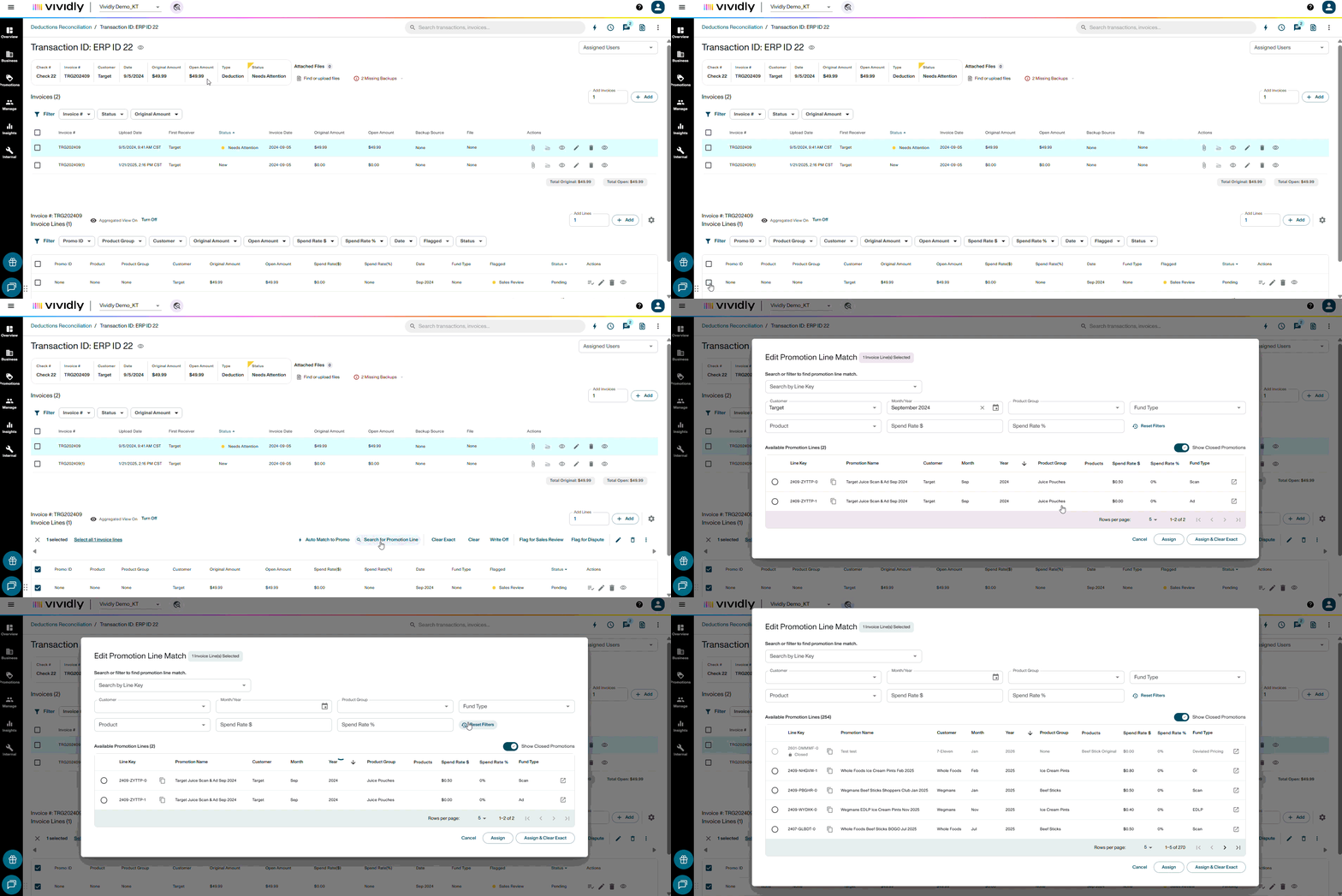
- Navigate to Business → Deductions Reconciliation.
- Open the deduction transaction.
- In the Invoice Lines section, select the invoice line you want to match.
- Click Search for Promotion Line.
The search window opens with filters automatically populated from the invoice line.
Step 2 — Reset Filters
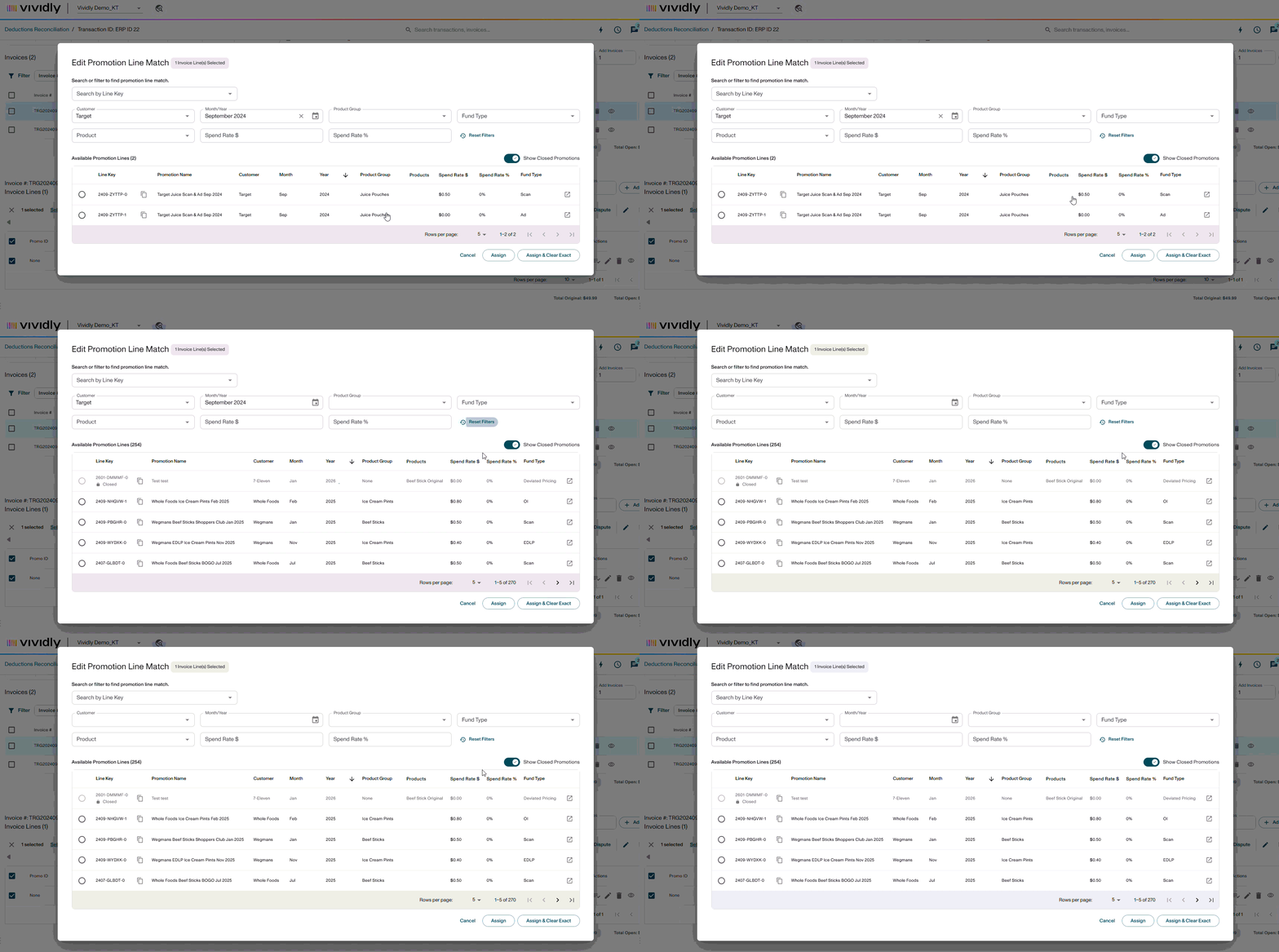
Click Reset Filters.
This removes all auto-populated restrictions so you can perform a broader search.
Step 3 — Search for the Promotion
The preferred search method is the Promotion Line Key.
- Enter the Promotion Line Key (for example,
2605-ABCDE-1). - Click Search or press Enter.
- Select the correct promotion.
If you don't know the Promotion Line Key, search using:
- Customer
- Promotion Name
- Date Range
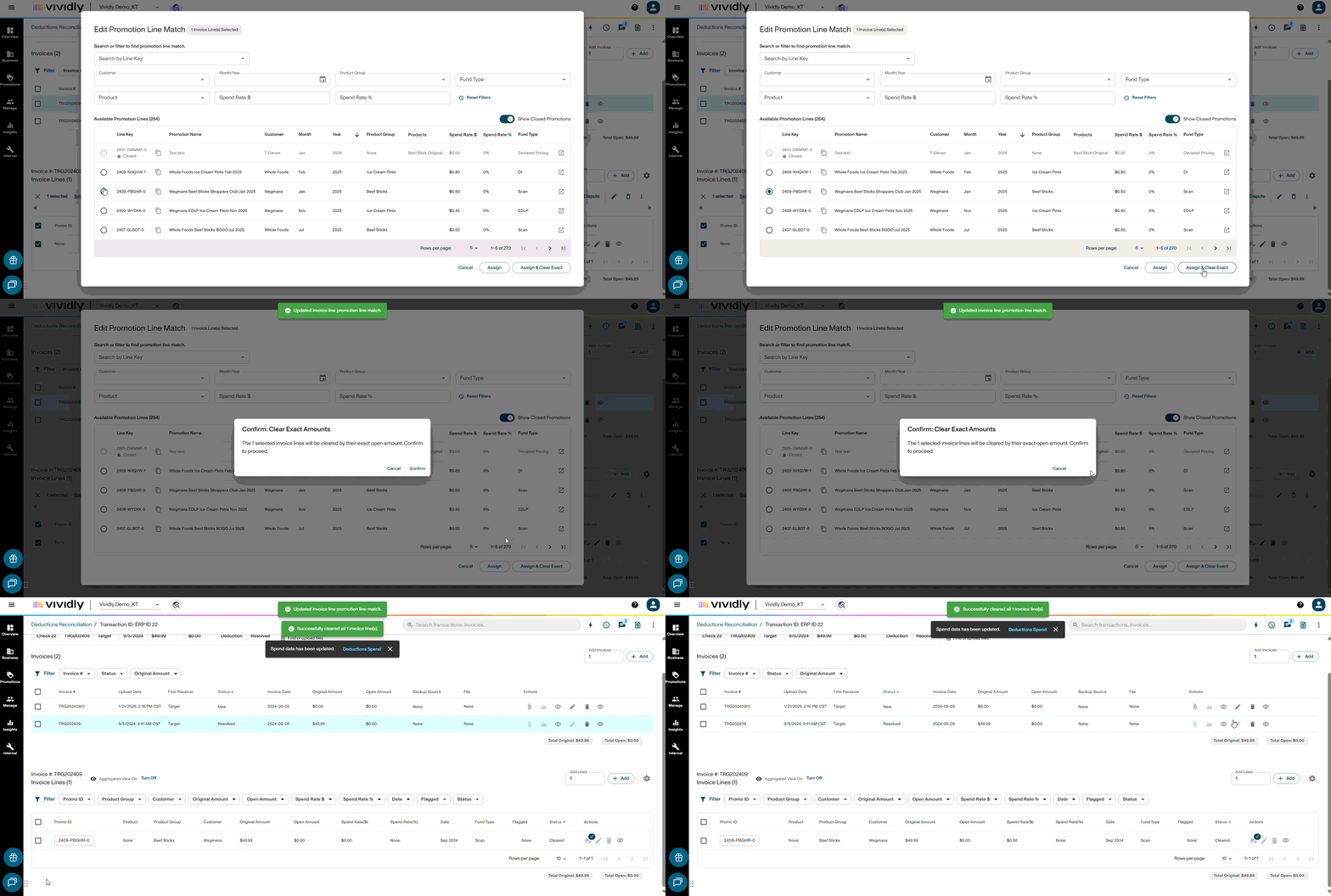
Step 4 — Assign the Promotion
Once you've located the correct promotion, choose one of the following:
- Assign – Associates the promotion but leaves the invoice line unresolved.
- Assign & Clear Exact – Associates the promotion and immediately clears the invoice line.
If you selected Assign, finish by clicking Clear Exact once you've confirmed the match.
Common Reasons A Promotion Doesn't Appear
| Issue | Cause | Resolution |
|---|---|---|
| Promotion exists but doesn't appear | Auto-populated filters are too restrictive | Reset Filters and search again |
| Promotion was created in a different month | Month filter excludes the promotion | Reset Filters and remove the month restriction |
| Wrong customer or First Receiver | Search filters don't match the promotion | Reset Filters and search using the Promotion Line Key |
| Promotion is Closed | Closed promotions are excluded from matching | Reopen the promotion, then search again or use the show closed promotion toggle, promotion will still need to be reopened for match |
| Wrong Fund Type | Fund Type filter excludes the promotion | Reset Filters or remove the Fund Type filter |
| Searching by Promotion Name | Similar promotion names can return unexpected results | Search using the Promotion Line Key whenever possible |
Expected Result
-
The promotion appears in search results after resetting filters
-
The invoice line is matched to the correct promotion and cleared
-
The invoice line status updates to "Clear" and the open amount reflects the cleared amount
Troubleshooting
Problem: After Resetting Filters And Searching By Line Key, The Promotion Still Doesn't Appear
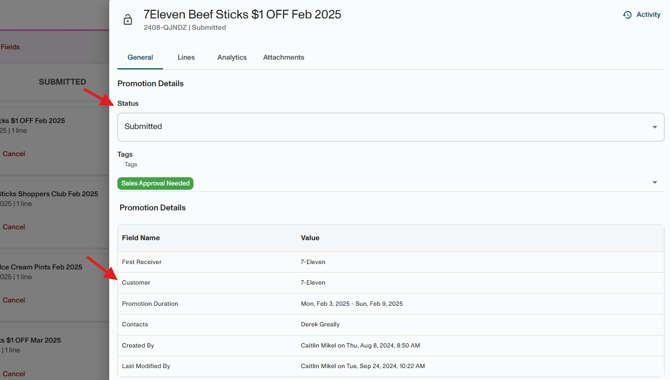
Likely cause: The promotion is Closed, or it was created under a different customer.
Fix:
-
Open the promotion in Promotions → Planning, reopen it, and retry.
-
Confirm the promotion's customer matches the deduction's customer.
-
If the deduction came from a distributor (e.g., KeHE) but the promo was created at the retailer (e.g., Coborns), confirm KeHE is set as the First Receiver on the promotion.
-
Problem: The Auto-Matcher Matched The Line To The Wrong Promotion
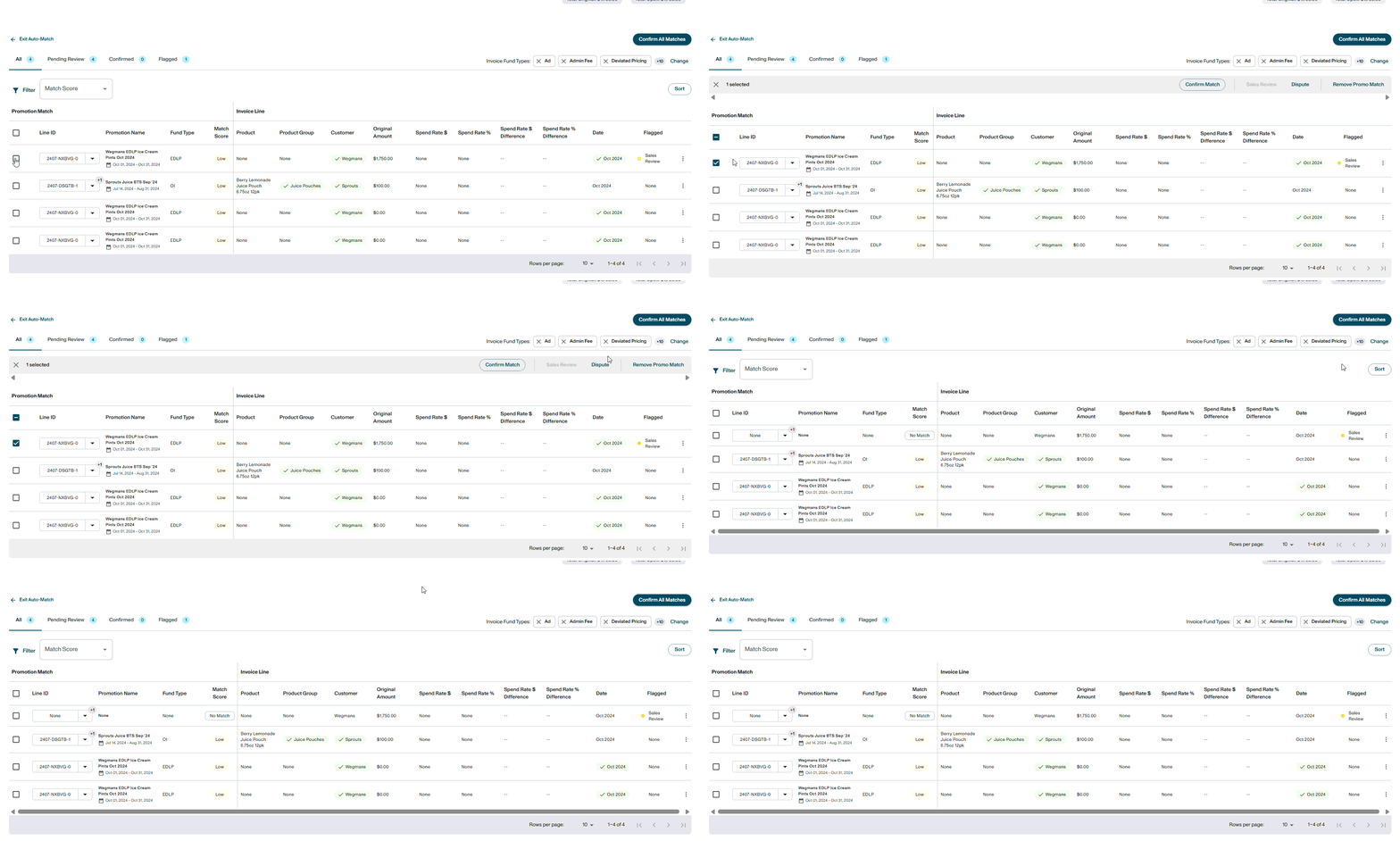
Likely cause: Multiple promotions with similar details (same customer, product group, and month) exist.
Fix: In auto-match results, click "Remove Match" on the incorrect match. Then use "Search for Promotion Line" → Reset Filters to manually select the correct one.
Problem: Promotion Spans Multiple Months But Only One Month Shows In Search
Likely cause: The invoice line date doesn't fall within the promotion's performance dates as filtered.
Fix: Check the promotion's In Store, Scan Back, and Buy In date windows. After resetting filters, search without applying a month filter to expand results.
Problem: Promotion Was Found And Matched, But I Matched It To The Wrong One
Likely cause: Manual selection error.
Fix: If the line is in "Match Confirmed" status (not yet cleared), click the edit icon on the line, select "None" to remove the match, then repeat the search. If already cleared, use "Void Resolution" on the line to undo and re-assign.