
Overview
A single deduction invoice can be split into multiple invoice lines, allowing each portion of the deduction to be reconciled independently. This is commonly used when a deduction relates to multiple promotions, fund types, product groups, or resolution paths (such as clearing part of the deduction while disputing or writing off the remainder).
Splitting invoice lines provides greater accuracy in matching, reporting, and reconciliation while maintaining a complete audit trail back to the original deduction.
When to Use This
Manually split Invoice Lines when:
- A deduction covers multiple promotions, Promotion Line IDs, or fund types (for example, a trade deduction plus an associated admin fee).
- Part of the deduction is valid and should be cleared to a promotion, while another portion should be disputed or written off.
- The backup contains separate products, product groups, or spend rates that need to be reconciled individually.
- A lump-sum deduction needs to be broken into multiple invoice lines for proper matching and resolution.
Prerequisites
- The deduction invoice header line must be open (Status = New or Inprogress).
- No feature flag is required; this functionality is available in all DRM tiers.
Steps To Split Deductions
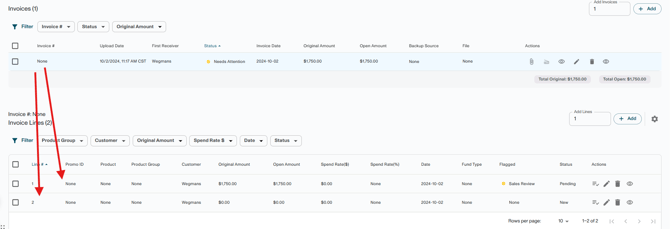
- Open the deduction transaction and scroll to the Invoice Header section.
- Select the invoice header that contains the deduction you want to split.
- In the Invoice Lines section below, click Add Line (or the + icon) to create one or more new invoice lines. Adjust the number of lines to add as needed.
- Select the new line(s) using the checkboxes, then click the Edit (pencil) icon in the action bar to make the lines editable.
- Enter the appropriate information for each line, including:
- Amount – The portion of the deduction assigned to that line
- Product Group – If known
- Customer – Confirm or update as needed
- Date – The applicable month/year for the deduction
- Save the invoice lines.
- Verify that the total of all invoice line amounts equals the original deduction amount.
- Resolve each invoice line independently by matching it to a promotion, writing it off, flagging it for review/dispute, or taking any other appropriate action.
See Clearing & Writing Off Deduction Lines in Deduction Reconciliation
Note: Any remaining open amount on the transaction will persist until all lines are fully resolved.
Expected Result
-
Each invoice line has its own status (Clear, Write-Off, Dispute, Sales Review, etc.)
-
The parent transaction's open amount decreases as lines are resolved
-
When all lines are fully resolved, the transaction status updates to "Resolved"
-
If one or more lines are still open (e.g., in Dispute), the transaction shows "Needs Attention"
Troubleshooting
Problem: Deduction Shows "Needs Attention" Instead Of "Resolved" After Splitting
Likely cause: One or more invoice lines have not been resolved.
Fix: Open the transaction and review all lines. Identify any in "Open," "Sales Review," or "Dispute" status and resolve them.
Problem: The Total Amount Across Invoice Lines Does Not Match The Deduction Total
Likely cause: Line amounts were entered incorrectly.
Fix: Edit each line to adjust the amount. The sum of all lines should equal the original deduction amount.
Problem: Fund Type Auto-Populates With The Wrong Type After Assigning A Promotion
Likely cause: The system inherits the fund type from the matched promotion line.
Fix: Void the resolution and re-match to the correct promotion line with the right fund type.