
Overview
What if you could test different promotional strategies without touching your live calendar? Scenario Planning lets you create and iterate on scenario-based promotion variations — draft, duplicate, upload, and refine strategies while keeping your active promotions and analytics completely unchanged.
Experiment freely, compare outcomes across multiple scenarios, and when you've found your winning strategy, import it into your live promotion calendar with a single click. Perfect for testing approaches before major retailer negotiations or planning cycles.
Prerequisites
⚠️ **Feature Access Required**Your company must have the SCENARIO_PLANNING feature flag enabled. Contact Customer Support or your Customer Success Manager to activate this experimental feature.
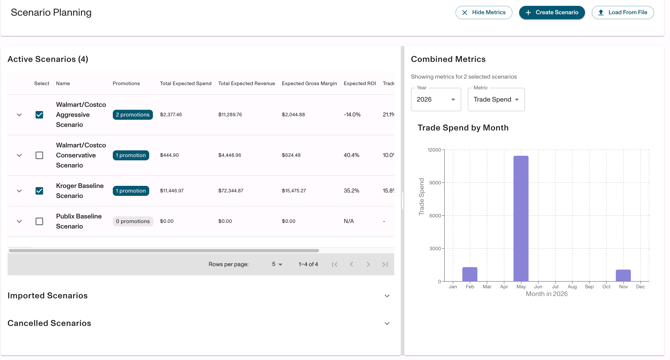
Step 1: Create a New Scenario
- Navigate to Scenarios in the left toolbar and click on "Scenario Planning
- Click Create Scenario
- Give your scenario a descriptive name
- Examples: "Q2 2025 Aggressive Plan", "Conservative Budget Scenario", "Walmart Summer Strategy"
- Click Save
Step 2: Add Promotions to Your Scenario
Option A: Create New Promotions
- In Scenario Planning, click Add Promotion or use the standard promotion creation workflow
- When creating the promotion, assign it to your scenario using the Scenario dropdown
- The promotion will automatically be set to Draft status
- Complete all required promotion fields as normal
Option B: Duplicate Existing Promotions
- Find an existing promotion you want to test variations of
- Duplicate the promotion
- Assign the duplicate to your scenario
- Modify parameters (dates, pricing, spend rate, etc.) as needed
Important: Promotions in scenarios must remain in DRAFT status. They will not affect:
- Live promotion analytics
- Deduction reconciliation
- Forecast calculations
- Any other downstream workflows
Step 3: Compare Multiple Scenarios
- In the Scenario Planning section, select Compare Scenarios
- Check the boxes next to the scenarios you want to compare (up to 5 scenarios)
- Click Generate Comparison
- Review the side-by-side metrics:
- Trade Spend - Total expected spend by month
- Revenue - Total expected revenue by month
- Trade Rate - Spend/Revenue ratio by month
Use the resizable split pane to adjust the view between the scenario list and comparison charts.
Step 4: Save Scenario to Live Plan (Import)
When you've identified your winning scenario:
- Select the scenario you want to implement
- Click Save to Live Plan (or Import)
- Confirm the action
- What happens:
- All promotions move from DRAFT → PENDING status
- Promotions are unlinked from the scenario
- Scenario status changes to IMPORTED
- Promotions now appear in your live promotion calendar under Planning section
- Follow your team's normal approval workflow to move promotions from Pending → Submitted → Approved
Step 5: Unimport (Revert) if Needed
If you need to undo an import (only available if all promotions are still PENDING):
- Find the imported scenario
- Click Unimport or Revert
- What happens:
- Promotions revert from PENDING → DRAFT
- Scenario status reverts to ACTIVE
- Promotions return to the scenario for further editing
Troubleshooting
Issue: "I don't see the Scenario Planning section"
- Solution: The feature is behind the SCENARIO_PLANNING feature flag. Contact your Account Manager to request access to this experimental feature.
Issue: "My draft promotions are showing up in Analytics/Forecast"
- Solution: This should not happen. Draft promotions in scenarios are isolated from all downstream workflows. If you're seeing this, contact Vividly Support immediately.
Issue: "I can't unimport my scenario"
- Solution: Check that all promotions from that scenario are still in Pending status. If any have been moved to Submitted, Approved, or Running, the scenario cannot be unimported.
Issue: "The scenario comparison isn't showing data"
- Solution: Ensure your draft promotions have all required fields filled out (customer, dates, product groups, pricing, spend rates) so metrics can be calculated.
FAQs and Additional Resources
Q: Do draft promotions in scenarios impact Analytics, Deductions, or Forecast?
A: No. Draft promotions are purely for planning purposes. They only impact downstream workflows if the scenario is imported into the Planning section and promotions move to Pending status.
Q: Can I use Scenario Planning for "replanning" mid-year based on budget changes?
A: The MVP does not currently support replanning workflows, but this functionality is planned for Q1/Q2 2026 as part of the promotion optimization/generation work.