
Learn how to use the "Include Live Plan" toggle to preview the total business impact of a scenario, navigate the updated horizontal tab layout, and see which forecast version a scenario is associated with.
Audience & Scope
-
Who this is for: All users with Scenario Planning access (Sales, Trade Marketing, Demand Planning)
-
What it covers: How to use the "Include Live Plan" toggle to compare scenario metrics against your current live plan; the updated horizontal tab navigation (Active, Imported, Canceled); how to see which forecast version a scenario is associated with; and the reverse visibility from the forecast versioning page
-
What it does not cover: How to create scenarios, add promotions to scenarios, or import a scenario to the live plan. See Scenario Planning Overview for the foundational workflow
Context
Scenario Planning now includes an "Include Live Plan" toggle that overlays your live promotion plan's Trade Spend, Trade Rate, and Revenue metrics alongside your selected scenarios.
This lets you preview the total business impact of a scenario before importing it — helping you avoid surprises like budget overruns or plan conflicts. The interface has also been updated with horizontal tabs for scenario status navigation (Active, Imported, Canceled), and new cross-visibility between scenarios and forecast versions.
When to Use This
-
You want to see how a new scenario would affect your total trade spend before committing to it
-
You are evaluating whether a scenario pushes you over budget when combined with existing live promotions
-
You need to understand which forecast version a specific scenario is reflected in
-
You want a faster way to navigate between Active, Imported, and Canceled scenarios
Prerequisites
-
Roles/permissions: Any user with access to Scenario Planning
-
Required plan/feature access: The
SCENARIO_PLANNINGfeature flag must be enabled. Contact your Customer Success Manager to request access
Note — Beta access: Scenario Planning is currently in beta. Access must be requested through your Customer Success Manager and is not available by default. Steps
Using the "Include Live Plan" Toggle
-
Navigate to Scenario Planning in the left toolbar.
-
Select the scenario(s) you want to compare and click "Generate Metrics" to see the scenario's rolled-up Trade Spend, Trade Rate, and Revenue.
-
Locate the "Include Live Plan" toggle in the metrics view.
-
Enable the "Include Live Plan" toggle.
-
You should see: Your live promotion plan's Trade Spend, Trade Rate, and Revenue metrics displayed alongside — and combined with — the selected scenario metrics. This gives you the projected total impact if the scenario were imported.
-
-
Review the combined metrics to evaluate whether the scenario is within budget and aligned with your live plan.
-
Toggle off to return to viewing scenario metrics in isolation.
If you don't see the toggle: Confirm that the Scenario Planning feature flag is enabled for your portal. Contact your CSM if the toggle is not visible.
Navigating the Updated Horizontal Tabs
-
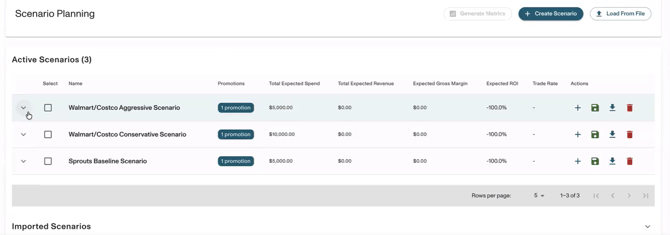
In Scenario Planning, the scenario list now displays three horizontal tabs: "Active," "Imported," and "Canceled."
-
Click "Active" to see scenarios currently being worked on (promotions in DRAFT status).
-
Click "Imported" to see scenarios that have been saved to the live plan.
-
Click "Canceled" to see scenarios that were discarded.
You should see: Scenarios organized horizontally by status, making it easier to navigate without scrolling through a single combined list.
Checking Which Forecast Version a Scenario Appears In
-
From the Scenario Planning view, find your scenario in the list.
-
Look for the forecast version indicator associated with the scenario.
-
You should see: The forecast version(s) that each scenario is present in, displayed directly in the scenario planning interface.
-
Reverse Visibility — From the Forecast
-
Navigate to "Insights" → "Forecast."
-
Open the forecast versioning page.
-
Look for the scenario association indicator on each forecast version.
-
You should see: A label or indicator showing which scenarios (if any) are attached to that forecast version.
-
Expected Result
-
The "Include Live Plan" toggle is visible and displays combined live plan + scenario metrics for Trade Spend, Trade Rate, and Revenue
-
Scenario tabs are organized horizontally as Active / Imported / Canceled for faster navigation
-
Each scenario in the planning interface shows which forecast version(s) it is present in
-
On the forecast versioning page, each version shows which scenarios are associated with it
Troubleshooting
Problem: The "Include Live Plan" Toggle Is Not Visible
-
Likely cause: The SCENARIO_PLANNING feature flag may not be enabled, or this specific enhancement has not yet been released to your portal.
-
Fix: Contact your Customer Success Manager to confirm feature access and whether your portal is on the latest release.
Problem: Scenario Comparison Metrics Show $0 Or No Data When The Toggle Is On
-
Likely cause: Scenario promotions may be missing required fields (customer, dates, product groups, spend rates), or the live plan has no promotions for the selected time period.
-
Fix: Ensure all draft promotions in the scenario have complete required fields. Confirm the live plan has active promotions in the same time range.
Problem: I Can't Find The "Canceled" Tab — It's Not Showing Or Appears Empty
-
Likely cause: No scenarios have been canceled yet, so the tab may appear empty.
-
Fix: Cancel a scenario to confirm the tab populates correctly. If the tab itself is missing entirely, contact your CSM to confirm the feature has been released to your portal.
Problem: Forecast Version Visibility For Scenarios Is Not Showing
-
Likely cause: The feature may not be fully enabled for your portal, or the forecast versioning page may require navigating to a specific section.
-
Fix: Contact your Customer Success Manager to confirm that both Scenario Planning and forecast versioning are fully enabled for your account.
Frequently Asked Questions
Does The "Include Live Plan" Toggle Affect My Live Plan Or Imported Scenarios In Any Way?
-
No. The toggle is read-only — it only overlays your live plan metrics for comparison purposes. It does not import, modify, or affect any promotions in your live plan.
Can I Use The Toggle To Compare Multiple Scenarios Against The Live Plan At The Same Time?
-
Yes. Select multiple scenarios, click "Generate Metrics," and then enable the "Include Live Plan" toggle to see the combined impact of all selected scenarios alongside your live plan.
What Metrics Does The "Include Live Plan" Toggle Add?
-
It adds your live promotion plan's Trade Spend, Trade Rate, and Revenue to the comparison view, so you can see the projected totals if the scenario were imported.
Are There Existing Scenarios Visible In Both The "Active" And "Imported" Tabs?
-
No. Once a scenario is imported, it moves to the "Imported" tab and is no longer visible under "Active." Each scenario appears in only one tab based on its current status.