
Video Tutorial
Building a Below Threshold Rule
- Navigate to Business → Deductions Reconciliation 2.0.
- Click the Deduction Automations icon⚡ Lightning Bolt.
- Select Build Rule, or click the three dots icon to edit, or enable/disable an existing rule.
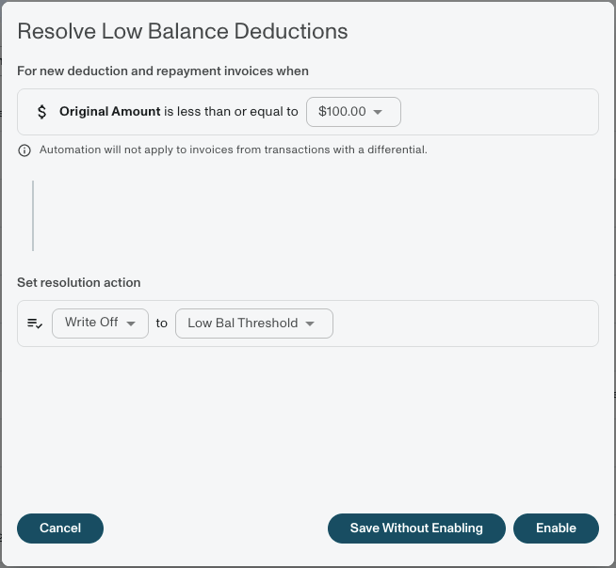
- Set the threshold amount
-
The default amount is the recommended threshold based on the past 3 months of deduction activity. This threshold recommendation is based on the amount that would auto-resolve approximately the bottom 4% of deduction dollars.
-
Caution: Low amounts of historical data or outliers can skew this recommendation, so always review the suggested threshold before enabling.
-
- Enter any value appropriate for your business context. Use previous deductions data to inform the best threshold for your brand. We recommend setting a threshold based on the bottom 4% of deduction dollars.
Note: If you are unsure where to start and there is not yet 3 months of data in the platform, Vividly’s general recommendation for a threshold is $100.
- Choose clearing method:
- Write-offs: Select a fund type with an associated write-off account.
- Promotions: Select an active “Below Threshold” promotion.
- Only one promotion per month can be selected to avoid ambiguity.
- If multiple are selected for the same month, an error will appear.
- Save the rule:
- Save (disabled) – Stores the rule but does not make it active.
- Enable – Makes the rule active and ready for use.
Running Below Threshold Automation
- Create or open a transaction in DRM.
- Breakout Invoice Header for each deduction and repayment.
- Confirm invoices are in New status.
- Confirm there is no differential:
- The transaction’s original amount must equal the sum of its invoices.
- Any mismatch (higher or lower) will block automation.
- Click Run from the ⚡ automation menu.
- Invoices meeting all criteria and under the threshold will automatically clear to a promotion that lines up with the Month/Year of the Transaction.
Example Scenarios
Assuming a threshold of $100:- ✅ Invoice amounts $40, $30, and $10 auto-clear to the monthly promotion that corresponds with the Transaction date.
- ❌ Invoice for $100.90 remains untouched (above threshold).
- ❌ Repayments showing as negative amounts will not be auto-cleared unless the absolute value is less than $100. For example, -$1,000 will remain open, while -$50 will be automatically cleared.
- ❌ Invoice already in progress with manual lines will not be modified.
- ❌ Transaction with differential (e.g., original = $5,000 but invoices total $4,870) fails with an error.