
Description
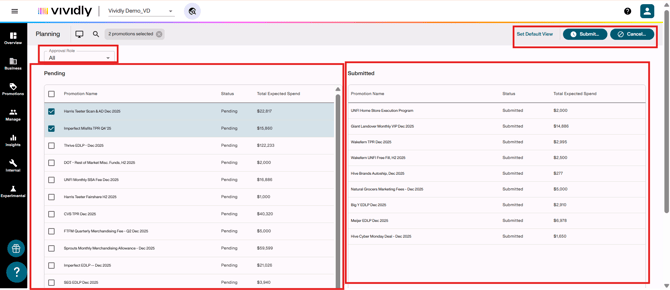
Bulk action interface that allows users to submit multiple promotions simultaneously from Pending to Submitted status, initiating the approval workflow for many promotions at once.
Navigation
Navigate to Promotions > Planning and click the interface selector icon to choose Submission
-
Approval Role dropdown: Filter that allows users to view promotions by specific approval role.
-
Pending list: Left side of screen showing all promotions in "Pending" status.
-
Submitted list: Shows promotions successfully submitted, awaiting approval step.
-
“Submit” button: Button that allows you to submit checked/selected promotions.
-
“Cancel” button: Button that allows you to cancel checked/selected promotions.
Best Practices
- Use filters to identify specific groups of promotions ready for submission
- Leverage bulk submission when setting up annual promotional calendars