
Description
The columns view is the default interface that organizes promotions into a kanban board - with promotions groups into vertical columns based on their workflow status, enabling visual management and drag-and-drop status changes.
Fields
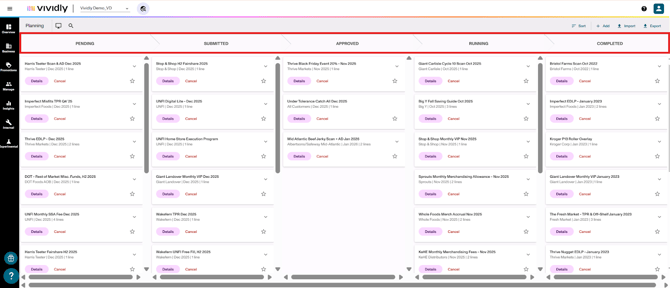
Promotion Statuses in Vividly
Vividly uses a status-based workflow to track promotions through their lifecycle. Here's what each status means:
Active Workflow Statuses
Pending: Initial and default status for newly created promotions that are still being finalized before submission for approval.
Submitted: Status indicating promotion has been finalized and submitted for internal approval review. Often used when sales teams enter promotions that require finance or leadership approval before proceeding.
Approved: Status indicating promotion has been reviewed and approved to proceed, ready to execute when start date arrives. Promotions must reach Approved status to automatically transition through remaining statuses.
Running: Status indicating promotion is currently executing in-market during its scheduled time period. System automatically transitions from Approved to Running on start date.
Completed: Status indicating promotion has finished its scheduled run period and system has automatically moved it to completed. Promotion remains open for deduction application and reconciliation until manually closed.
Archive Statuses
Declined: Status for promotions that were submitted for approval but rejected. Declined promotions are removed from column view and accessible only through the Declined subsection.
Cancelled: Status for promotions that were planned but will not execute. Cancelled promotions are removed from column view and accessible only through the Cancelled subsection.
Important Notes
-
Promotions are never deleted - use Declined or Cancelled statuses instead to maintain historical records
-
Automatic transitions only occur from Approved → Running → Completed based on promotion dates
-
Promotions in Pending or Submitted will not automatically advance and must be manually moved
-
The Approved status is the critical threshold - promotions must reach this status for automatic date-based transitions
-
Completed promotions remain in the system for deduction matching and can be manually closed once reconciliation is finished
Navigation
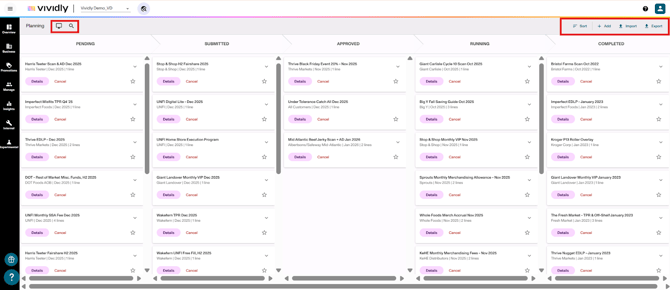
- “Sort” button: Promotion filter within status columns using certain chronological and financial filters: Start date, End date and Expected Spend.
- “+ Add” button: Option that opens promotion creation interface to manually create a new single promotion.
- “Import” button: Opens bulk upload interface (Same as “Load from File” button in other sections of Vividly) to create multiple promotions simultaneously from Excel template.
- “Export” button: Option that allows to download all promotions visible in current view to Excel or CSV file. They can be sent also via email due to file size.
- “Details” button: Button that gives access to the “Promotion” profile,
- “Search” icon: Opens basic search field to find promotions by typing any text (customer name, promotion name, product, etc.).
- “Advanced search” icon: Option that opens comprehensive filtering interface with multiple criteria options (customer, product group, promotion type, date range, status, tags) to narrow down promotion view.
- “Select interface” button: Dropdown menu (computer monitor icon) that allows switching between different views (Column, List, Calendar, Submission, Approval, Advanced Duplication, Advanced Editing).