---
title: Upload New Promotions via Excel Upload
description: Importing/uploading promotions from a file into Vividly to create new promotions or edit existing ones.
---
[Skip to content](https://knowledge.govividly.com/promotion-upload-sop-a-complete-guide#main-content)
[Submit a Support Ticket](https://knowledge.govividly.com/kb-tickets/new?hsLang=en) [Open the Vividly portal](https://knowledge.govividly.com/support?hsLang=en)
[](https://knowledge.govividly.com/?hsLang=en)
Open main navigation
Close main navigation
- [Submit a Support Ticket](https://knowledge.govividly.com/kb-tickets/new)
- [Open the Vividly portal](https://knowledge.govividly.com/support)
Search the Vividly Knowledge Base
- There are no suggestions because the search field is empty.
1. [Vividly Knowledge Base](https://knowledge.govividly.com/?hsLang=en)
2. [Promotions](https://knowledge.govividly.com/promotions?hsLang=en)
3. [Uploading and Editing Promotions in Bulk via Excel Upload](https://knowledge.govividly.com/promotions?hsLang=en#uploading-and-editing-promotions-in-bulk-via-excel-upload)
April 1, 2026
# Upload New Promotions via Excel Upload
[**Click Here to Download the Promotion Upload Excel Template**](https://drive.google.com/file/d/1emrn97JByxweaXBWcXORj1XXs8AuU0tf/view)
#### **Step 1: Prepare Your Promotion Data**
- Ensure you have all required details ready and formatted correctly. The required fields for Promotion Upload are separated into two groups: Standard Requirements, and the Promotion-Specific Requirements
- Standard Requirements (necessary for ALL entries)
- Promotion Name
- Month & Year
- Customer Name & First Receiver
- Promotion Type *(e.g., Scan, Advertising Fee, Off-Invoice, EDLP, etc.)*
- Product Group (**OR** individual item)
- Promotion-Specific Requirements (vary by promotion, and by fund type)
- Start & End Dates *(Buy-In, In-Store, Scan Back)*
- Unit Spend Rate **OR** Lump Sum Spend
- Total Expected Unit Sales, **ONLY** **IF** promotion has a Spend Rate
- Base Price & Retail Price
- Auto-Update Forecast *(TRUE/FALSE)*
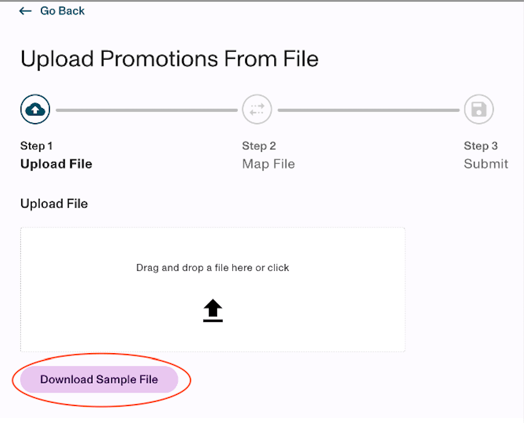
- You can download the Promotion Upload Template directly from the [Promotion Upload](https://portal.govividly.com/promotion-uploader) module in your Vividly portal.
- 
#### **Step 2: Gather your Master Data in the Manage section **
- Master data includes customer names, product groups, and pricing details. This data ensures your promotions align with existing records in Vividly.
- Customer & Product Data
- Pricing & Spend Rates: Found in the Trade Promotion Planning section.
- Historical Promotion Data: Use Promotion Analytics to reference past promotions and expected performance.
- For more details, **[click here to read about the Manage \> Customers section](https://knowledge.govividly.com/manage-customers-overview?hsLang=en)**.
#### **Step 3: Verify Account Assignments**
- Account assignments determine which fields are required for each fund type. To check:
- Select your profile icon at the top-right of the screen and go to Account Settings
- Navigate to the Account Assignment tab, and review the required fields for each promotion type
- Follow the Account Assignment table to create each promotion, ensuring ONLY the required fields are filled for each fund type
- For more details, **[click here to read about the Account Settings \> Fund Types section](https://knowledge.govividly.com/account-settings#fund-types)**.
#### **Step 4: Upload the Promotion File**
- Follow along the instructions of your Custom Template and create your upload file
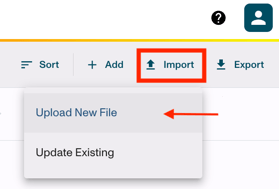
- In your Vividly portal, navigate to the Promotion Uploader section at the top-right of the Promotion Planning screen.
- Upload your newly created file; review the field mapping screen to ensure all data is pulled to the right place!
- Troubleshoot any potential errors in the confirmation screen, or select Next Step to finalize your upload and await your confetti :)
#### **Step 5: Troubleshooting any Errors**
- If you encounter issues during the upload, consider the following:
- Mismatched Product Groups: Ensure product names match those in Vividly’s master data.
- Missing Required Fields: Double-check that all mandatory columns are filled.
- Incorrect Additional Information: Review Account Assignments to ensure there are no extraneous sections populated
- i.e. both a Lump Sum AND a Spend Rate entered, Buy-in Dates for a fund type that does not require them, etc.)
- File Formatting Issues: Ensure the file is saved as an Excel (.xlsx) file and follows the correct structure.
- Bulk Edit Errors: If making bulk edits, ensure only Line Keys and Spend Rate are modified.
#### **Step 6: Review and Adjust Promotions**
- After uploading, promotions are assigned a unique code for tracking.
- Use Promotion Analytics to compare expected vs. actual performance
- Forecast customers: Ensure Promotion Status is updated to **Approved** or **Running**, to reflect in Vividly forecasting
- If needed, edit promotions in bulk by exporting, modifying, and reuploading promotions using the Update Existing option of the Promotion Uploader
- Export Instructions: Use the Search/Advanced Search function to narrow to desired promotions, select the Export icon at the top-right of the page, and click “Excel” to download existing promotions within the filtered view
- Import the file by clicking Import \> Update Existing, making sure to keep the line key column and any columns with changes to be uploaded
#### **Video Summary - Upload New Promotions**
#### **Video Summary - Troubleshooting Upload Errors**
- [Release Notes](https://knowledge.govividly.com/release-notes?hsLang=en)
- [Business](https://knowledge.govividly.com/business?hsLang=en#main-content)
- [Revenue Dollars](https://knowledge.govividly.com/business?hsLang=en#revenue-dollars)
- [Point-of-Sale (POS) Data](https://knowledge.govividly.com/business?hsLang=en#point-of-sale-pos-data)
- [Deductions Spend](https://knowledge.govividly.com/business?hsLang=en#deductions-spend)
- [Deductions Reconciliation - Getting Started](https://knowledge.govividly.com/business?hsLang=en#deductions-reconciliation-getting-started)
- [Deductions Reconciliation - Working Deductions & Automation](https://knowledge.govividly.com/business?hsLang=en#deductions-reconciliation-working-deductions-automation)
- [Deductions Reconciliation - Sales Review & Disputes](https://knowledge.govividly.com/business?hsLang=en#deductions-reconciliation-sales-review-disputes)
- [Deductions Reconciliation - Reporting](https://knowledge.govividly.com/business?hsLang=en#deductions-reconciliation-reporting)
- [Deductions Reconciliation - Troubleshooting](https://knowledge.govividly.com/business?hsLang=en#deductions-reconciliation-troubleshooting)
- [Deductions Processing](https://knowledge.govividly.com/business?hsLang=en#deductions-processing)
- [Deductions Dashboard](https://knowledge.govividly.com/business?hsLang=en#deductions-dashboard)
- [Budget](https://knowledge.govividly.com/business?hsLang=en#budget)
- [Cash Application](https://knowledge.govividly.com/business?hsLang=en#cash-application)
- [Promotions](https://knowledge.govividly.com/promotions?hsLang=en#main-content)
- [Creating New Promotions](https://knowledge.govividly.com/promotions?hsLang=en#creating-new-promotions)
- [Promotion Details & Editing Promotions](https://knowledge.govividly.com/promotions?hsLang=en#promotion-details-editing-promotions)
- [Views and Statuses](https://knowledge.govividly.com/promotions?hsLang=en#views-and-statuses)
- [Search & Advanced Search](https://knowledge.govividly.com/promotions?hsLang=en#search-advanced-search)
- [Uploading and Editing Promotions in Bulk via Excel Upload](https://knowledge.govividly.com/promotions?hsLang=en#uploading-and-editing-promotions-in-bulk-via-excel-upload)
- [Duration Based Planning](https://knowledge.govividly.com/promotions?hsLang=en#duration-based-planning)
- [Scenarios](https://knowledge.govividly.com/scenarios?hsLang=en#main-content)
- [Scenario Planning](https://knowledge.govividly.com/scenarios?hsLang=en#scenario-planning)
- [Manage](https://knowledge.govividly.com/manage?hsLang=en#main-content)
- [Overview](https://knowledge.govividly.com/manage?hsLang=en#overview)
- [Hierarchies](https://knowledge.govividly.com/manage?hsLang=en#hierarchies)
- [Products](https://knowledge.govividly.com/manage?hsLang=en#products)
- [Product Groups](https://knowledge.govividly.com/manage?hsLang=en#product-groups)
- [Pricing](https://knowledge.govividly.com/manage?hsLang=en#pricing)
- [Lift](https://knowledge.govividly.com/manage?hsLang=en#lift)
- [Customers](https://knowledge.govividly.com/manage?hsLang=en#customers)
- [Contacts](https://knowledge.govividly.com/manage?hsLang=en#contacts)
- [Insights](https://knowledge.govividly.com/insights?hsLang=en#main-content)
- [Forecast](https://knowledge.govividly.com/insights?hsLang=en#forecast)
- [Promotion Analytics](https://knowledge.govividly.com/insights?hsLang=en#promotion-analytics)
- [Finance Analytics](https://knowledge.govividly.com/insights?hsLang=en#finance-analytics)
- [Promotion Timing Analysis](https://knowledge.govividly.com/insights?hsLang=en#promotion-timing-analysis)
- [Accruals](https://knowledge.govividly.com/insights?hsLang=en#accruals)
- [Account Settings](https://knowledge.govividly.com/account-settings?hsLang=en#main-content)
- [Permissions](https://knowledge.govividly.com/account-settings?hsLang=en#permissions)
- [Promotions (Tags)](https://knowledge.govividly.com/account-settings?hsLang=en#promotions-tags)
- [Fund Types](https://knowledge.govividly.com/account-settings?hsLang=en#fund-types)
- [Deductions & Revenue](https://knowledge.govividly.com/account-settings?hsLang=en#deductions-revenue)
- [Forecast](https://knowledge.govividly.com/account-settings?hsLang=en#forecast)
- [API Integrations](https://knowledge.govividly.com/account-settings?hsLang=en#api-integrations)
- [Miscellaneous](https://knowledge.govividly.com/account-settings?hsLang=en#miscellaneous)
- [Frequently Asked Questions (FAQs)](https://knowledge.govividly.com/frequently-asked-questions-faqs?hsLang=en)
- [Office Hours](https://knowledge.govividly.com/office-hours?hsLang=en)
[](https://portal.govividly.com/)
**[Open the Vividly Portal](https://portal.govividly.com/)**
Copyright © 2026, Vividly
```json
{
"@context" : "https://schema.org",
"@type" : "VideoObject",
"caption" : {
"@type" : "MediaObject",
"contentUrl" : "https://knowledge.govividly.com/media-transcripts/206976064934/en.vtt",
"inLanguage" : "en",
"name" : "en Captions"
},
"contentUrl" : "https://19646847.fs1.hubspotusercontent-na1.net/hubfs/19646847/video_assets/206976064934/inherited/web_optimized.mp4",
"dateModified" : "2026-07-08T23:24:46.890Z",
"duration" : "PT2M45.098S",
"height" : 720,
"name" : "Promotions Planning - Bulk Uploading via Excel",
"thumbnailUrl" : "https://19646847.fs1.hubspotusercontent-na1.net/hubfs/19646847/Vividly%20University%20-%20Hubspot%20Knowledge%20Base/Promotions%20Planning%20-%20Bulk%20Uploading%20via%20Excel.mp4/medium.jpg",
"uploadDate" : "2026-02-05T19:20:32.496Z",
"width" : 1280
}
```
```json
{
"@context" : "https://schema.org",
"@type" : "VideoObject",
"caption" : {
"@type" : "MediaObject",
"contentUrl" : "https://knowledge.govividly.com/media-transcripts/210353083311/en.vtt",
"inLanguage" : "en",
"name" : "en Captions"
},
"contentUrl" : "https://19646847.fs1.hubspotusercontent-na1.net/hubfs/19646847/video_assets/210353083311/inherited/web_optimized.mp4",
"dateModified" : "2026-07-08T23:25:14.437Z",
"duration" : "PT7M23.647S",
"height" : 720,
"name" : "promotions_planning_-_handling_errors_with_the_promotion_uploader_and_editor_v1 (720p)",
"thumbnailUrl" : "https://19646847.fs1.hubspotusercontent-na1.net/hubfs/19646847/Vividly%20University%20-%20Hubspot%20Knowledge%20Base/promotions_planning_-_handling_errors_with_the_promotion_uploader_and_editor_v1%20(720p).mp4/medium.jpg",
"uploadDate" : "2026-04-01T21:29:22.186Z",
"width" : 1280
}
```