
1. Basic Information
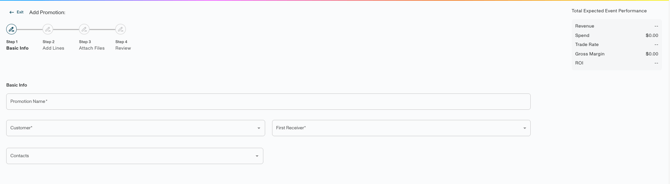
- Promotion Name should include: Customer Name Product (or Product Group) Promotion Type Month (abbreviated to first 3 letters) Year
-
- Ex: Target Snacks Scan Sep 2026 or Kroger EDLP Dec 2026
- Month + Year should be filled in for when the promotion is running – this can correspond to performance dates in the line creation steps, and informs the lift comparison table in Promotion → Details →Analytics tab
- Customer Name is added from the drop down menu; this can be a retailer or distributor
- First Receiver should populate automatically; if it does not, select the appropriate First Receiver(s) from the corresponding drop down menu where multiple first receivers are applicable for a single customer
- Contacts (optional) can be selected from the drop down if available, and could apply to the salesperson responsible for the customer, or a brokerage related to the specific retailer(s)
2. Add Lines
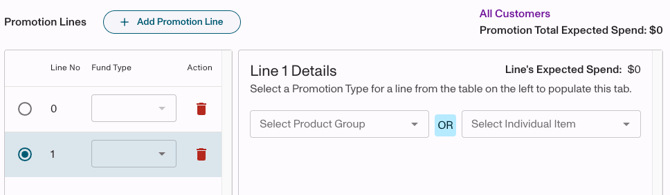
- Line 0 will be the first line on the promotion automatically, but more lines can be added by clicking + Add Promotion Line
- For example, a promotion for > 1 product group with different discount rates would require separate lines for each product group
- Fund Type is selected by drop down to populate requirements under Details
- Product Group or Individual Item must be selected
- Vividly recommends using Product Group whenever possible as this is what gets pulled into Insights → Promotion Analytics 2.0
- All Products can be used where applicable, for admin fees, operational costs, etc.
- Based on the Fund Type selected, various fields will be required. Your admin has set up the Fund Type to Promotion Fields mapping in the Account Settings → Fund Types section.
- Expected Lift may be required and is used for Forecast and ROI Analysis. If you are using this functionality, it is recommended to include lift where possible
- While lift itself is a percentage, it should be entered as a whole number here
- Actual lift is a calculated field that will populate based on uploaded POS data and will appear in Promotion → Details → Analytics tab with a lift comparison chart, as well as promotion exports
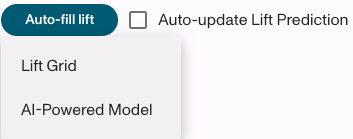
- Auto-fill lift will populate based on:
- Lift Grid: Based on the Lift Bucket created under Manage > Lift, taking the product group and customer into account.
- AI-Powered Model: Uses machine learning to predict the optimal promotional lift based on your historical uploaded POS data. Contact your CSM if you’re interested in this feature.
- Auto-update Lift Prediction should be checked in order to update the Lift if a change is made within the Lift Bucket or forecast
- Expected Lift may be required and is used for Forecast and ROI Analysis. If you are using this functionality, it is recommended to include lift where possible
-
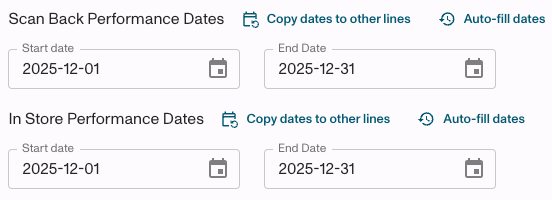
- Performance Dates are automatically populated based on the Month + Year selected in Basic Info but can be changed based on the promotion
-
- Scan Back dates: when the retailer gets reimbursed based on units scanned at checkout
- In Store dates: when the promotion is active on shelf for consumers to see/purchase
- Buy In dates: when customers/distributors can purchase product at the promotional allowance rate
-
- Performance Dates are automatically populated based on the Month + Year selected in Basic Info but can be changed based on the promotion
-
-
- If multiple dates are required, the first available should be selected and can then use the Auto-fill dates and Copy date to other lines functions to update all date fields across all promotion lines
- If the fund type requires multiple date types, the same dates can be used if applicable or can be different depending on the promotion
- For example, Scan Back and In Store dates often match, but the Buy In date window may be longer to account for orders ahead of In Store dates and inventory depletion
- Performance dates within promotion lines will dictate what analytics show in the Promotion → Details → Analytics tab
-
-
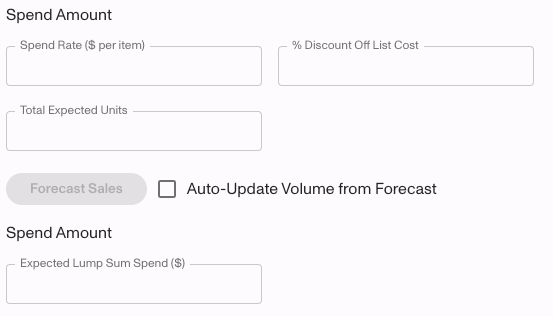
- Spend Amount is either a Lump Sum or a combination of Spend Rate and Total Expected Units
- Both cannot be included on a single line, but can be included in the same promotion by adding a separate line for each Spend Amount type
- For example, a promotion including a Scan and an Ad Fee would need one line for the Scan with Spend Rate and Total Expected Units, and the Ad Fee would only have Expected Lump Sum Spend
- Spend Rate is based on an individual unit and requires Total Expected Units to calculate Total Expected Spend
- If available, Spend Rate can be substituted by % Discount Off List Cost, which will calculate the individual unit Spend Rate based on pricing associated with the product or product group
- Total Expected Units is required with Spend Rate ($ or %), and corresponds to the individual units you expect to be sold during the promotion. If this promotion and product group is tied to Forecast, then you can click Forecast Sales to automatically fill in Total Expected Units
- Note: be sure to check Auto-Update Volume from Forecast to update the promotion’s expected units and total spend as the Forecast is updated nightly
- Both cannot be included on a single line, but can be included in the same promotion by adding a separate line for each Spend Amount type
- Spend Amount is either a Lump Sum or a combination of Spend Rate and Total Expected Units
-
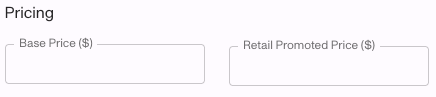
- Pricing is recommended but not required for promotion submission
- If known, enter Base Price (non-promoted, everyday price) and the Retail Promoted Price (price displayed at the retailer based on the promotion details during performance in store dates)
- Adding pricing to promotions helps track promotion execution (looking at expected vs. actual price performance), calculate ROI accurately, inform future promotions and analyze which price points drive performance (displayed in Insights → Promotion Analytics 2.0 → Bump Chart)
- Pricing is recommended but not required for promotion submission
3. Attach Files
- In this step, you can attach files, including contracts, agreements, emails and notes relevant to the promotion
- Adding a Comment can be helpful for deductions or expanding on details. Be sure to click +Add Comment to save
- Contract number can be added to provide further information about the promotion to match the retailer’s offer/contract number
- Tags can be added if available
- Tags are a customizable search field criteria and can be created under Account Settings → Promotions to track internal company objectives
- Ex: “AOP Planning”, “Missed Promotion” or “Post Audit”
- Status will always default to Pending, but can be changed in this step
- Status can be changed to Submitted, Approved, Running, or Completed based on internal approval processes and timeframes set for the respective promotional deal
- Promotions in Approved status will automatically move to Running based on performance dates, and then Completed once the promotion dates have passed
4. Review
-
This is the last step before submission to confirm promotion details by line and review total expected spend, trade rate and basic information before clicking Save Promotion in the bottom right hand corner
Best Practices for Promotion Creation
- Promotions should be entered monthly – if there is an annual promotion (such as an EDLP), there should be a promotion entered for each month
- Anything that is agreed upon with retailers and distributors should be entered as a promotion – including ad fees, operating costs, allowances, etc.
- Be sure to follow internal guidelines for promotion status changes to make sure they flow through timelines accurately
- Refer to your fund type requirements in Account Settings > Fund Types to ensure all necessary information is included in the creation of new promotions