
| Table of contents: |
| Keywords |
| Description |
| List of Fields |
| Search & Filter |
| Upload, Download, Delete |
| Timeframe Editor |
| Related Articles |
| Best Practices |
Keywords
-
Cost: Product acquisition or manufacturing cost
-
Retail Price: Suggested or standard selling price
-
Margin: Difference between cost and selling price
-
Price Point: Specific pricing level for promotional planning
-
Pricing Tier: Different price levels for various customer segments
Description
The Pricing section manages product retail pricing information essential for promotion planning and profitability analysis.
Fields
Search & Filter
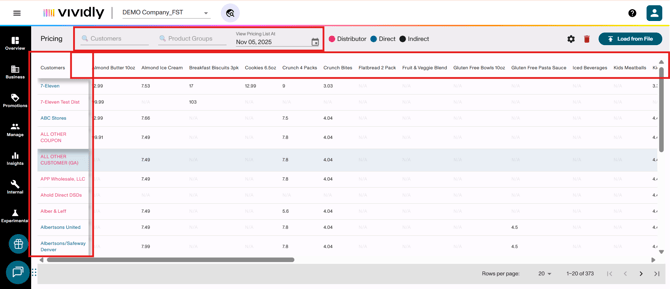
-
“Customers” search filter: Filters pricing view to show only selected customer(s) and their associated pricing.
-
“Product groups” search filter: Filters pricing view to show only selected product group(s) and their pricing across customers.
-
“View Pricing list at” search filter: Displays pricing as it existed at a specific historical date, enabling review of past pricing or future planned pricing.
-
Pricing list: Matrix display showing unit-level pricing for each customer-product group combination.
-
Customers column: Column that displays customers.
-
Product group row: Row that displays product groups.
Upload, Download, Delete
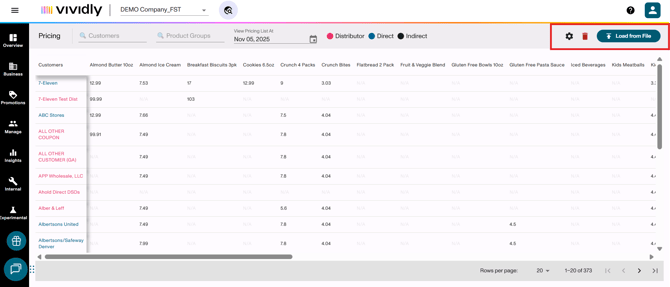
-
“Gear icon > Download pricing” button: Exports all pricing data to Excel/CSV format for external management or bulk editing preparation.
-
Delete icon: Removes specific pricing entry for customer-product group combination.
-
“Load from File” button: Bulk upload tool for adding or updating multiple pricing entries simultaneously via Excel file.
Timeframe Editor
This is a detailed view for managing multiple pricing timeframes for a specific customer-product group combination. It’s divided into:
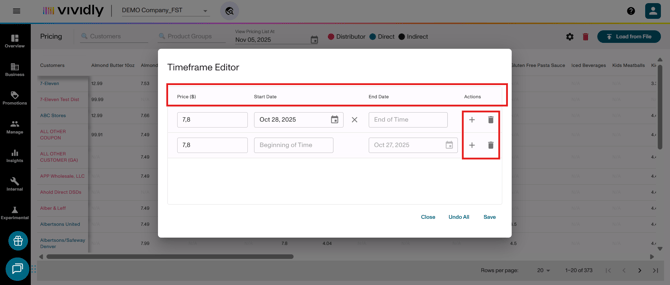
-
Price column field: Displays and allows editing of unit-level price for the timeframe.
-
Start date column field: Defines when the pricing becomes effective.
-
End date column field: Defines when the pricing expires and is no longer effective.
-
Plus icon: Adds new pricing timeframe for the customer-product group combination.
-
Delete icon: Removes specific pricing timeframe entry.
Related Articles
Best Practices
- Remember to use unit level pricing, not case level.
- Use accurate pricing start dates according to your promo planning.
- Leave end dates blank for ongoing pricing.
- Set up future pricing in advance according to promo planning.
- Export before doing any bulk updates to have backup data.
- Use bulk upload for efficiency instead of manual entry.
- Validate pricing before promotions.
- Audit pricing changes periodically to make sure every price is set up correctly.
- Align pricing with customer timeframes.