
Overview
The Miss Log is a centralized work queue used to review and resolve deductions that cannot be automatically matched to a promotion.
Deductions are sent to the Miss Log when the Finance cannot confidently validate them in the system. This ensures accuracy while still allowing automation and finance to handle the majority of deductions.
|
|
|
Step 1: Access the Miss Log
- Navigate to:
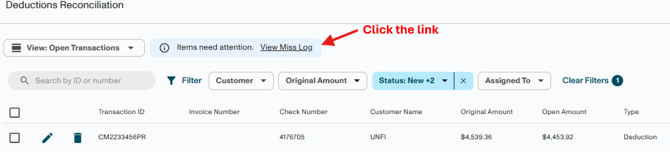
Business → Deduction Reconciliation 2.0 - Click View Miss Log
This will open your full list of deductions requiring review.
Step 2: Understand Why a Deduction Is in the Miss Log
A deduction will appear in the Miss Log if one or more of the following occurs:
- No matching promotion is found
- Spend rates differ from expectations
- There are mismatches in key fields:
- Customer
- Promotion Date
- Fund Type
- Product or Product Group
- Spend Rate
- The deduction relates to a closed promotion
- The system requires manual validation
The Miss Log is not an error - it is a control step to ensure validation accuracy.
Step 3: Get Notified & Locate Your Items
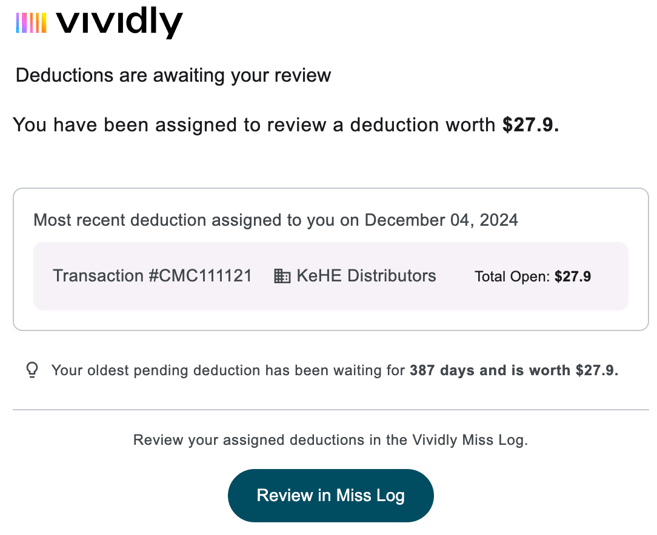
- You will receive an email notification when a deduction is assigned to you
- Click the link in the email to open the item directly
- Assignments are typically made by the Finance team
Inside the Miss Log, you will see:
- Deduction details (amount, customer, date)
- Reason for exception
- Assigned user
- Comments
- Available actions
Step 4: Review a Deduction
- Review line-level details
- Click the preview icon to view backup documentation
- Review comments left by finance
- Use the three-dot menu to:
- Reassign the item to another team member
- Download backup
- View source transaction
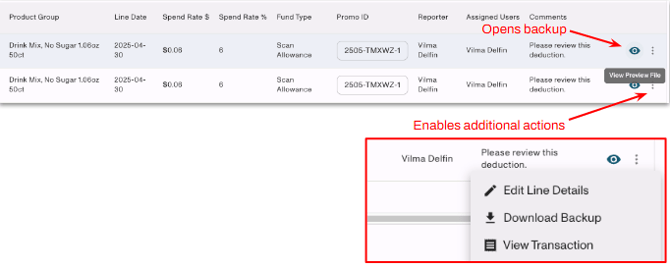
Note: The eye icon and line item details icon will appear at either the deduction line or transaction level, depending on whether the “Aggregate Similar Lines” toggle is on or off. If aggregation is enabled, you will need to expand the lines to access these actions.
Tip: Tagging Users
You can reply directly to Finance using the comments panel.
When tagging a user in a Sales Review or Dispute comment:
- Use @ + their name
- The tagged user will receive a notification within the Deduction Reconciliation module
To view mentions:
- Click the User Mentions icon (speech bubble) in the top right
- View all messages where you’ve been tagged, including:
- Who tagged you
- The comment/message
- Date and time
- A direct link to the transaction
Caution: Only leave comments under the Comments tab. Adding a comment under the Resolution Activity tab performs an action (such as a write-off), which should generally only be done by the Finance team.
Optional: Speed Up Review
Enable “Aggregate Similar Lines” to simplify the Miss Log by grouping invoice lines that share key details:
- Customer
- Product Group
- Month/Year
- Spend Rate
- Fund Type
This allows you to review and take action on multiple SKU-level deductions at once—such as confirming validity, assigning an existing promotion, creating a new promotion, or flagging for dispute.
Use the arrow on the left side of the row to expand and view individual lines within an aggregated row.
Best Practice: Start with aggregation on for a high-level view, then expand or turn it off when you need to review details, comments, or backup.
Step 5: Choose a Resolution Action
Once you review the deduction, select one of the following actions:

Note: Only repayment/deduction lines flagged for Sales Review will appear in your list and require your attention. While the attached backup reflects the full deduction, other lines may have already been resolved.
Option A: Assign to an Existing Promotion
Use this when a matching promotion already exists.
Steps:
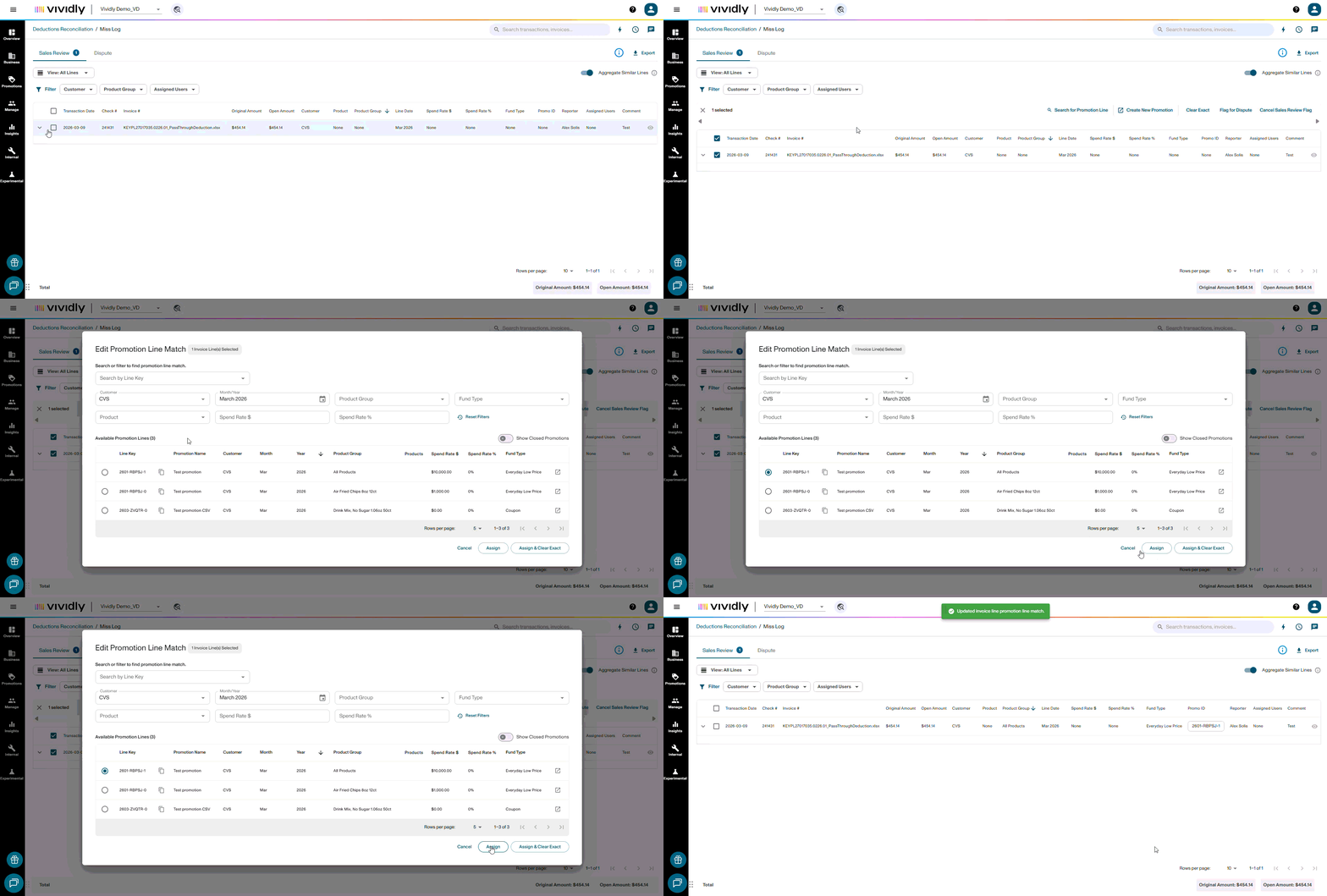
- Click Search for Promotion Line
- Review the pre-filtered search results
- Select the correct promotion
- Choose:
- Assign, or
- Assign & Clear (if ready to resolve)
Note: Closed promotions are visible but must be reopened before deductions can be cleared against them. See below for more information on working with closed promotions.
How To Correct A Promo ID
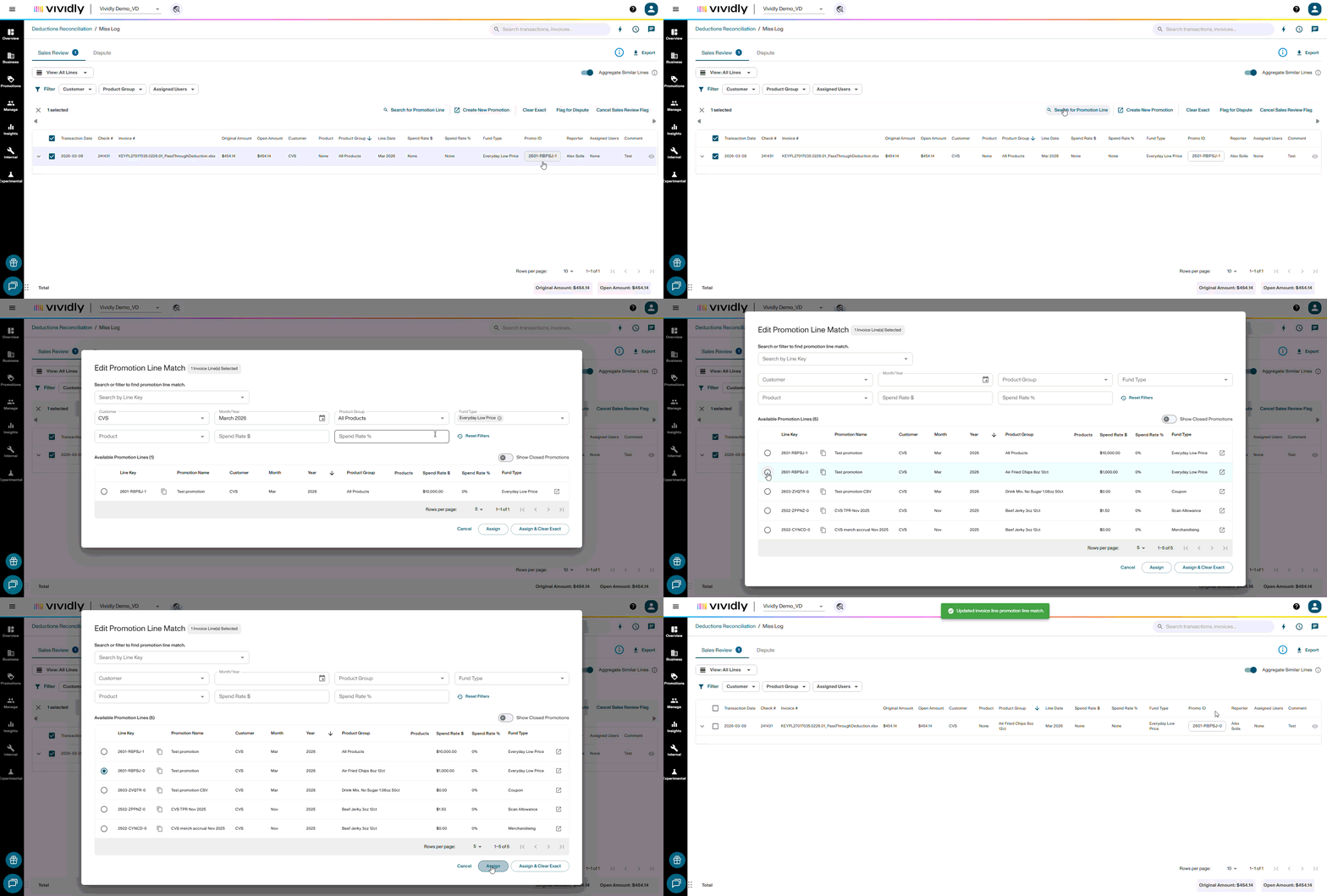
If a Promo ID was assigned incorrectly:
-
Select the invoice line.
-
Click "Search for Promotion Line."
-
Find the correct promotion and click "Assign" to update it.
Option B: Create a New Promotion
Use this when no promotion exists for a valid event.
Steps:
- Click Create New Promotion
- Review pre-populated fields
- Update and validate:
- Promotion Name
- Product/Product Group
- Fund type
- Dates
- Spend rate
- Expected Spend
- Etc.
- Attach supporting documentation (if needed)
- (Recommended) Add a “Missed Promotion” tag
- Save the promotion
After creation:
- The promotion is automatically linked to the deduction line
- Should be redirected to the Miss Log
Final step: Click Clear Exact to fully resolve the deduction line
Option C: Clear Exact
Use when:
- A promotion is already assigned
This action:
- Fully settles the deduction
- Removes it from the Miss Log
Caution: Align internally and confirm with Finance whether Sales should perform this action in the Miss Log, or if it should be a Finance responsibility.
Option D: Flag for Dispute
Use when the deduction is invalid.
Steps:
- Click Flag for Dispute
- Add a reason
- Attach supporting documentation (examples):
- POD
- BOL
- PO
- Invoice
- Promotion agreement
- Email communication
Result: The deduction moves to the Dispute Log
Note: Flagging an item as Dispute is simply a way to segregate it for investigation. Once flagged, follow your company’s internal dispute process and timelines.
Vividly also offers dispute management services that can handle disputes on your behalf. Contact your Customer Success Manager or email support@govividly.com to learn more about Vividly Dispute Services and how to add them to your subscription.
Option E: Cancel Sales Review Flag (Finance Only)
Use only if the deduction was incorrectly routed to the Miss Log.
Steps:
- Select Cancel Sales Review Flag
- Add a comment explaining why
Note: This should only be used by Finance and not as a primary resolution method.
For Services Clients: To ensure our team captures and addresses all necessary sales review comments, we ask our services clients avoid using the 'Cancel Sales Review' feature.
Step 6: Handle Special Scenarios
Closed Promotions
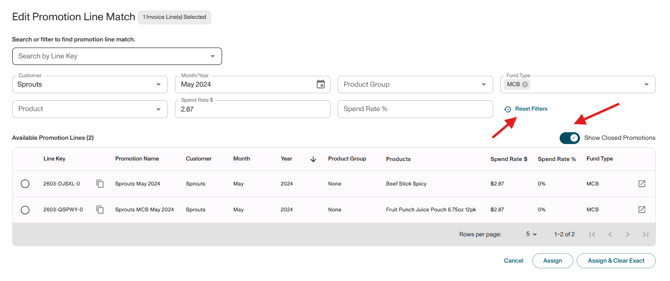
If your search returns no results, the promotion may already be closed—these are hidden by default, and deductions cannot be cleared against them.
To include closed promotions in your search:
- Select the invoice line and click “Search for Promotion Line”
- Turn on the “Show Closed Promotions” toggle
Your results will now include closed promotions.
If a valid deduction needs to be matched:
- Reopen or recreate the promotion
- Assign the deduction
- Clear the deduction
- Reclose the promotion
Recommended Promotion Close Timing
To reduce unnecessary Miss Log items:
- Fast-settling customers: close ~60 days after month-end
- Others: close ~90–120 days after month-end
Click here to learn more about opening and closing promotions.
Step 7: Understand How Matching Works
Using the system, finance attempts to auto-match deductions using:
- Parsed backup data
- Customer and product mapping
- Promotion attributes:
- Customer
- Product
- Timing
- Spend rate
If confidence is low, the deduction is sent to the Miss Log for manual review by the sales team.
Step 8: Follow Best Practices
To keep your Miss Log manageable:
- Review items weekly (or more frequently): Prevent backlog and ensure timely resolution.
- Address root causes: Missing promotions, incorrect rates, or incomplete data to prevent repeat misses.
- Dispute invalid deductions early: when deductions are invalid to avoid overpayment and delayed recovery (Don’t miss dispute windows).
- Monitor trends and recurring issues: Review Miss Log entries to identify systemic issues and improve upstream processes.
- Keep the Miss Log small and actionable
Goal: Reduce Miss Log volume over time by increasing accuracy, completeness, and automation.
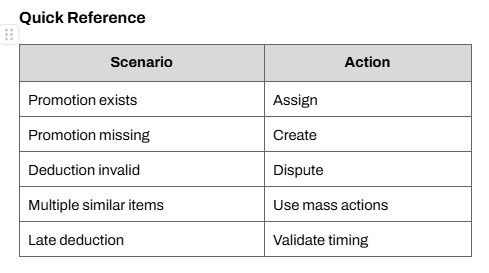
Step 9: Reduce Miss Log Volume
1. Use Placeholder Promotions
Create “catch-all” promotions for:
- Advertising
- Admin fees
- Returns & spoils
- Slotting
- Merchandising
- Chargebacks
- Shortages
- OIs
- Pre-cutover deductions
- Distributor “All Other” buckets (ie KeHE All Other, UNFI All Other, etc)
Note: If a deduction is expected, a promotion (or placeholder promotion) should exist.
What is an “All Other” Customer Bucket?
An “All Other” customer bucket is a catch-all for smaller or untracked retailers that receive your product through a distributor, allowing you to plan and track promotions without setting up each retailer individually.
2. Set Finance Thresholds
Define what can be cleared without Sales review.
Example:
- Admin fees
- Spoils ≤ $500
- Slotting ≤ $150
3. Monitor Trends
Look for:
- Missing promotions
- Incorrect rates
- Timing delays
4. Review Placeholder Spend
- Review monthly or quarterly
- Adjust forecasts as needed
- Break out individual retailers from “All Other” buckets as they grow and spend becomes material
End State Goal
Over time, your Miss Log should:
- Decrease in size
- Contain only true exceptions
- Be quick and easy to manage
A well-managed Miss Log indicates strong processes and accurate promotion setup.