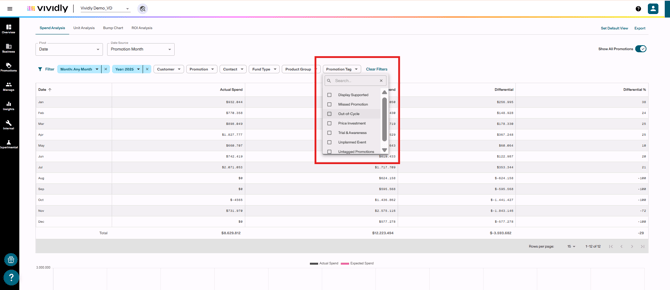
Manage Promotion Tags
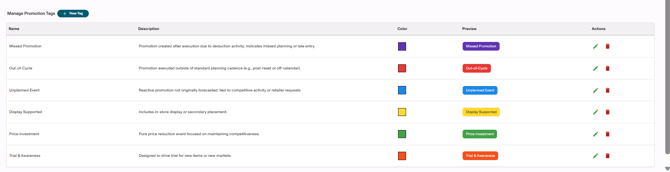
List of Fields - Account Settings > Promotions
-
“+ New Tag” button: Button that creates a new promotion tag line to set up the tag.
-
Name column: Column where a textbox is found in order to add the name of the tag there.
-
Description column: Column where a textbox is found in order to add a description of the tag there.
-
Color column: Column where the color of the tag is selected.
-
Preview column: Column where a preview of the tag is shown according to the name typed and color selected.
-
Actions column: Column where the different editing options are located depending on if you are editing the tag or not:

-
- Edit icon (pencil icon
 ): Allows editing tag details.
 - Delete icon (Bin icon
 ): Delete tag.
- Edit icon (pencil icon
Full process of managing promotion tags in Vividly.
Now knowing this section and its fields that allow you to manage promotions, it's necessary to clarify what can be done when we talk about "Managing". In the context of promotion tags, we manage promotions by:
-
-
Creating promotion tags.
-
Editing promotion tags.
-
Deleting promotion tags.
-
Adding tags to promotions.
-
In this section, we'll focus on providing the set of steps to do each one of these actions.
(1) Creating promotion tags.
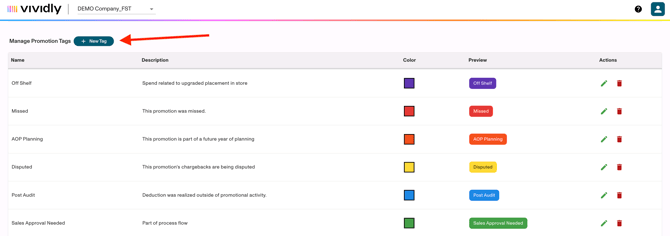
1. Navigate to Account Settings > Promotions and scroll down to "Manage Promotion Tags”.
2. Click on “+ New Tag” and enter the “Name” and “Description”
3. Optionally, click on the Color square to change the color
4. Click on the checkmark if done, or the X icon if you want to cancel.
(2) Editing promotion tags.
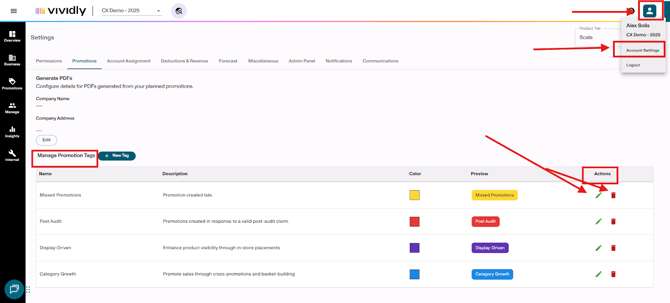
1. Go to the Manage Promotion Tags table and navigate to the “Actions” column of the promotion you want to edit.
2. Click on the “Pencil” icon to edit and then edit the promotion tags components (name, description, etc) as when you are creating a promotion tag.
(3) Deleting promotion tags.
1. Go to the Manage Promotion Tags table and navigate to the “Actions” column of the promotion you want to edit.
2. Click on the “trashcan” icon to delete the promotion tag.
Note: If the "New Tag" button is grey'd out, you may have too many tags of a single color. Change the color of an existing tag in order to create a new tag.
(4) Add and remove promotion tags from specific promotions.
Now the main and most important question: How do I use them? They are used while managing your promotions, specifically when creating or editing them. The specific steps to follow would be the following ones:
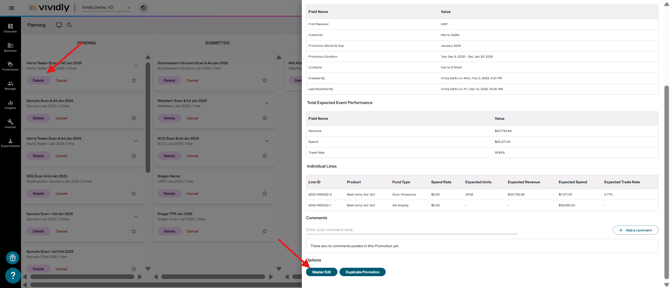
1. Go to the black-left side menu and click on "Promotions" > any of the subsection of Vividly where the promotions are listed (Planning, Execution, Closed, Declined, Cancelled).
2. Once accessed in the promotions subsections page (e. g. "Planning"), go to any promotion and click on it or in its "Details" button (depending the page where you are seeing the promotion). The intention is to access the "Promotion" profile.
3. Once the promotion profile is opened, scroll down and click on "Master Edit" button. Remember, this will take you to the promotion edit steps.
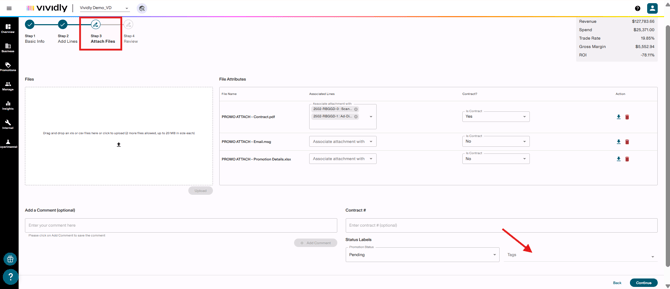
4. Click on "Continue" button at the right-lower button until you get to the "Step 3: Attach Files" steps.
5. Once in that step, go to the "Tags" dropdown in the "Status Labels" section of the page (Next to the "Promotion Status" dropdown).
6. Click on the "Tags" dropdown and select the tags you'll link to this promotion.
a. Add a promotion tag: When a promotion tag is selected, notice a checkmark will appear next to the promotion tag.
b. Remove a promotion tag: To unselect it, click again on a promotion tag that has a checkmark.

General suggestion for promotion tags management.
Consider some general set of promotion tags for general operations. Some brands have some promotion tags preset before creating particular promotion tags for specific purposes. Some examples that we can suggest you are:
-
- Missed promotion: Used for for promotions entered after the fact when deductions come in for promotions that weren't originally planned or entered.
- Placeholder promotion: Used to identify promotions used for non-trade spend tracking and disputes (not actual planned promotions).
- AOP(Annual Operating Plan): Used for promotions that are part of annual operating plan projections, especially those not yet confirmed or approved.
- Incremental Spend: Used for promotions representing unplanned spend above and beyond original budget allocations.
- High confidence: Used to indicate high likelihood (>75%) the promotion will execute as planned.
- Medium confidence: Used to indicate moderate likelihood (~50-75%) the promotion will execute as planned.
- Low confidence: Used to indicate low likelihood (<50%) the promotion will execute as planned or pending final approval.
- Missing details: Used for promotions created with placeholder information (e.g., $1 spend rate) that need final details added later.
- New distribution: Used for promotions tied to new retail distribution not yet finalized or confirmed.
- Co-op: Used for co-op marketing promotions to track return on investment for co-operative marketing spend.
- Bundle: Used for bundle-type promotions (e.g., "Buy 2 for $7", "Buy 2 Get 1 Free") to analyze bundling strategy effectiveness.
- Test promotion: Used for pilot or test promotions to evaluate performance before rolling out more broadly.
- Replicate for next year: Used for promotions that should be duplicated into next year's calendar during annual planning.
- Under review: Used for promotions pending finance or leadership approval before moving to approved status.
- Unconfirmed: Used for tentative promotions discussed with retailers but not yet formalized in contracts.
- Discontinued: Used for promotions that were pretended to be deleted but, since it isn't possible due to data dependencies, they are excluded from the promotions section by renaming them.
Promotion tags usage.
Yeah sure, now you know how to manage promotion tags: But what's the point? Ho w are promotion tags used besides adding them and removing them from promotions?
-
-
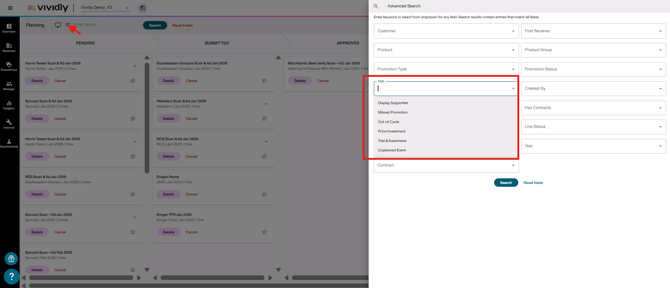
Filter promotions by category: Tags enable filtering the promotion view to show only promotions with specific tags, making it easy to find groups of related promotions. This can include any sort of promotions, including missed or placeholder promotions.
-
Use promotions tags as a filtering criteria for analytics reports: Tag promotions can be used to filter analytics data. So you can use tags for specific promotion in order to identify the data related to a filter criteria that isn't included in our analytics reports. For example: Incremental or unplanned spend.
-