
Keywords
-
SKU (Stock Keeping Unit): Unique identifier for each product variant
-
UPC (Universal Product Code): Standardized barcode identifier
-
Product Hierarchy: Hierarchical structure for relating product groups.
-
Product Group: Collection of related products for pricing, reporting and promotion planning purposes.
-
Product Margin: Profit that a brand makes from a product after deducting all its costs.
-
Unit size: Size of a product in a unit level.
-
Pack or case size: Number of units of product per case or pack.
Description
The Products section serves as the central repository for all product-related information, including item master data, pricing, UPCs, and product hierarchies. This module is fundamental to promotion planning and reporting accuracy.
Fields and Navigation
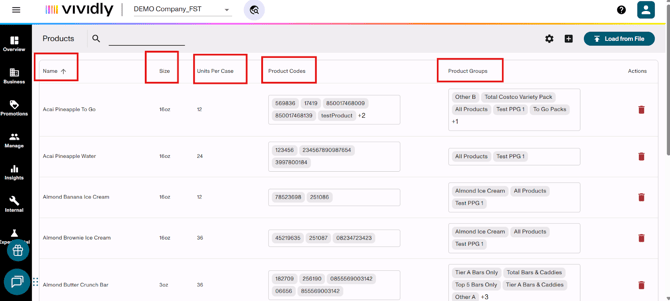
Product list basic information fields:
-
Product Name (“Name”) field: Field where you add the name of the product, which will be the primary identifier for the product displayed throughout the system.
-
Product Size (“Size”) field: Field that specifies the pack unit size. This page only manages products on a unit level. Other features can make the proper calculations to consider a case level (pack size).
-
Units per case field: Field where it’s defined how many units are contained in each case for inventory and promotion calculations.
-
Product codes field: Alternative identifiers (UPCs, SKUs, ERP item numbers) that enable system mapping when data is uploaded in other features of Vividly.
-
Product groups field: Shows which product group(s) the product belongs to; products must be assigned to at least one product group for promotion planning. Note: This field can only be edited in the “Product groups” / “Product Hierarchy" page.
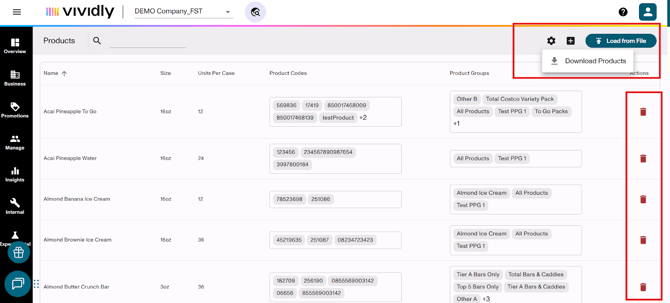
Product list action buttons:
-
Search bar: Allows to search product items by name or any other product details.
-
Delete action (Trash icon): Removes products from the system, but only if they have no dependencies (no promotions, pricing, or data uploads associated).
-
Load from file button: Bulk upload tool for adding multiple new products simultaneously via Excel file. It does NOT update existing products.
-
Add/ create button (Plus icon for products): Manually add a single new product by entering name, size, units per case, and codes. You can later edit to add additional details.
-
Download Products option (within the cog/settings icon): Exports all product data to Excel/CSV format for external reference.
Product profile fields:
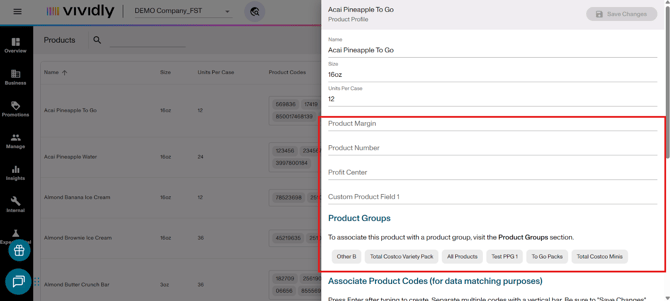
To clarify, this is a right product menu that appear after clicking a product. It includes the same fields as in “Product list” information plus the following fields:
-
Product Margin: Optional field for tracking product-level margin data; typically used for advanced reporting or reconciliation purposes.
-
Product Number: Internal product identifier that typically ties back to the accounting/ERP system for reconciliation.
-
Profit Center: Field that maps to accounting platform profit centers for more robust financial tracking and reporting.
-
Custom product field (notes): Flexible free-text field for any additional product information or notes specific to brand needs.
Related Articles
Best Practices
-
Maintain accurate and up-to-date product information.
-
Add product codes proactively for future data mapping.
- Create an "All Products" product group
- Set up a catch-all product group (with pricing toggle OFF) for tracking non-working trade items like spoils, fees, or promotions that don't tie to specific product groups
-
Use discontinued naming convention to avoid deleting products (Add: “ZZ_” or other).
-
Use bulk upload for efficiency if creating multiple products.
-
Follow an order of operations. We suggest: Create product first, second create the product group, third assign the products to product groups and fourth add the pricing last.
-
Export products regularly to review them.
- Turn on "Use for Pricing" toggle for all revenue-receiving product groups
- Understand product deletion restrictions
- Products with dependencies (in product groups, having uploads, or tied to promotions) cannot be deleted. Plan for this by using the discontinued naming convention from day one