
Description
The Manage > Customers section is the central hub for managing all retailer and distributor information in Vividly. It serves as the foundational database where you store and configure customer relationships, distribution networks, contact details, and account settings that are essential for trade promotion planning, forecasting, deduction management, and financial analytics.
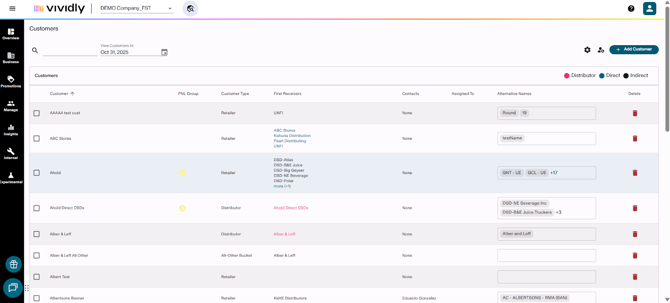
Types of Customers
-
Retailer - Any customer that sells products to end consumers
- Direct retailers: You ship to them directly (e.g., Target, Kroger, Whole Foods Direct)
- Indirect retailers: They purchase through a distributor (e.g., independent stores sourcing from UNFI)
- Note: After creating: Navigate to Manage Distribution to specify:
- "Customer is direct" checkbox → Check this if you ship directly to them AND they sell to end consumers. Vividly automatically sets the customer as their own first receiver
- First Receiver dropdown → Use this for indirect retailers to select which distributor they purchase through (e.g., "Sprouts purchases through KeHE")
-
Distributor - Entities you ship to that distribute products to other retailers (e.g., UNFI, KeHE, C&S)
- After creating:
- Automatically classified as a distributor (no "customer is direct" checkbox)
- Optional: Set up buying calendar windows for promotion planning
- After creating:
-
All-Other Bucket - A collective grouping for smaller customers serviced through a distributor
- Best Practice: Create one per distributor (e.g., "UNFI All Other")
- Purpose:
- Captures deductions and revenue from smaller independent retailers you're not explicitly tracking
- You can still create promotions and clear deductions for these customers
- Saves time by not requiring you to set up every single small account
List of Fields
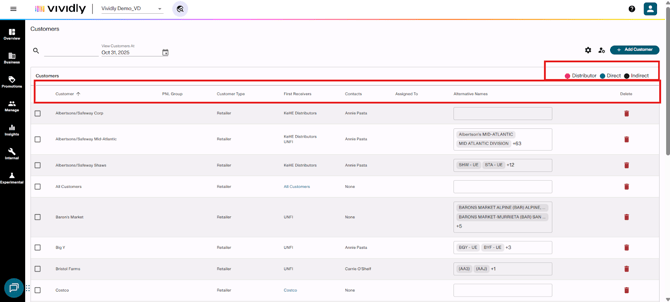
-
Customer: Primary customer name displayed throughout the system; editing this name updates it everywhere in Vividly.
-
Customer Type: Retailer, Distributor, or All-Other Bucket
-
First Receivers: The entity that receives your product first and is the source of your financial transactions. It's who you actually invoice and receive payment from.
-
Contacts: Displays associated broker or contact person linked to the customer account.
-
Assigned To: Shows which sales representative is responsible for the customer account.
- PNL Group (Optional): Visual indicators (colored icons) showing which customer groupings the customer belongs to for Finance Analytics reporting.
Customer List Actions
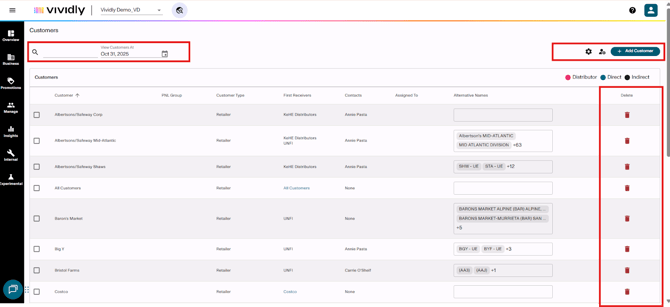
-
Delete (Trash icon): Removes customer from system, but only if no dependencies exist (no promotions, pricing, or data uploads).
-
Search Bar: Quickly filters customer list to find specific customers with the typed names.
-
View Customers At (Date filter): Allows viewing customer list as it existed at a specific historical date.
-
“+ Add Customer” button: Creates new customer record with three type options: Retailer, Distributor, or All Other Bucket.
-
Gear Icon: Button that displays the Download customers“” and “Edit customer custom alternative name tags” options.
-
“Download Customers” option: Exports all customer data to Excel/CSV format for external reference.
-
“Edit Customer Custom Alternative Name Tags” option: Manages custom tags for alternative names (Syndicated Data, Accounting Source, Deduction Matching).
-
“Manage Customer Groups” icon: Enables selection mode to create customer groupings for Finance Analytics reporting.
Customer Profile
Timeframes
- Select a timeframe to view dropdown: Allows you to view and edit different versions of the customer profile that are effective at different dates; enables switching between current customer configuration and future planned changes.
- Manage timeframes button: Creates future-dated versions of the customer profile to handle planned distribution changes, allowing you to set up changes months in advance that automatically take effect on specified dates.
General Info
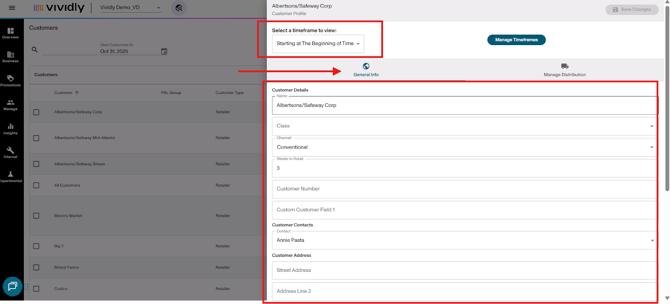
-
Class: Customer classification for reporting purposes. Appears in the Promotions Export, Forecast Export, and Finance Analytics page (e.g., Drug, Mass, Grocery, DSD Partner, Distributor).
-
Channel: Sales channel categorization for reporting purposes. Appears in the Promotions Export, Forecast Export, and Finance Analytics page (e.g., Retail, Food Service, Online).
-
Weeks to Retail: Number of weeks between warehouse shipment and in-store retail date; critical for forecast calculations.
-
Customer number: Internal identifier that typically ties back to accounting/ERP system.
-
Custom Customer Field: Flexible field for additional customer-specific information (e.g., division, region codes).
-
Customer Contacts: Links broker or third-party contact persons to the customer account.
-
Customer Address (Street address, address line 2, city, state and zip code field): Physical location information for the customer; optional fields for record-keeping.
-
Forecast Revenue Source: Selects which data source (Accounting Source, SPINS, Circana, Whole Foods, etc.) drives forecast generation for this customer.
-
Note: There is a distinction between Accounting and Non-Accounting Sources. You may choose >1 of either type, but you cannot select 1 of each type. In other words, you can select 2 Accounting Sources, but you cannot select 1 Accounting Source and 1 Non-Accounting Source.
-
-
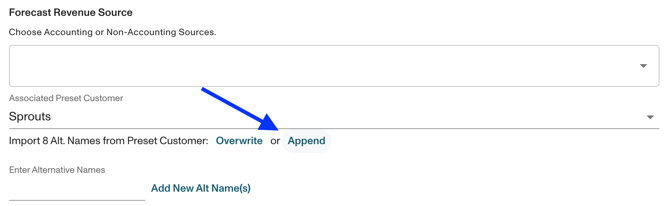
Associate Preset Customer: Links to Vividly's internal library of common customer codes accumulated across all brands; auto-populates alternative names. While this is initially setup during implementation, if you add a new customer, we recommend importing the customer alt-names from our Preset Customer List.
- In the customer profile, scroll down to the Associated Preset Customer and select the customer that most closely matches the name of the one you are creating. Click Append. While the Preset Customer List has 400+ customers, it is not an exhaustive list - not all customers will be present.
-
Alternative Names: Additional naming conventions and customer codes that enable data matching when uploads don't use the exact Vividly customer name.
-
- Note: The Syndicated Data and Accounting Source tags for are organization purposes only and do not drive any software logic. UPCs or Item Numbers must be an exact match to these codes for uploads to be successful.
- The Deduction Matching tag is not just for organization purposes, and directly impacts logic in the Deductions Reconciliation module.
- When scanning deductions to create invoice lines, you map a Customer Name field to the Customer Name or Vividly Customer Name that is derived from the PDF or Excel backup file.
- The system prioritizes an exact match to the name of the Customer Profile.
- If no match is found, it will search for an exact match to a customer alternative name.
- If no match is found, it will search for a substring match to a customer alternative name that has the Deductions Matching tag.
- Ex) If I have an alternative name of "Sprouts" with the Deductions Matching tag, "Sprouts #1231" and "Sprouts Denver" would both match since they contain the word "Sprouts".
Manage Distribution
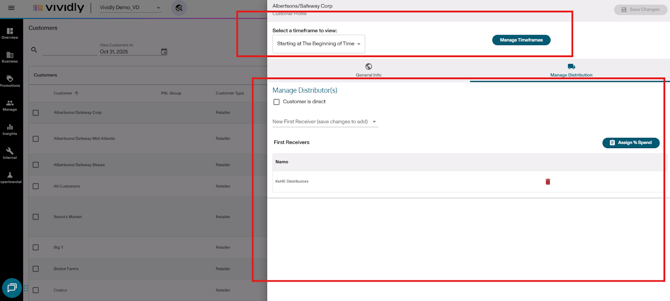
This section defines the customer's route-to-market structure; Here is where you set up the “First receiver” but additionally to that, you can add:
-
Assign % Spend: Allows users to allocate distribution percentages when a customer receives product through multiple first receivers (distributors).
- The Assign % Spend button enables you to define how revenue and trade spend are split across multiple first receivers for a single customer. You can configure splits in two ways:
- All Product Groups: Apply a uniform percentage split across all products (e.g., 60% KeHe, 40% UNFI)
- Individual Product Groups: Set specific distribution splits for individual product groups, allowing different products to have different first receiver allocations (e.g., Crunch 4-Packs = 100% Sea Coast Distribution; All Other Products = 50% KeHe, 50% UNFI)
- Key Requirements:
-
- Percentages must total 100% before saving
- The system prevents saving if splits don't equal 100%
- Splits can be adjusted over time using effective date ranges for distribution changes