
Purpose of Contacts
- Promotion Planning: You can use advanced search to filter on Contacts. The Contact field will also appear on the export.
- Promotion Analytics: Users can filter to specific contacts
- Budgeting: Users can filter to specific contacts
How to Manage Contacts
Creating Contacts
- Navigate to Manage > Contacts
- Click Add New to create individual contacts (most fields are optional)
- Alternatively, use Load from File for bulk uploads
Editing Contacts
- Export existing contacts using the gear icon (Download Contacts)
- Make revisions in the exported file
- Re-upload via Load from File
Deleting Contacts
- Use the trash can icon to remove contacts
Navigation
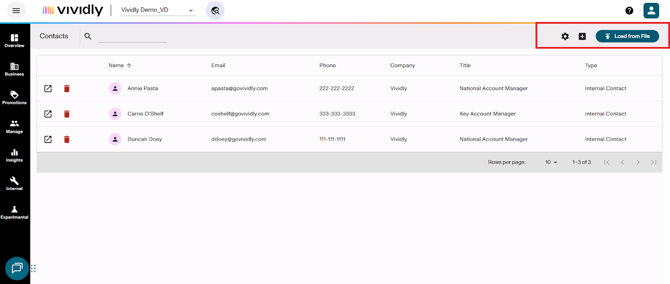
-
Gear icon > Download contacts: Option to export the contacts list.
-
“Add contacts” icon: Button used to add new contacts to your list.
-
Load from file button: Button to upload your contacts list, adding multiple contacts in bulk.
Step-by-Step Guides (Coming Soon)
In the Contacts page there’s a bunch of actions that can be done, and in order to do them go to “Manage” > “Contacts”. The actions are the following:
-
How to search contacts in the “Contacts” page?
-
How to add/create contacts in the “Contacts” page?
-
How to bulk uploads in order to create multiple contacts in the “Contacts” page?
-
How to edit/update actions in the “Contacts” page?
-
How to delete contacts in the “Contacts” page?