
Overview
Kroger uses an accounting process called netting, where deductions are applied directly against open invoices before payment is issued. Unlike most retailers, Kroger often processes these offsets through a separate netting payment reference rather than deducting the amount directly on the remittance associated with a check or EFT.
The netting reference functions much like a remittance, it identifies which invoices are being settled and which deductions are being applied, but no cash payment is issued. In some cases, the deductions completely offset the invoice balance, resulting in a zero-dollar payment.
Because Kroger does not send notifications or remittance emails for these netting references, brands must proactively monitor the Kroger portal and process them regularly to keep Accounts Receivable accurate.
Recommended Best Practice: Review the Kroger portal for new netting payment references weekly.
This article is for you if:
- Discrepancies exist where Kroger invoices are marked as paid in their portal but remain outstanding within your ERP system.
- Persistent aging receivables for Kroger are accumulating without a clear link to a specific payment remittance.
- You need to understand how Kroger offsets deductions against invoices.
- You see a Kroger payment reference with a payment amount of $0.00.
What Makes Kroger Netting Different?
Most retailers deduct promotional allowances, compliance charges, and other deductions directly from a payment remittance. The AR team receives a payment, reviews the remittance, and records both the cash received and the deductions taken.
Kroger frequently handles deductions differently.
Instead of taking deductions directly on a check or EFT remittance, Kroger may first issue a separate netting payment reference. This reference acts like a remittance and identifies the invoices being settled and the deductions being applied, resulting in a net balance.
No cash payment is issued with the netting reference.
As a result:
- Open AR is reduced in Kroger's system.
- No cash hits your bank account.
- No remittance notification is sent.
- The invoice may appear fully paid in Kroger's portal while remaining open in your ERP if the netting reference is not processed.
This is one of the most common causes of aged Kroger receivables that appear outstanding internally but have already been settled by Kroger
Understanding Kroger Netting Scenarios
Scenario 1: Partial Netting
Kroger applies deductions against part of the invoice and pays the remaining balance through a check or EFT.
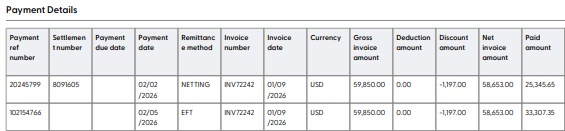
Example:
- Invoice Amount: $59,850.00
- Compliance Deduction: -$25,345.65
- Check or EFT Payment: $33,307.35
In this example:
-
Kroger creates a netting payment reference for $25,345.65.
-
Kroger later issues an $33,307.35 payment.
-
Both transactions must be recorded to fully settle AR.
Scenario 2: Full Netting (Zero-Dollar Payment)
The deductions completely offset the invoice balance.

Example:
- Invoice Amount: $29,925.00
- Compliance Deduction: -$1,097.75
- Promotional Allowances: -$28,228.75
- Check or EFT Payment: $0
In this example:
- Kroger issues a netting payment reference.
- No EFT or check is created.
- The invoice is considered paid in Kroger's system.
- AR must still be reduced internally.
How to Identify Netting Payment References
Log into the Kroger portal and review recent payment activity.
Look for payment references that show:
- Payment amount of $0.00 or a reduced payment amount
- Payment type indicating Netting
- Invoices being offset by deductions
- A unique payment reference number separate from check or EFT payments
Each payment reference should be treated as a separate settlement event.
Important: Netting references are not tied directly to bank activity. If your team only reconciles based on cash receipts, these transactions can easily be missed.
How to Process Kroger Netting Payments
- Log into the Kroger portal and locate the netting payment reference. Review the invoices being settled, the deductions being applied, and the total amount being netted.
- Process the netting payment reference as a separate settlement event. Do not combine multiple netting references together or with another check or EFT payment.
- Record the transaction in your ERP by creating the appropriate credit memo, deduction transaction, or offsetting entry to reduce the open AR balance.
- Process the netting reference in Vividly:
- Cash Application customers: Create a $0 payment and attach the netting report as you would a remittance, even though no cash was received. Vividly will separate the invoices and deductions, and create the appropriate credit memo and apply to the open invoice.
- Fully Integrated ERP customers: Once created in the ERP, the credit memo or deduction transaction will flow into Vividly through the integration and can be reconciled through DRM as normal.
Expected Result
- Open AR on the Kroger invoice is reduced in your accounting system
- The deduction is recorded as the offsetting entry
- The payment reference shows as processed in your accounting system and in Vividly
- No cash hits your bank account for full zero-dollar netting payments (this is expected)
Best Practices
- Review the Kroger portal at least weekly, maintain a recurring reminder to check for new netting activity.
- Process netting references as soon as they are identified.
- Treat each payment reference separately.
- Do not rely solely on bank activity when reconciling Kroger receivables.
- Train AR teams to investigate invoices that appear paid in Kroger's portal but remain open internally.
Troubleshooting
Issue: Invoice Appears Open Internally but Paid in Kroger (or No Cash Was Received)
Likely Cause
The invoice was settled through a Kroger netting payment reference that was never processed. Because Kroger does not issue a check, EFT, or remittance notification for netting transactions, the invoice may appear paid in the Kroger portal while remaining open in your ERP.
Resolution
Locate the netting payment reference in the Kroger portal and process it as a separate settlement event. Create the appropriate credit memo, deduction transaction, or offsetting entry to reduce open AR. For fully netted invoices, no cash payment should be expected.
Issue: We Received a Partial Payment but the Invoice Shows Fully Settled
Likely Cause
Kroger partially paid the invoice through a check or EFT and settled the remaining balance through a separate netting payment reference.
Resolution
Process both transactions separately. Apply the cash payment against the invoice and then process the netting payment reference for the remaining balance. Once both transactions have been recorded, the invoice should be fully settled and the open AR balance should be reduced to $0.
Frequently Asked Questions
Does Kroger Send Remittances for Netting Payments?
No. Kroger does not send remittance notifications or emails for netting payment references. Brands must identify these manually through the Kroger portal.
How Often Should We Check for Netting Activity?
At minimum, weekly. More frequent reviews may be appropriate for high-volume Kroger businesses.
Does This Happen with Other Retailers?
Yes. Other retailers and distributors also use netting processes.
Examples include:
- Amazon
- AWG (Associated Wholesale Grocers)
However, each retailer handles notifications and remittance reporting differently.
If We Have an ERP Integration with Vividly, Is This Automatic?
No. Although all backup is pulled from the portal with BRS, including netting payment references, identifying that a netting payment occurred remains a manual process. Your AR team must review the Kroger portal and process the netting reference. Once the transaction is created in the ERP, it will flow into Vividly automatically through the integration.