
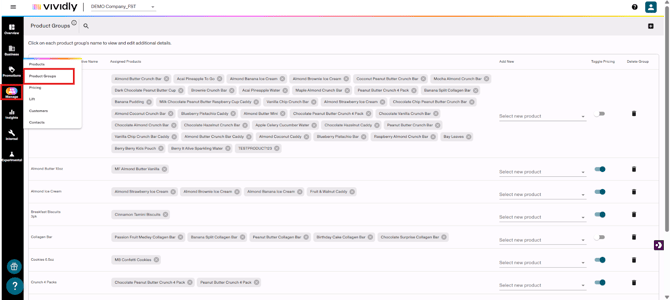
Step 1: Navigate to Product Groups
- Go to Manage section in the left sidebar
- Click on Product Groups
Step 2: Create a New Product Group
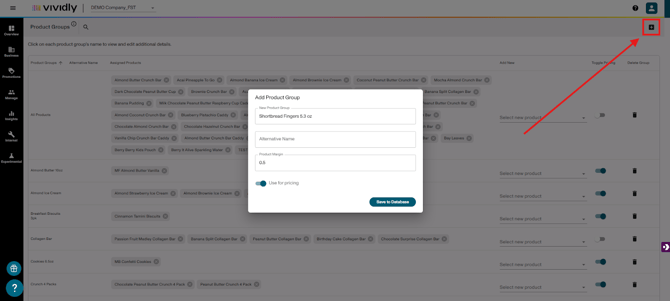
Create the Group
- Click the plus (+) icon in the upper right corner
- Fill in the required fields:
- New Product Group: Enter the name for your product group (e.g., "12oz Cans", "Variety Packs", "Holiday Items")
- Alternative Names: Optional field - leave blank unless you have specific naming requirements
- Product Margin: Optional field - enter the margin percentage if you have product margin data available (helps with profitability calculations)
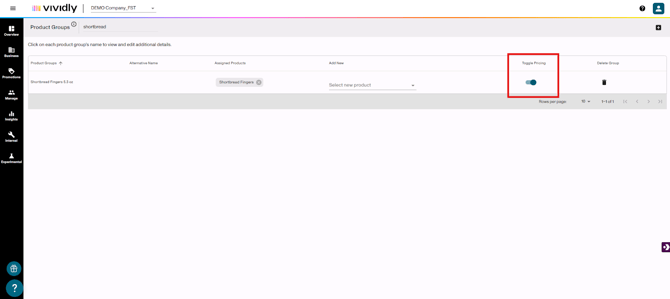
- Use for Pricing: Toggle this ON if this product group will receive revenue and show up in pricing sections
Save the Product Group
- Click Save
- Your new product group will appear in the list
Step 3: Add Products to the Product Group
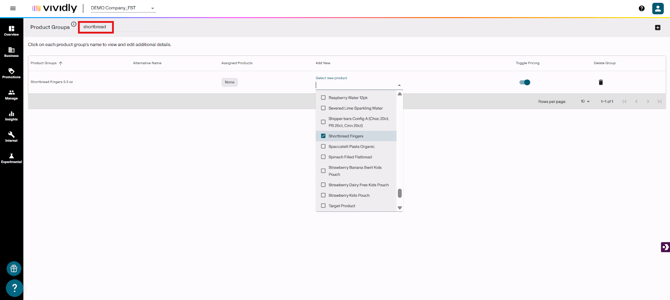
Method 1: Add from Product Groups Page
- Find your newly created product group in the list
- Click on the dropdown arrow next to the product group name
- Select products from the dropdown list to add them to the group
- Products already in the group will appear grayed out
- Click on any available product to add it to the group
- To remove a product, click the X next to the product name
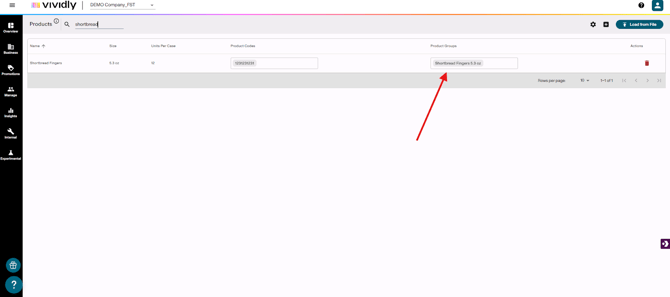
Method 2: Add from Individual Product Group Profile
- Click on the product group name to open its profile
- Use the dropdown menu to see all available products
- Select products to add them to the group
- Products already assigned will be grayed out
Important Settings Explained
"Use for Pricing" Toggle
✅ Turn ON when:
- The product group receives revenue
- You want it to appear in the pricing section
- You'll be setting customer pricing for this group
- Most product groups should have this enabled
❌ Turn OFF when:
- The group is used for tracking only (like "All Products")
- It's a discontinued or non-revenue generating group
Next Step After Creating Product Groups
Add Pricing: Set up customer pricing for groups with "Use for Pricing" enabled