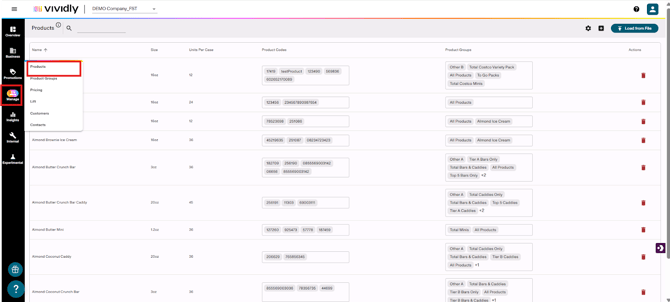
Step 1: Navigate to Products
- Go to Manage section in the left sidebar
- Click on Products
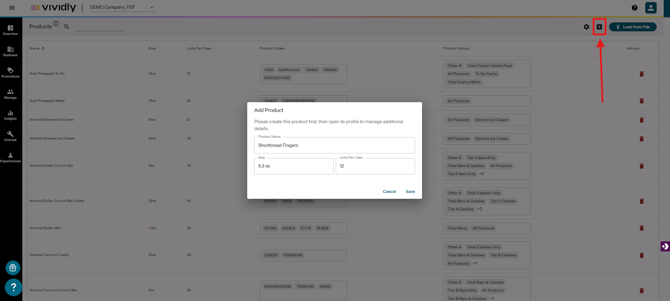
Step 2: Add the Basic Product Information
- Click the plus (+) icon in the upper right corner
- Fill in the three required fields:
- Product Name: Enter the product name
- Size: Enter the package size (e.g., "12 oz", "24 ct")
- Units per Case: Enter how many units are in a case
- Click Save
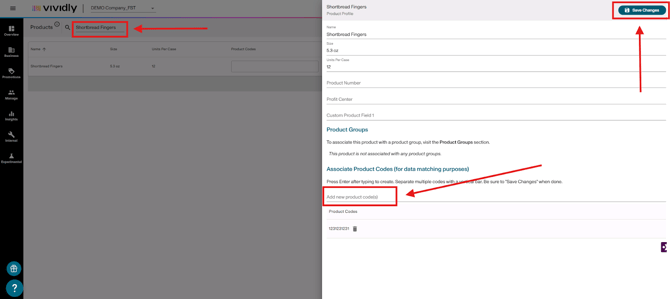
Step 3: Add Product Codes
- Search for your newly created product using the search box
- Click on the product name to open the product profile
- In the product codes section, add any relevant codes:
- UPCs
- Item numbers
- Retailer-specific codes
- Internal SKU codes
- To add each code: Type the code and press Enter
- Click Save Changes when finished
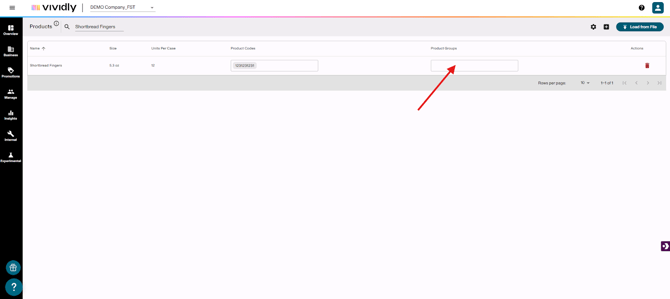
IMPORTANT: After creating your new products they should be assigned to a Product Group as pricing is handled at the group level, not individual product level