
Vividly does not currently support a native customer merge function. If a duplicate customer record was created and has deductions, promotions, or data attached to it, it cannot be deleted. The recommended approach is to use alternative names on the correct customer record to redirect future data uploads, rename the duplicate to prevent new data from being directed to it, and communicate the correction to your team. What causes duplicates:
-
A team member creates a new customer without realizing one already exists under a different name (e.g., "Natural Grocers" vs. "Vitamin Cottage / Natural Grocers")
-
Syndicated data or a data upload creates a second customer entry that duplicates an existing one
-
A broker or rep creates a record outside their assigned customer list
Prerequisites
-
Role required: Admin
-
Access to "Manage" > "Customers"
-
Knowledge of which record is the correct one and which is the duplicate
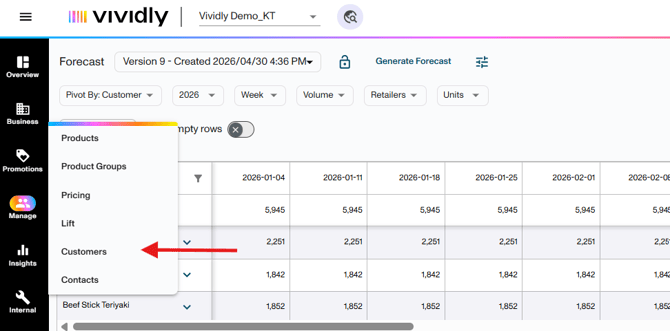
Steps to Workaround Duplicate Customers
Step 1 — Identify the duplicate and the correct record
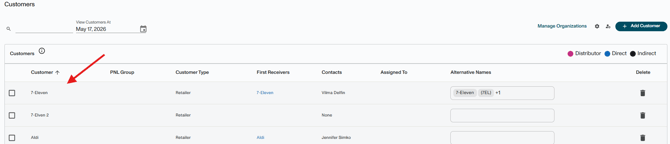
- Navigate to "Manage" > "Customers" in Vividly.
- Use the search bar to look up both customer names.
- Determine which record is the correct customer — typically the one with more complete profile data, more promotion history, or the one used for syndicated data.
- Determine which record is the duplicate — the one created by mistake or with limited/no data.
Step 2 — Add the duplicate's name as an alternative name on the correct record
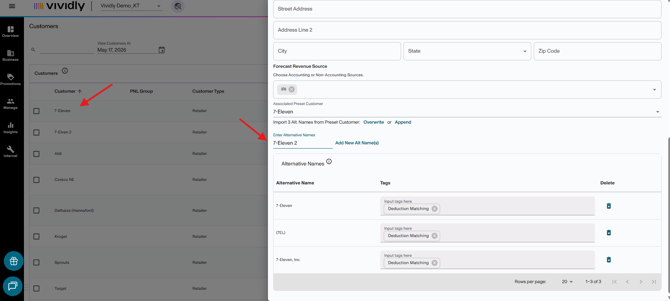
- Open the correct customer record by clicking on it.
- Navigate to the "General Info" tab in the customer profile.
- In the "Alternative Names" field, add the name used by the duplicate customer record (and any common variants or misspellings).
- This ensures that any data upload (deductions, POS, revenue) referencing the duplicate name will automatically map to the correct customer.
- Save the changes.
Step 3 — Rename the duplicate customer to prevent future use
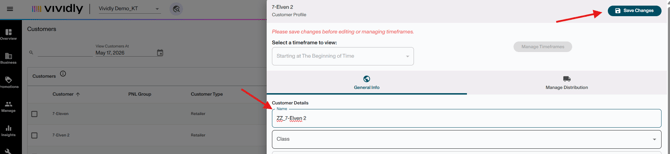
- Open the duplicate customer record.
- Edit the customer name to add a "DO NOT USE" prefix or suffix — for example: "[Customer Name] — DO NOT USE".
- Also add the original duplicate name to the duplicate record's own "Alternative Names" field to preserve the name link for any legacy uploads.
- Save the changes.
Warning: Editing a customer name is highly discouraged in general because all promotions and data uploads are tied to the exact customer name. Only do this for the duplicate record you intend to retire. Always add the old name to the "Alternative Names" field before changing it.
Step 4 — Communicate the correction to your team
- Notify all relevant team members that all new deductions, promotions, and data uploads should reference only the correct customer name going forward.
- If your team uses an ERP upload template, update the customer name mapping in that template to point to the correct customer.
Note: Deductions and promotions already attached to the duplicate customer record cannot be moved or transferred. They remain attached to that record and will appear in reports under the duplicate customer name. Account for this when reviewing historical data.
Expected Result
-
No new data is routed to the duplicate customer
-
Data uploads referencing the former duplicate name are redirected to the correct customer via alternative names
-
The duplicate customer is visually flagged ("DO NOT USE") to prevent accidental use
-
Historical data tied to the duplicate remains traceable but does not interfere with current operations
Troubleshooting Scenarios
Problem: Cannot Delete The Duplicate Customer
Likely cause: Deductions, promotions, or uploaded data are attached to it. Vividly does not allow deletion of customers with associated records.
Fix: Do not attempt to delete. Follow the rename + alternative name approach to retire the duplicate without losing historical data.
Problem: Data Uploads Are Still Going To The Duplicate Customer After Adding An Alternative Name
Likely cause: The alternative name was added to the wrong customer (it must be on the correct customer), or the upload template still maps to the duplicate name.
Fix: Verify the alternative name is on the correct customer's profile. Update any upload templates to use the correct customer name.

Problem: Team Members Are Still Creating Promotions Under The Duplicate Customer
Likely cause: Team was not informed, or the "DO NOT USE" rename hasn't been noticed. Or the duplicate wasn't simply renamed.
Fix: Communicate the change directly. Admins can also use customer assignments (see: Assign Customers to Users) to restrict which customers non-admin users can select. Also, in case the duplicate wasn't renamed to make sure that it shouldn't be used, rename it.
Problem: ERP or Syndicated Data Uses a Name That no Longer Matches Either Record After Renaming
Fix: Add additional alternative names to the correct customer to cover all known name variants.
Frequently Asked Questions
Is there a way to merge the two customer records so their deduction histories are combined?
Vividly does not currently support a native merge function. Historical data tied to each customer remains separate. For complex consolidation needs, contact Vividly Support.
Can I add alternative names even if the customer already has data?
Yes. Adding alternative names does not affect existing data. It only affects how future uploads are mapped to the customer.
Q: What if the wrong customer was assigned to a promotion I already submitted?
Use Master Edit (if you have the MASTER_EDIT permission) to update the customer on an existing promotion, or contact Vividly Support.
Still Need help? Contact Support
If the situation is complex (large volume of misrouted data, multiple duplicates, or ERP-level mapping issues), contact Vividly Support:- Live Chat (in-app)
- Email: support@govividly.com