
Overview
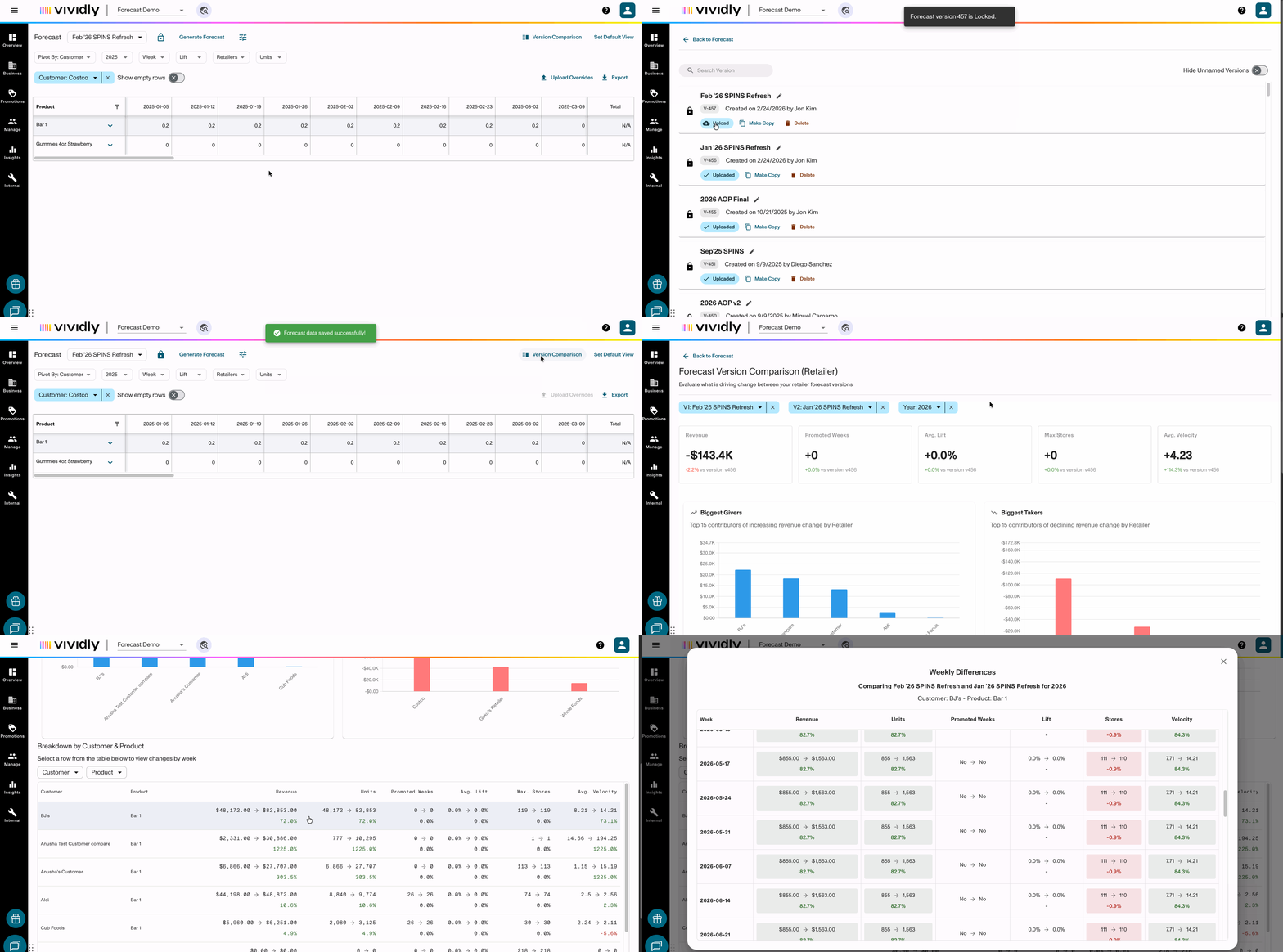
Comparing forecast versions used to mean exporting multiple files, building comparison tables in Excel, and manually hunting for what changed. With Forecast Version Comparisons, you can instantly visualize variances between any two forecast versions right in Vividly.
This feature helps you understand changes in your Retailer forecast at a glance, and quickly identify the specific metrics driving forecast swings, whether it's new actuals, pricing updates, manual overrides, or promotional changes.
This visibility helps you distinguish between true market shifts and data anomalies, giving you confidence to make data-backed adjustments to your trade and inventory strategies.
Prerequisites
- You must have at least two forecast versions to compare
- You must first lock and upload each Forecast version from the Manage Forecast Versions page.
Step 1: Access Forecast Version Comparison
- Navigate to Insights > Forecast and click Version Comparison in the top-right
Step 2: Select Versions to Compare
- Use the Version dropdown to select your first forecast version
- Select a second version to compare against
- The comparison report will automatically generate showing:
- Revenue changes
- Promoted weeks variance
- Average lift differences
- Max stores changes
- Average velocity changes
- Average store count changes
Step 3: Analyze the Comparison
The comparison view displays:
- Top-level metrics: Revenue, Promoted Weeks, Avg Lift, Max Stores, Avg Velocity
- Biggest Givers chart: Top 10 contributors of increasing revenue change by Retailer
- Biggest Takers chart: Top 10 contributors of declining revenue change by Retailer
- Weekly Differences table: Detailed week-by-week breakdown comparing actuals and promotional data between versions
What drives forecast changes:
- New actuals and pricing updates
- Manual overrides entered by users
- Promotional changes (new promotions, lift adjustments, date changes)
Step 4: Take Action Based on Insights
Use the comparison data to:
- Validate changes before presenting forecasts to leadership
- Identify data anomalies that need correction
- Explain forecast variance to stakeholders with specific metrics
- Make confident adjustments to trade and inventory strategies