
Learn how to identify who made a manual override in your Forecast, when it was made, and which adjustment types are tracked — across locked, unlocked, and historical versions.
Audience & Scope
-
Who this is for: All users who work in the Forecast module (Demand Planners, Sales Managers, Finance teams, Admins)
-
What it covers: How to view who made a manual override in the Forecast and when it was made; which adjustment types are tracked; behavior across locked/unlocked and historical versions
-
What it does not cover: How to make forecast overrides; how to lock or unlock forecast versions; how to compare forecast versions
Context
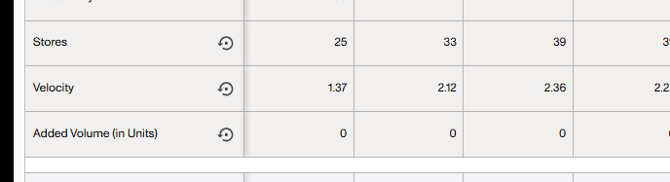
Vividly now shows exactly who made a manual override in the Forecast and when, displayed as a popover when you hover over an adjusted cell.
This applies to Store Counts, Velocity, Base Units (AOB), and Added Volume adjustments, including overrides entered individually, in bulk, or via upload. The popover appears in your local timezone and always shows the most recent adjustment for that week.
When to Use This
-
You want to understand the context behind a forecast change before presenting numbers to leadership
-
You notice an unexpected adjustment and need to identify who to follow up with
-
Multiple team members work in the same forecast and you need to coordinate or audit changes
-
You are reviewing a historical or locked forecast version and want to trace the source of an override
Steps
-
Navigate to "Insights" → "Forecast" in the left navigation.
-
Select the year, customer, product group, and view type relevant to the override you want to investigate.
-
Locate a cell that contains a manual override. Override cells display with blue text when a manual override is present.
-
Hover over the override cell until a popover appears showing:
-
The name of the user who entered the most recent adjustment
-
The date and time the adjustment was made (displayed in your timezone)
-
-
To view override information in a locked version, navigate to that version using the version selector. The popover behaves identically.
-
To view override information in a historical version, select that version from the version history. The popover is available there as well.
-
For All-Other Bucket (AOB) adjustments, navigate to the All-Other Bucket view. Override popovers are available in this view too.
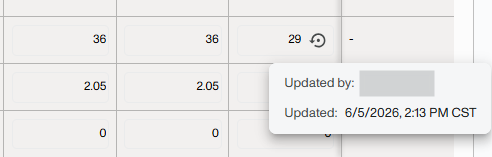
You should see: A small popover card above or beside the cell listing the editor's name and the timestamp of the most recent change. If you don't see a popover: Ensure the cell has an active manual override (text should appear in blue). Hover directly over the cell and hold still until the popover appears.
Expected Result
A popover displays the name of the team member who entered the most recent override for that cell, along with the exact date and time in the viewer's local timezone. This is visible regardless of whether the forecast version is locked, unlocked, or historical.
Troubleshooting
Problem: Popover Does Not Appear When Hovering Over A Cell
-
Likely cause: The cell does not contain a manual override, or the cursor moved before the popover triggered.
-
Fix: Confirm the cell value appears in blue (the indicator of a manual override). Hover directly over the cell and hold still until the popover appears.
Problem: The Timestamp In The Popover Shows An Unexpected Time
-
Likely cause: Popovers display in the viewer's timezone, not the timezone of the user who made the edit.
-
Fix: This is expected behavior. If you need to reconcile across timezones, note that the displayed time reflects your local timezone setting, not necessarily the editor's.
Problem: An Added Volume Cell That Was Set To "0" Is Showing Override Information Unexpectedly
-
Likely cause: Entering '0' for Added Volume is counted as a manual adjustment.
-
Fix: This is expected behavior. Setting a value to zero is treated as an intentional override and will trigger the popover.
Problem: Multiple Team Members Edited The Same Cell In The Same Week, But I Can Only See One Name
-
Likely cause: By design, the popover shows only the most recent adjustment per week. Earlier changes in the same week are not surfaced.
-
Fix: This is expected behavior. For a full change audit, contact Vividly Support.
Frequently Asked Questions
Does This Work For Overrides Entered Via Bulk Upload?
-
Yes. The popover reflects overrides entered individually, in bulk, and via upload — all adjustment methods are tracked.
Will I See This Information In A Locked Forecast Version?
-
Yes. Override popovers appear in both locked and unlocked versions, as well as in historical versions.
What If Two People Edited The Same Cell In The Same Week — Whose Name Do I See?
-
You will see the most recent editor's name and the time of their last change. Earlier adjustments in the same week are not shown in the popover.
Which Override Types Show The Popover?
-
Store Counts, Velocity, Base Units (AOB), and Added Volume. This covers overrides entered individually, in bulk, and via upload.