
Context for averaged weeks in Forecast: What is that?
- Averaged weeks is a setting that determines how many historical weeks Vividly looks back to calculate the average Stores and Velocity values for your forecasted weeks. The system takes the average of your actualized (historical) weeks and projects that forward as your baseline forecast.
- For example: If you select 8 weeks and your last 8 actualized weeks had velocity values of 5, 6, 7, 8, 9, 10, 11, and 12, your forecasted velocity will be 8.5 (the average) going forward.
- Now, there's a set of key differences when selecting either lower or higher amount of averaged weeks, but in general they are summarized in responsiveness and stability:
Shorter amount of averaged weeks (4-8 weeks):
-
More responsive to recent changes (new distribution, velocity shifts, rapid growth).
-
More volatile - recent promotions or one-time events can skew your baseline.
-
Best for: Fast-growing brands, new product launches, rapidly changing distribution.
Longer amount of averaged weeks (16-52 weeks):
-
More stable baseline that smooths out short-term volatility.
-
Less responsive to recent changes.
-
Best for: Established products with stable distribution, averaging out promotional spikes.
There are 2 different types of customers that this setting can be applied to:
-
-
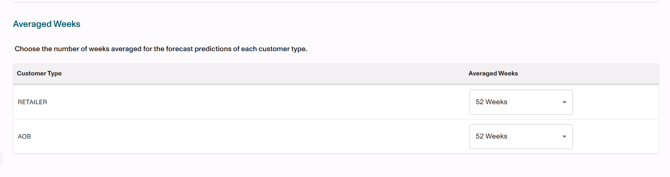
Retailer: Controls how many historical weeks Vividly averages to calculate Stores and Velocity values for the Retailer forecast (consumption data from POS sources like SPINS, Nielsen, IRI).
-
AOB (All Other Bucket): Controls how many historical weeks Vividly averages to calculate Base Units for the All Other Buckets forecast (derived from distributor shipment data minus retailer consumption).
-
Knowing all this, as a general rule, we recommend 8 weeks for the retailer view and 26 to 52 weeks for the all other bucket view, since that is a much more inconsistent trend because of the nature of its involvement with volatile shipments and ordering.
Steps to edit averaged weeks in Forecast.
-
Navigate and click the profile button at the right upper corner of the page.
-
Click on “Account Settings” button > “Forecast” tab > “Parameters” tab.
-
Scroll down to “Averaged Weeks” section.
-
Click on the dropdown at the same level of the customer type (Retailer or AOB).
-
Select the amount of averaged weeks.
Best Practice:
- The recommended setting for the Retailer view is 8 weeks.
- The recommended setting for the All Other Bucket (AOB) view is 26 to 52 weeks.