
Why do we flag invoice lines?
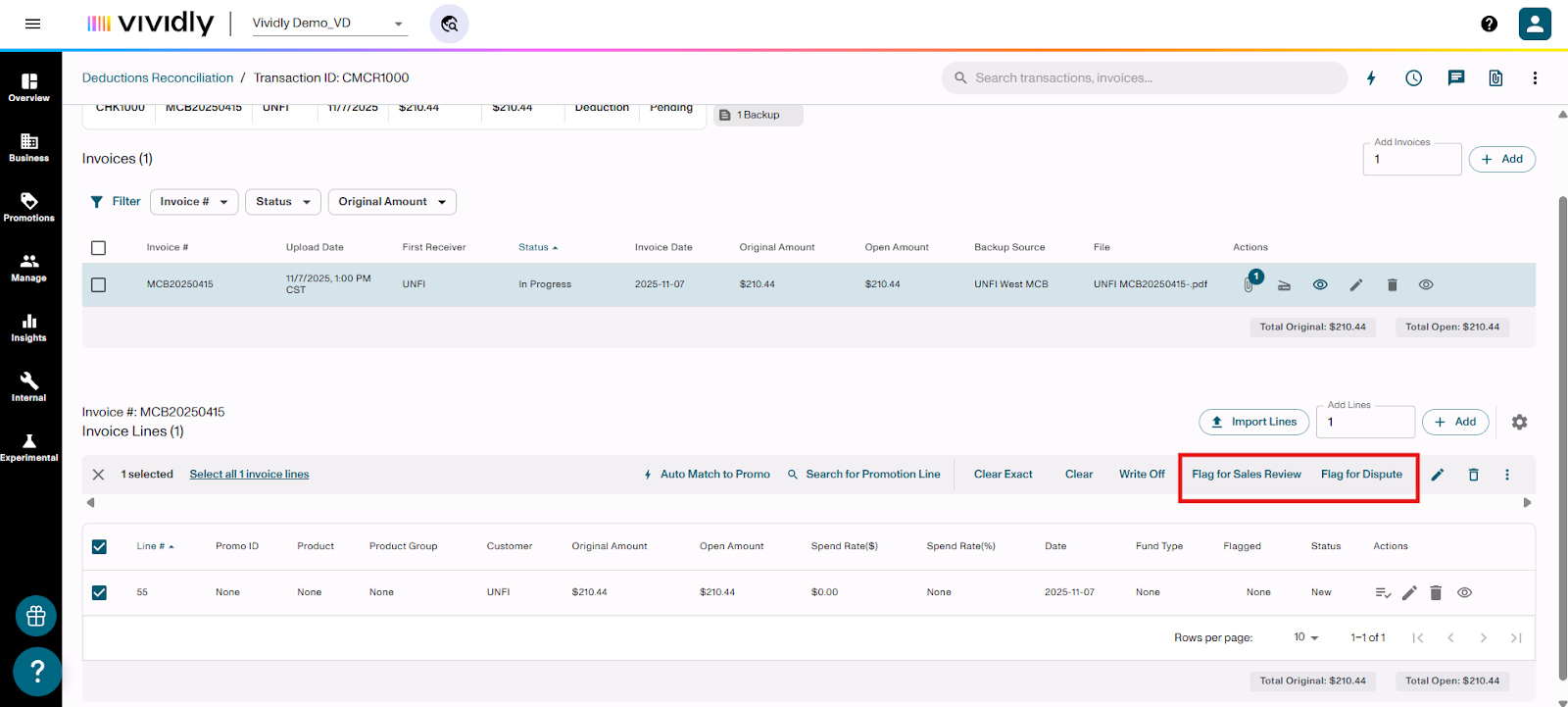
Sales Review
Flagging invoice lines as Sales Review is important for understanding the validation of expenses hitting your financial reports. Use Sales Review when:
- You cannot find a promotion to match the deduction
- You need a sales representative to review and confirm if an expense is valid
- The sales team may have forgotten to add a promotion into Vividly
- You need accountability across multiple departments for promotions at various distributors and retailers
Dispute
Use the Dispute flag when an expense is truly invalid and needs to be challenged with the retailer.
Prerequisites
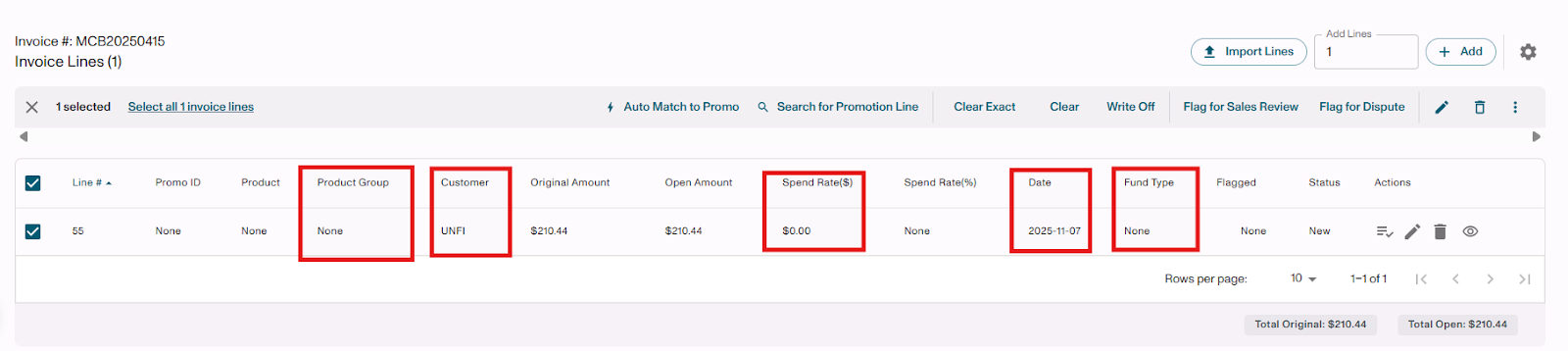
Before assigning flags, ensure the invoice line has relevant information populated to help guide the sales team member:
- Product group
- Customer
- Spend rate (percent and dollars)
- Date
- Type of trade
Note: Sales team members are moving a million miles a minute. If they're given all the relevant information, they can easily compare that expense to their promotion calendar and inform you if it's valid or not valid.
How to Flag an Invoice Line for Sales Review
Step 1: Select the Invoice Line
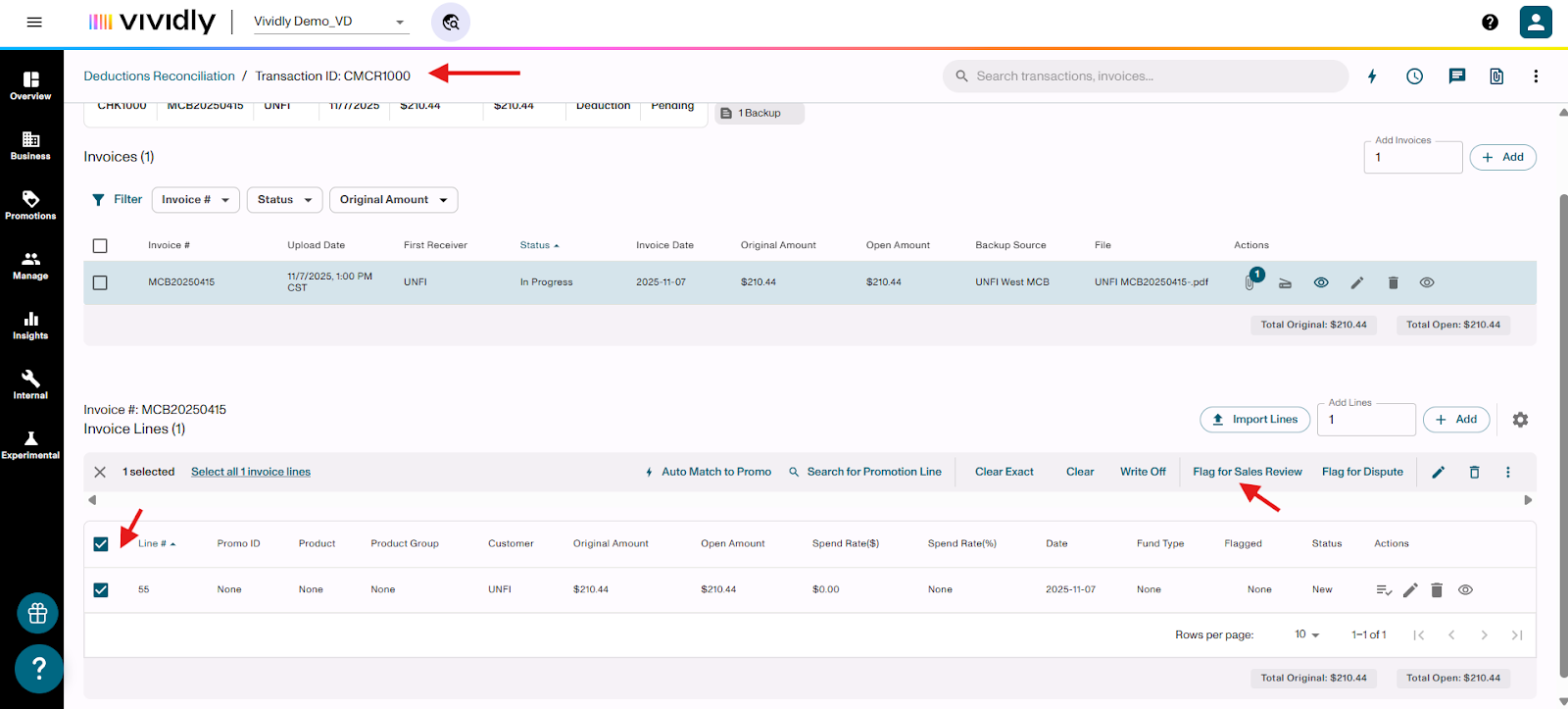
- Open the transaction in Deduction Reconciliation
- Click on the checkbox next to the invoice line you want to flag
- Click the Sales Review button
Step 2: Add Comment and Assign User
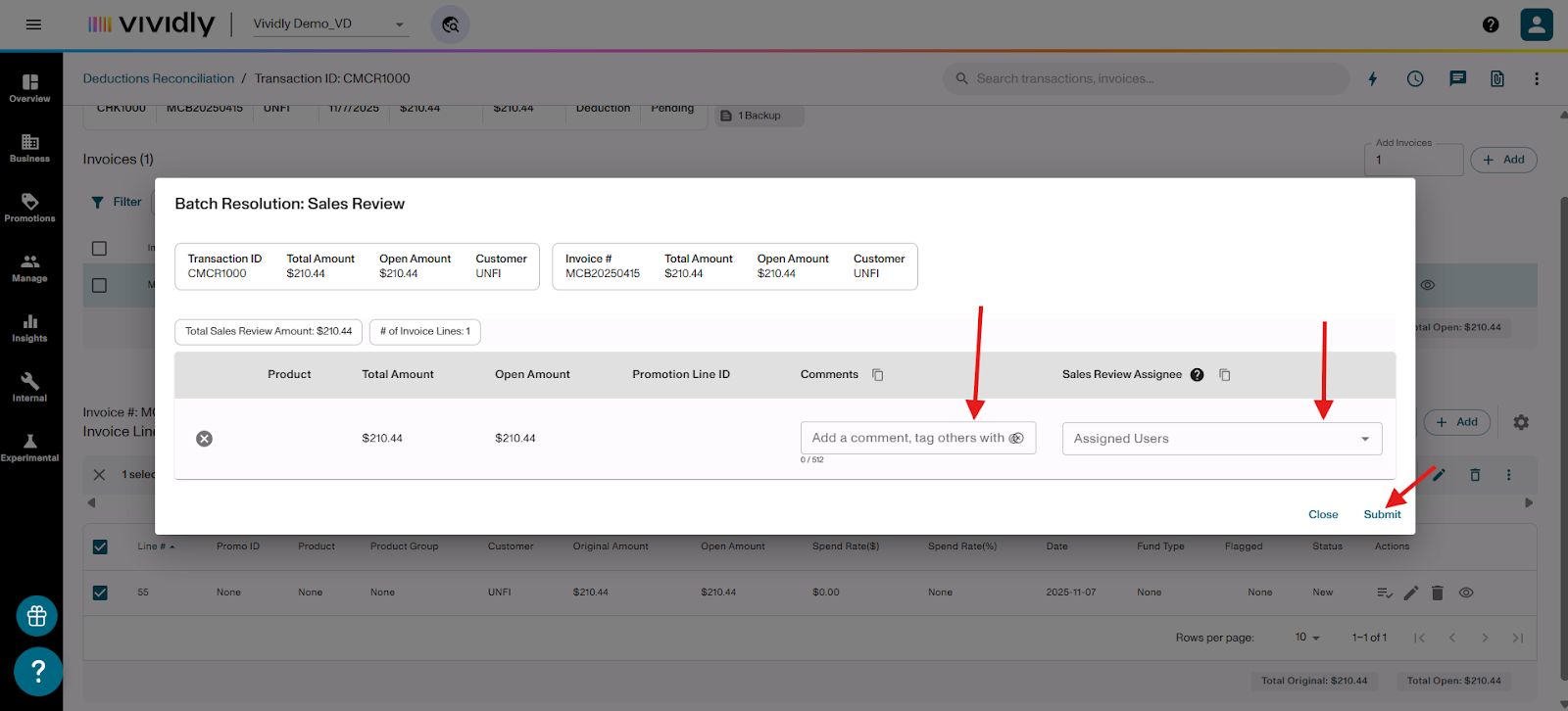
- In the comment section, type in the relevant information for the salesperson to review. Give the salesperson any additional context they may need to validate the expense in addition to the data entered in the invoice line
- Tag the appropriate user. Assign to the correct person responsible for reviewing (typically the salesperson for that customer/account)
Step 3: Submit
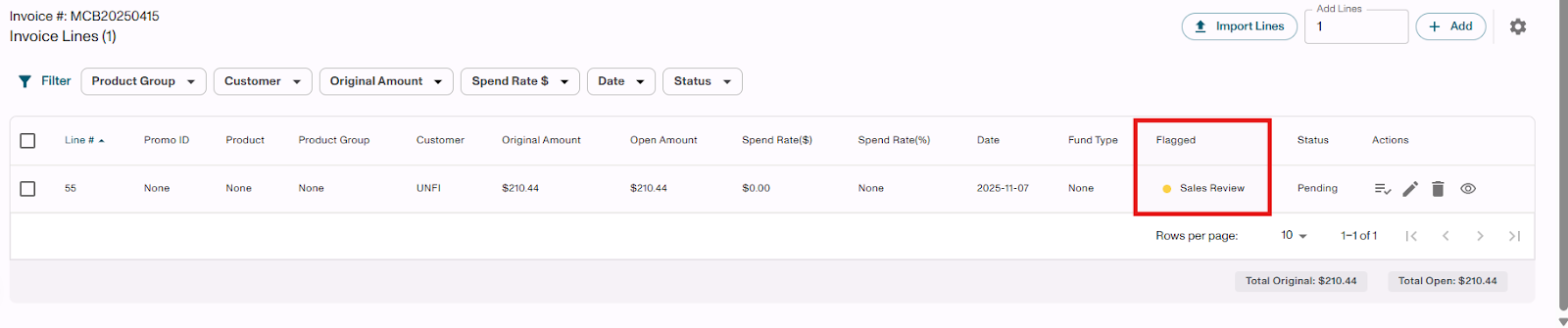
- Click Submit
- The line will be flagged as "Sales Review"
- The flagged line will be sent to the Sales Miss Log (covered in a separate tutorial)
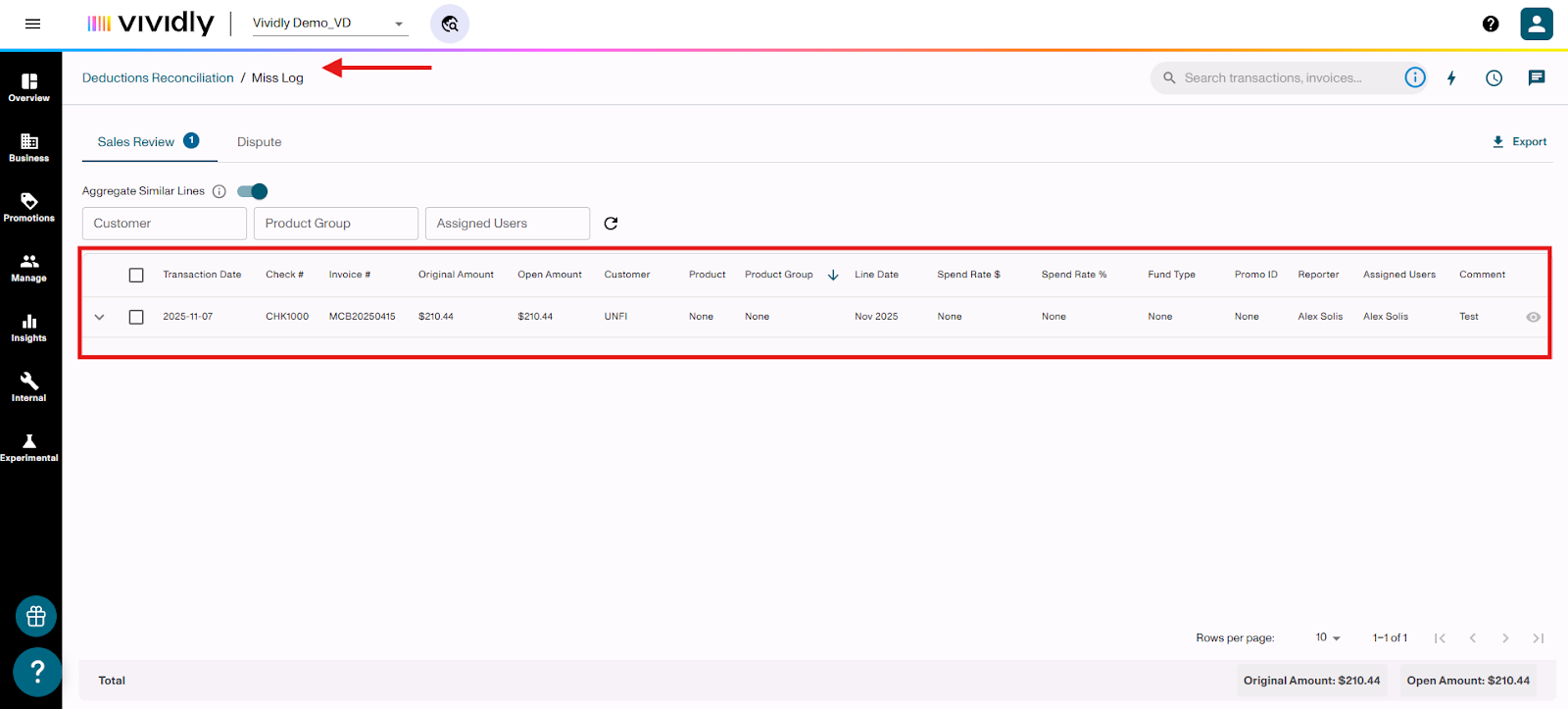
What Happens Next:
- The assigned user will see the flag when they log into Vividly
- They can review the expense, compare it to their promotion calendar, and determine if it's valid
- If valid, they can add the promotion to Vividly or confirm the deduction
How to Flag an Invoice Line for Dispute
Step 1: Determine the Expense is Invalid
Ensure you have confirmed the expense is truly invalid before flagging for dispute.
Step 2: Select and Flag the Line
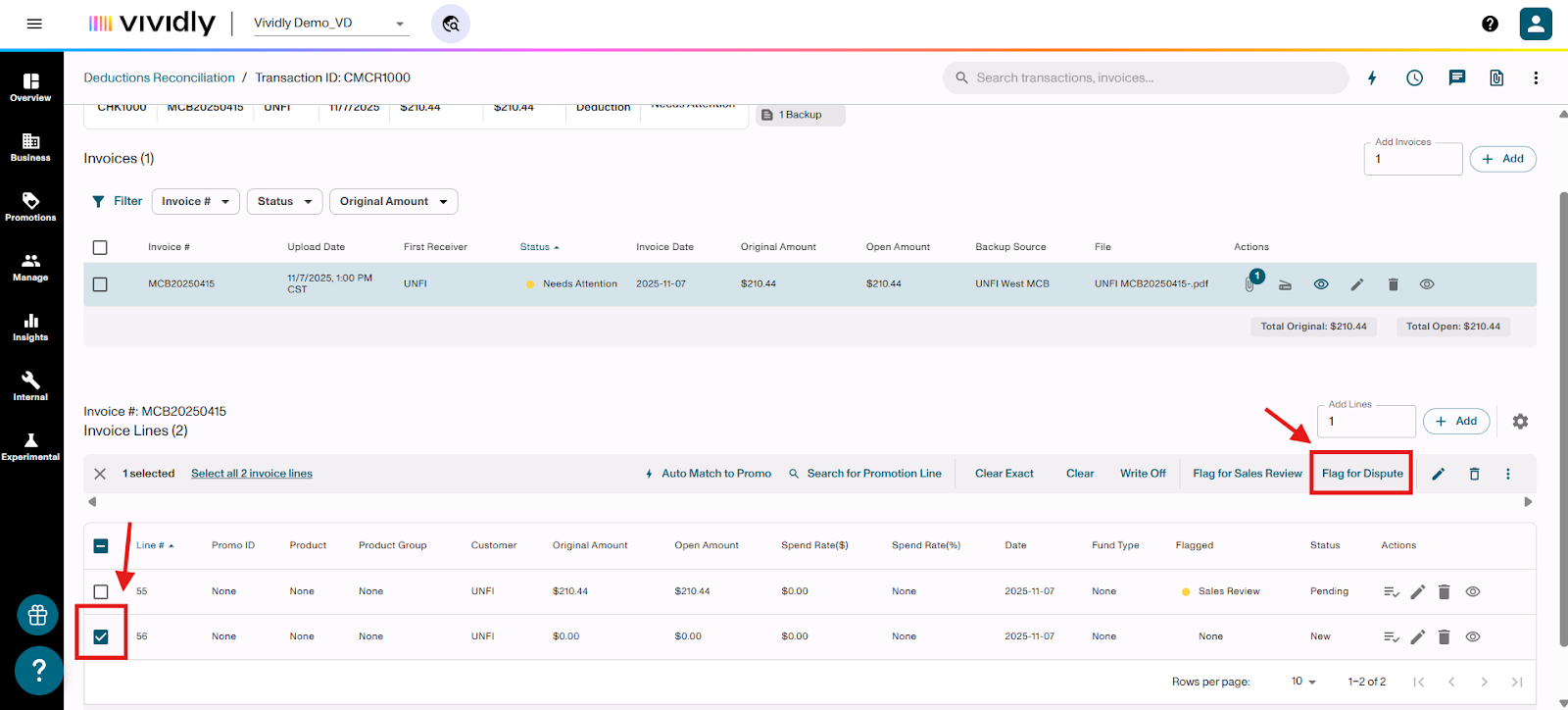
- Click on the invoice line in the transaction
- Click the Dispute button (located right next to Sales Review)
Step 3: Add Detailed Comments
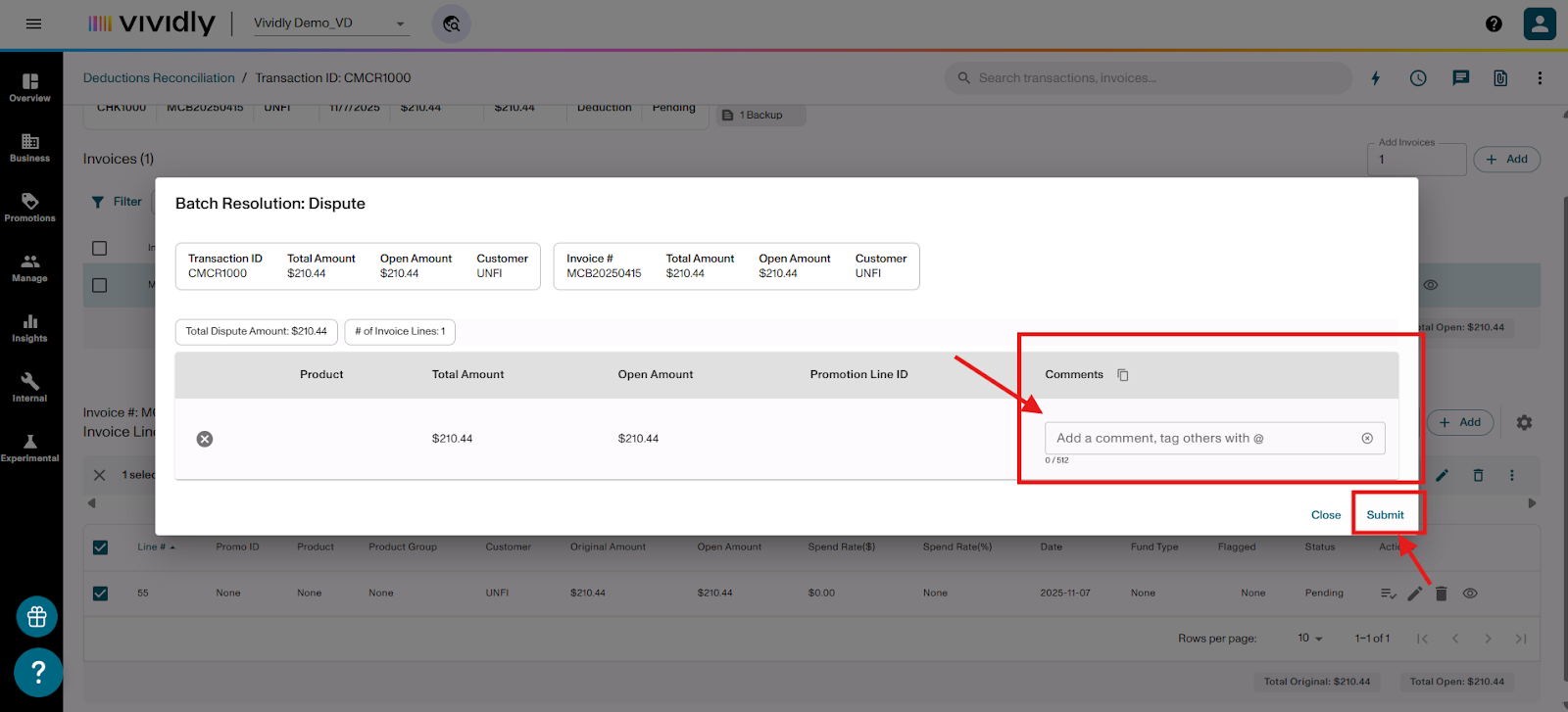
- Ensure the corresponding information in the columns is populated to the best of your knowledge
- Add associated comments explaining why this is being disputed
- Provide as much detail as possible to support the dispute
Step 4: Submit
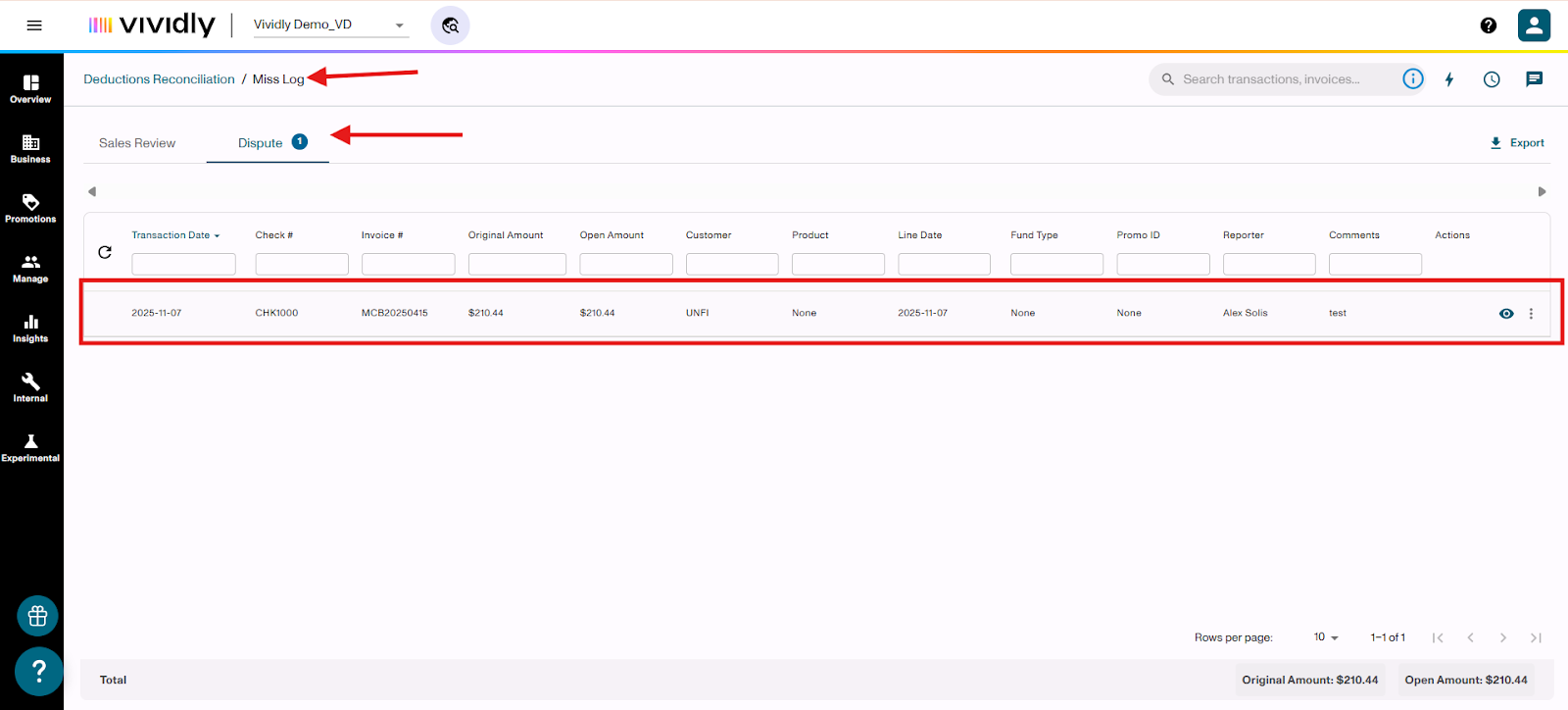
- Click Submit
- The line will be flagged for dispute
- It will be sent to the Dispute section of the Miss Log
What Happens Next:
- The dispute will appear in the Dispute Miss Log as a repository of outstanding disputes
- Your organization or Vividly's dispute team will pursue the dispute with the retailer
Canceling Sales Review or Dispute Flags
You have the ability to undo these actions if needed.
To Cancel a Flagged Invoice Line:
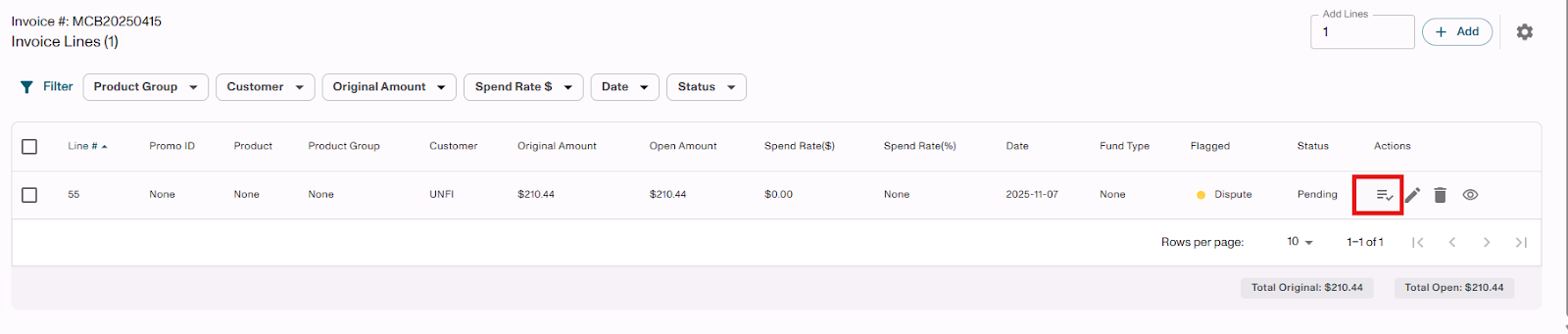
- Open the transaction with the flagged invoice line
- Click on the three horizontal lines with a checkmark (Resolution Action log)
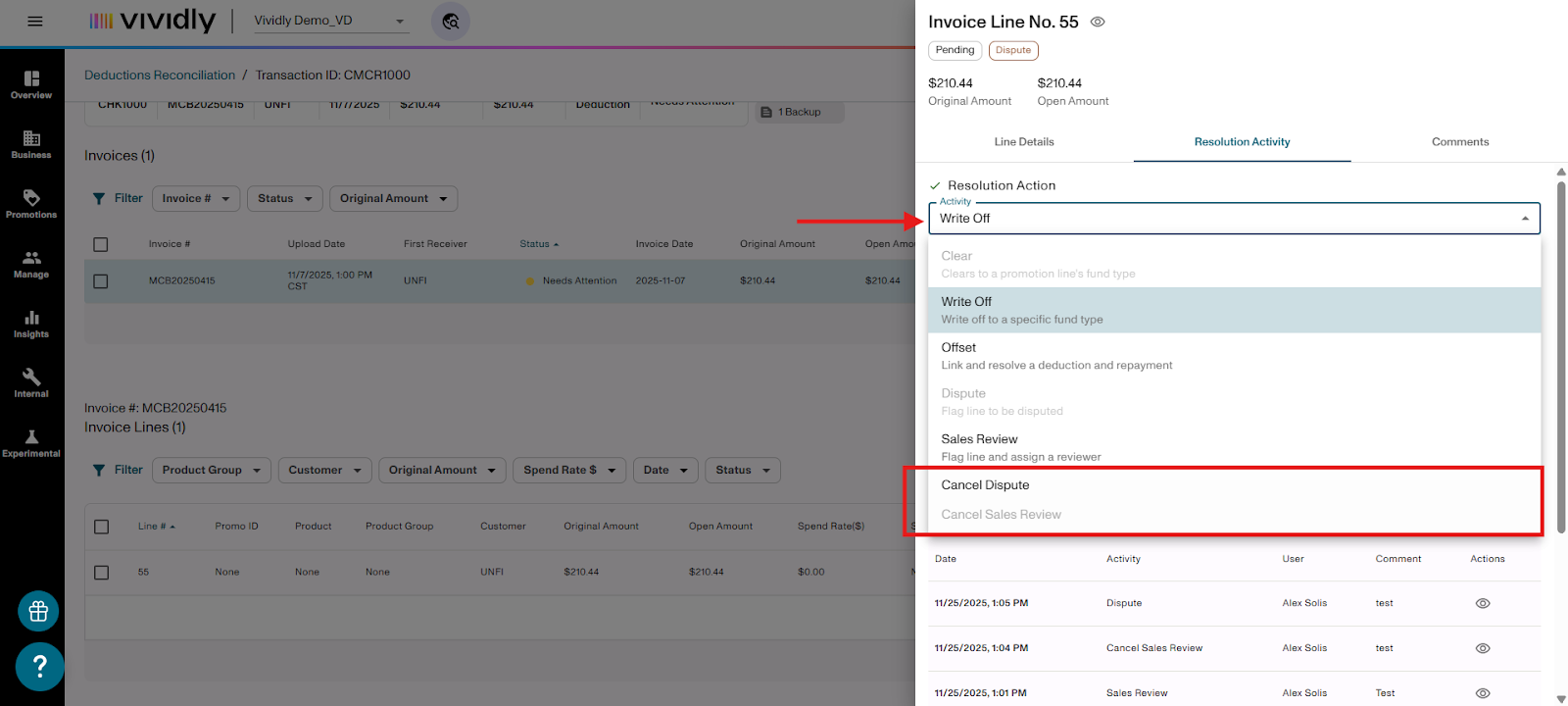
- Select either:
- Cancel Dispute, or
- Cancel Sales Review
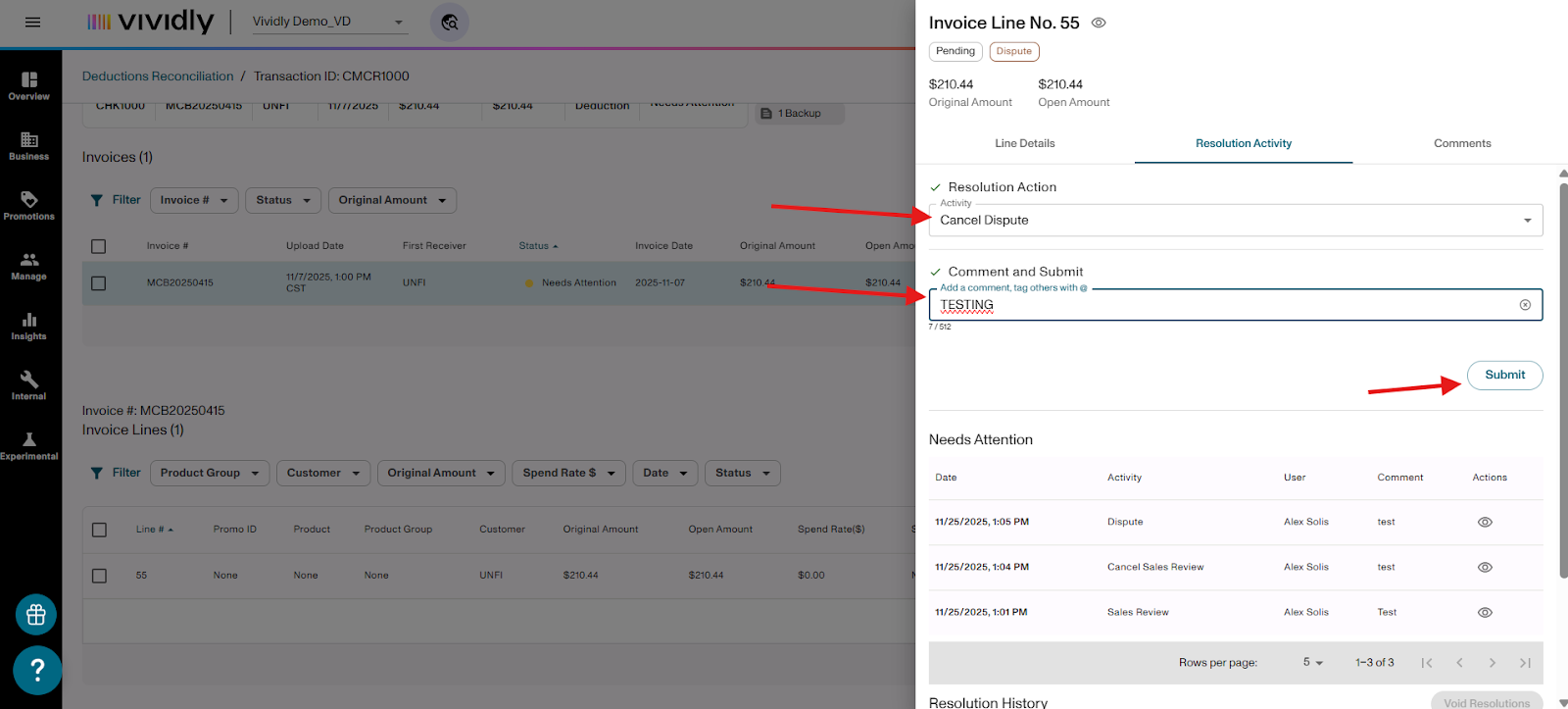
- Add a comment explaining why you're canceling (required)
- Example: "Need to add more information on dispute"
- Click Submit
Note: You cannot edit comments for audit log purposes. If you need to add more information, you must cancel the flag and reapply it with updated details. This is very similar to the Void Resolution process.
Note: You can “Cancel Sales Review” in bulk from the Miss Log page by selecting one or more invoice lines and clicking Cancel Sales Review
Understanding the Miss Log
What is the Miss Log?
The Miss Log is where all flagged items are sent for review and action. It has two tabs:
Sales Review Tab:
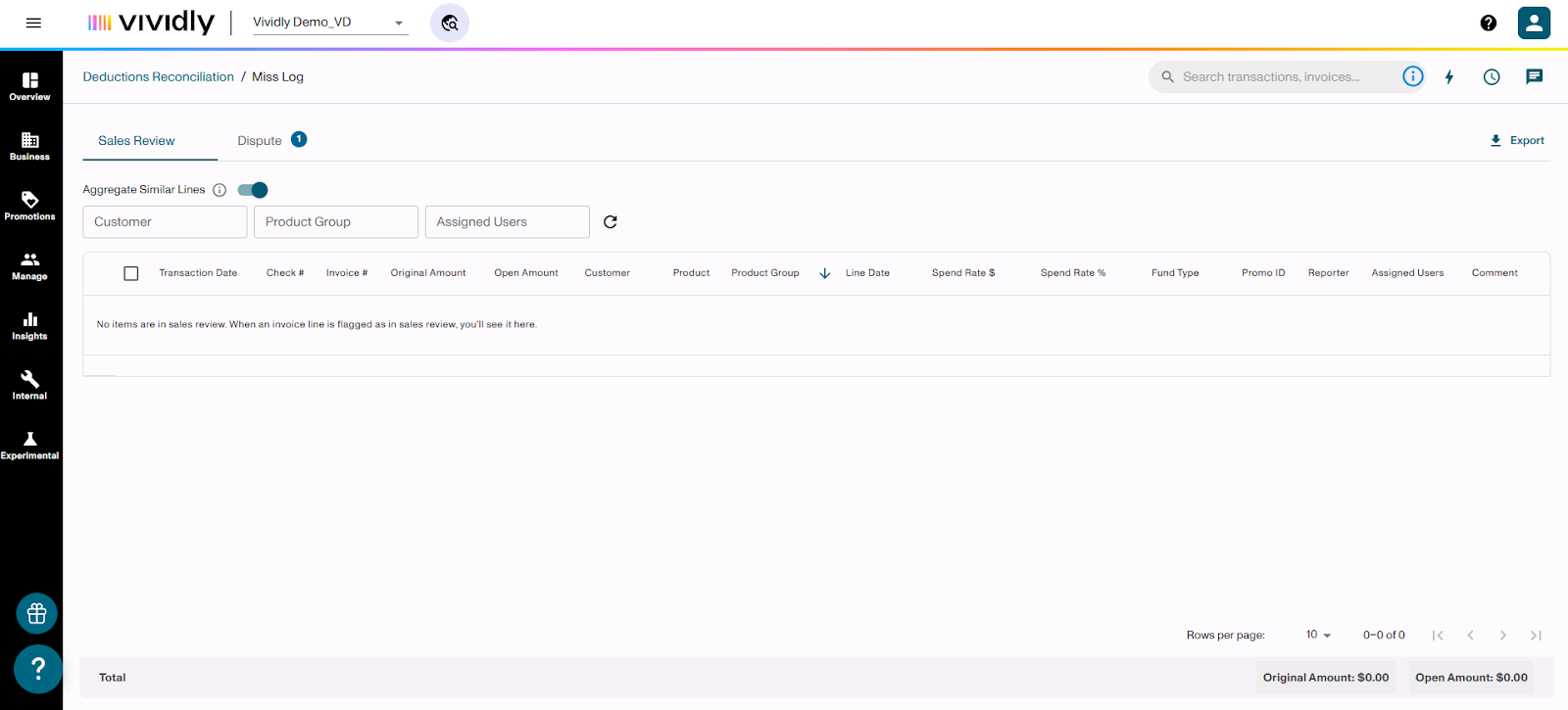
- Shows expenses that need further action by your sales team members or brokers
- Great way to get your sales teams involved in reviewing expenses
- Helps resolve items faster since they're on the front lines with retailers
Dispute Tab:
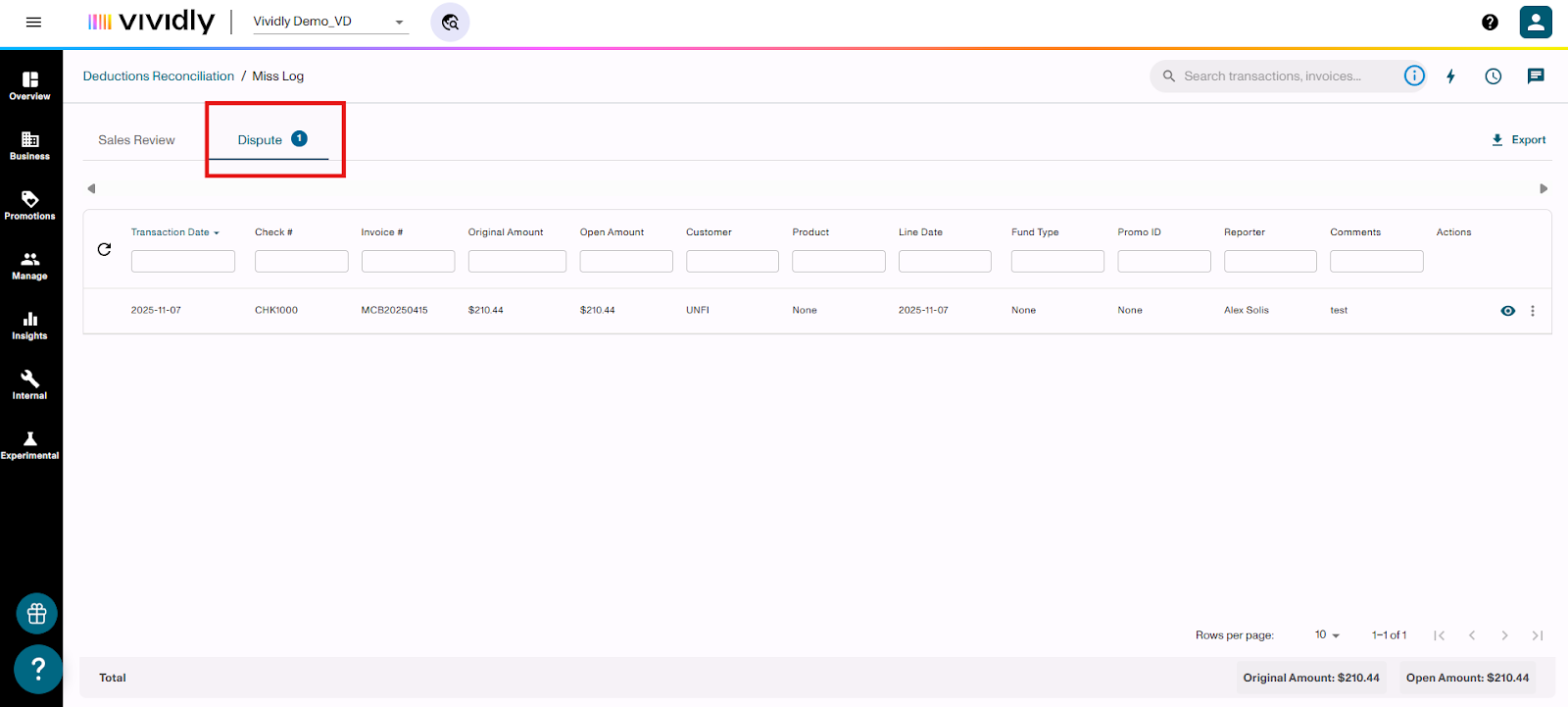
- Repository of all outstanding disputes you are currently pursuing
- Shows items awaiting repayment
- Includes comment log and history of actions taken
- Click the “i” icon to access the external Disputes Dashboard
Accessing the Miss Log:
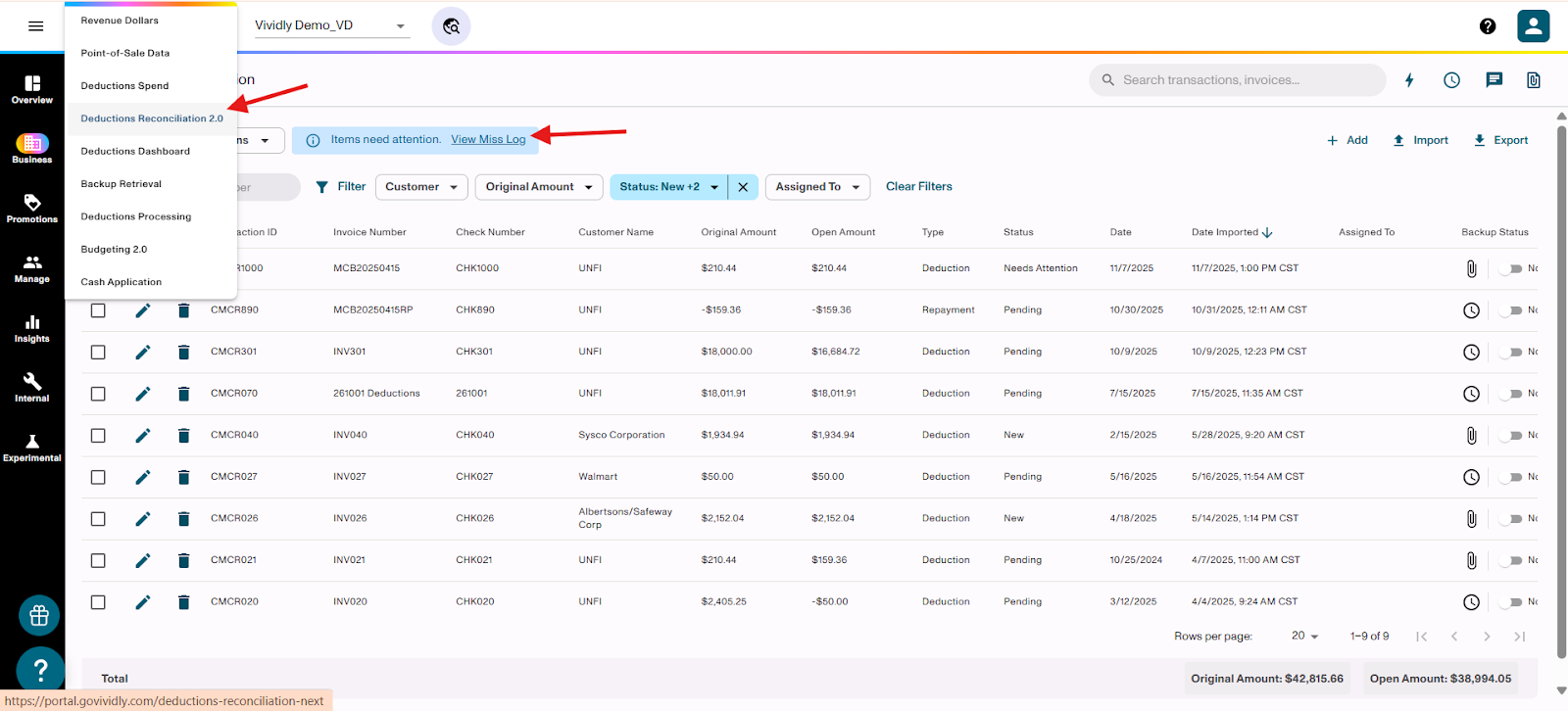
- Log into Vividly
- Navigate to the left sidebar: Business > Deduction Reconciliation
- There is a blue box that states "Item Needs Attention"
- Click View Miss Log
- Toggle between Sales Review and Dispute tabs
Key Features of the Miss Log
Aggregate Similar Lines
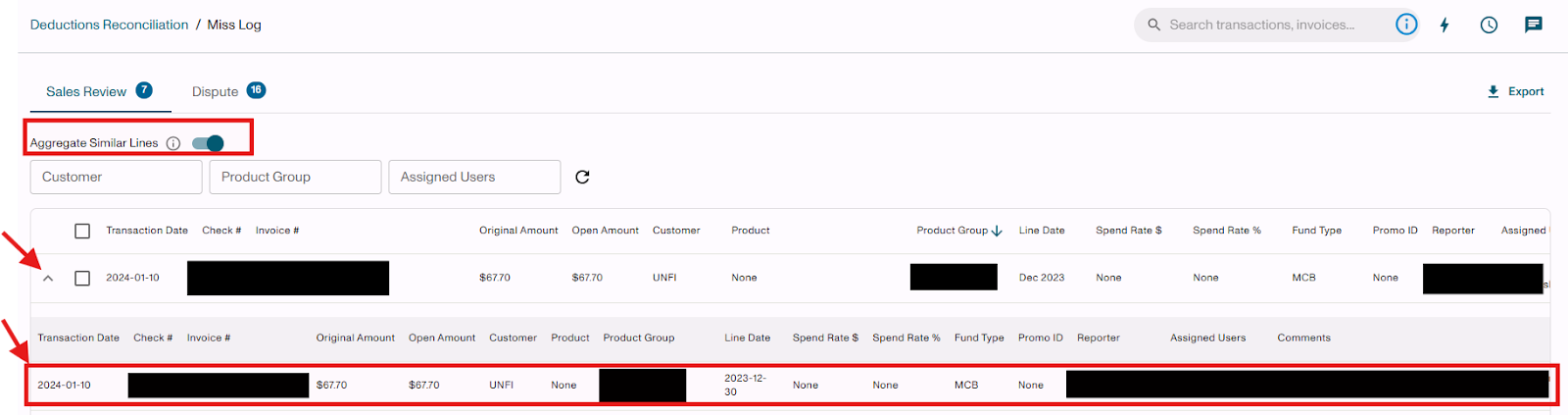
- Toggle the "Aggregate similar lines" option to combine similar lines for faster processing
- Invoice Lines are aggregated by: Customer, Product Group, Month/Year of Line Date, Spend Rate %, Spend Rate $, and Fund Type
- Allows you to clear multiple similar expenses to one promotion (if valid)
- Click on the "down caret symbol" to expand rows to see what invoice lines make up the aggregated line.
Export to Excel
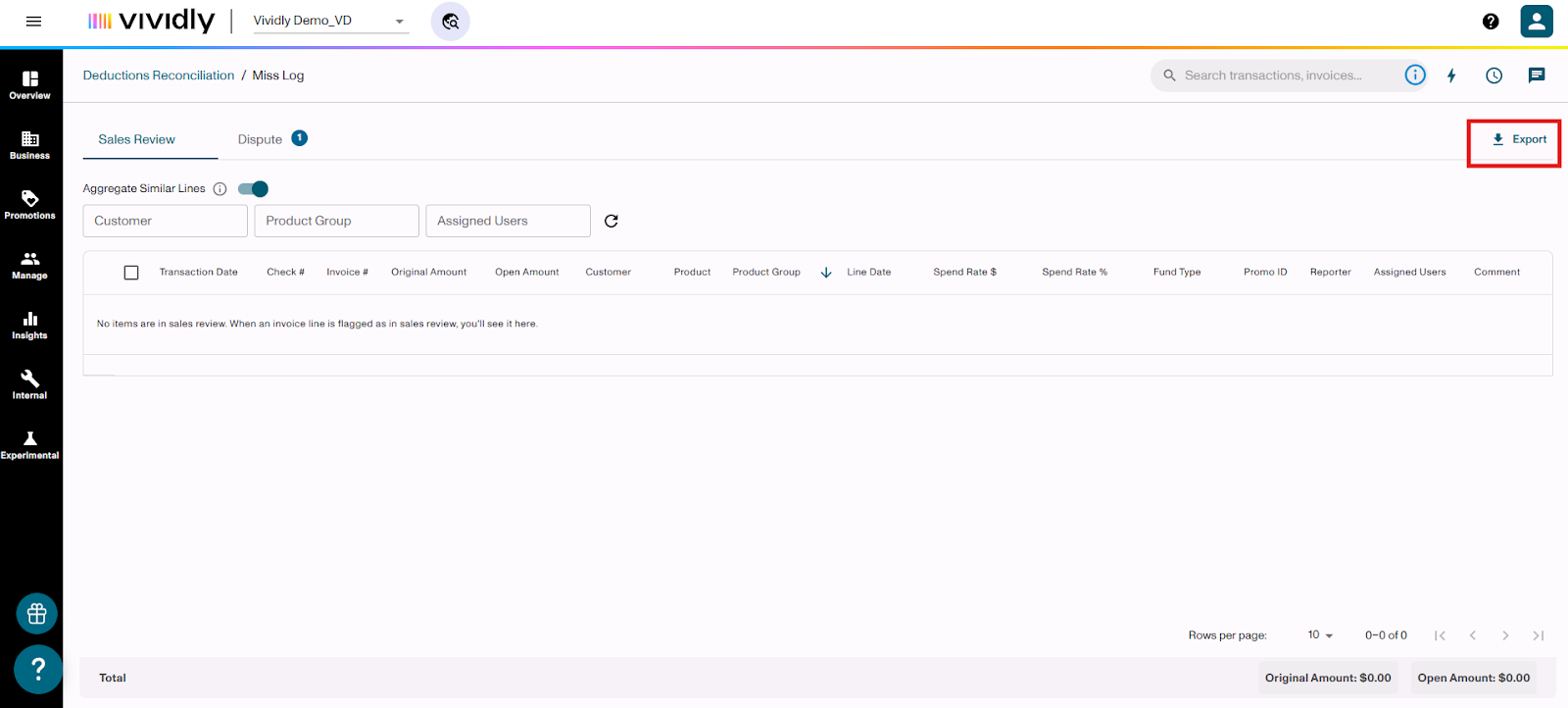
- Click Export button at the top-right of your screen
- The data will be downloaded from this page
View Transaction Details
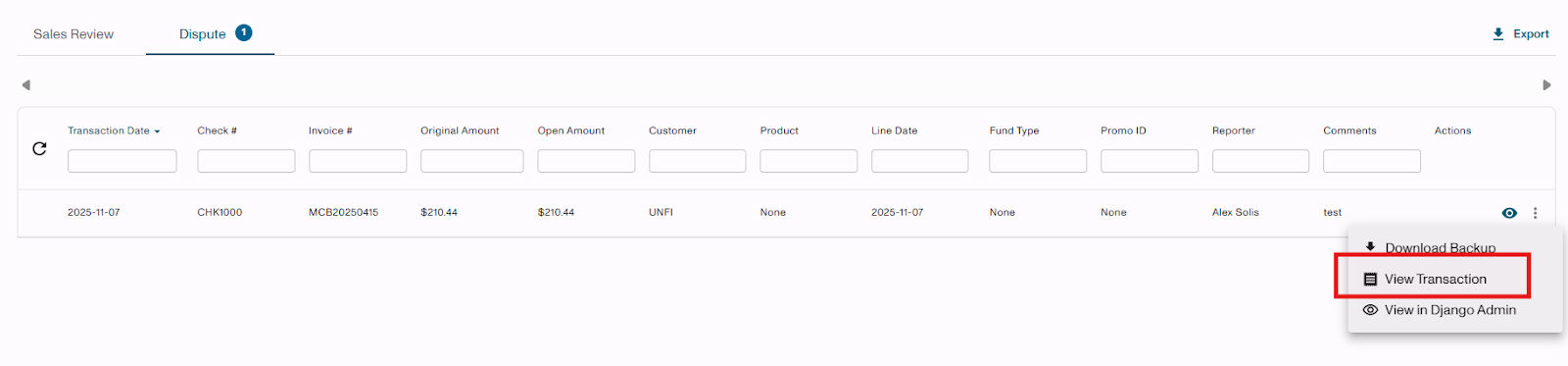
- Click the three vertical dots within a line
- Select "View Transaction" to go back to the original transaction
Add Comments
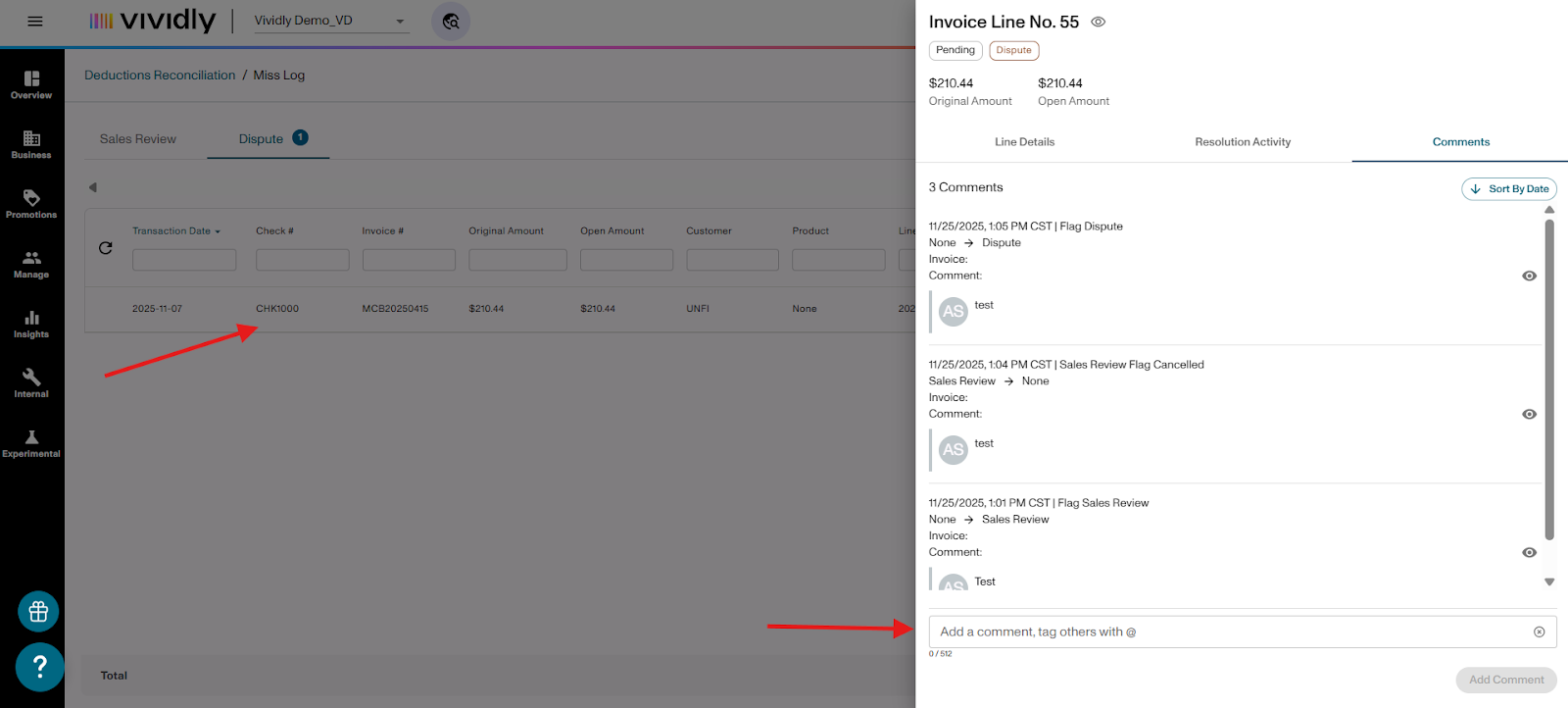
- Click on an invoice line in the Miss Log
- Add additional comments to provide context or updates
- Very helpful when following up on disputes or identifying nuances
User Mentions and Notifications
Tagging Users
When you tag a user in the Sales Review or Dispute comment:
- Use the @ symbol followed by their name
- The tagged user will receive a notification
Viewing Your Mentions
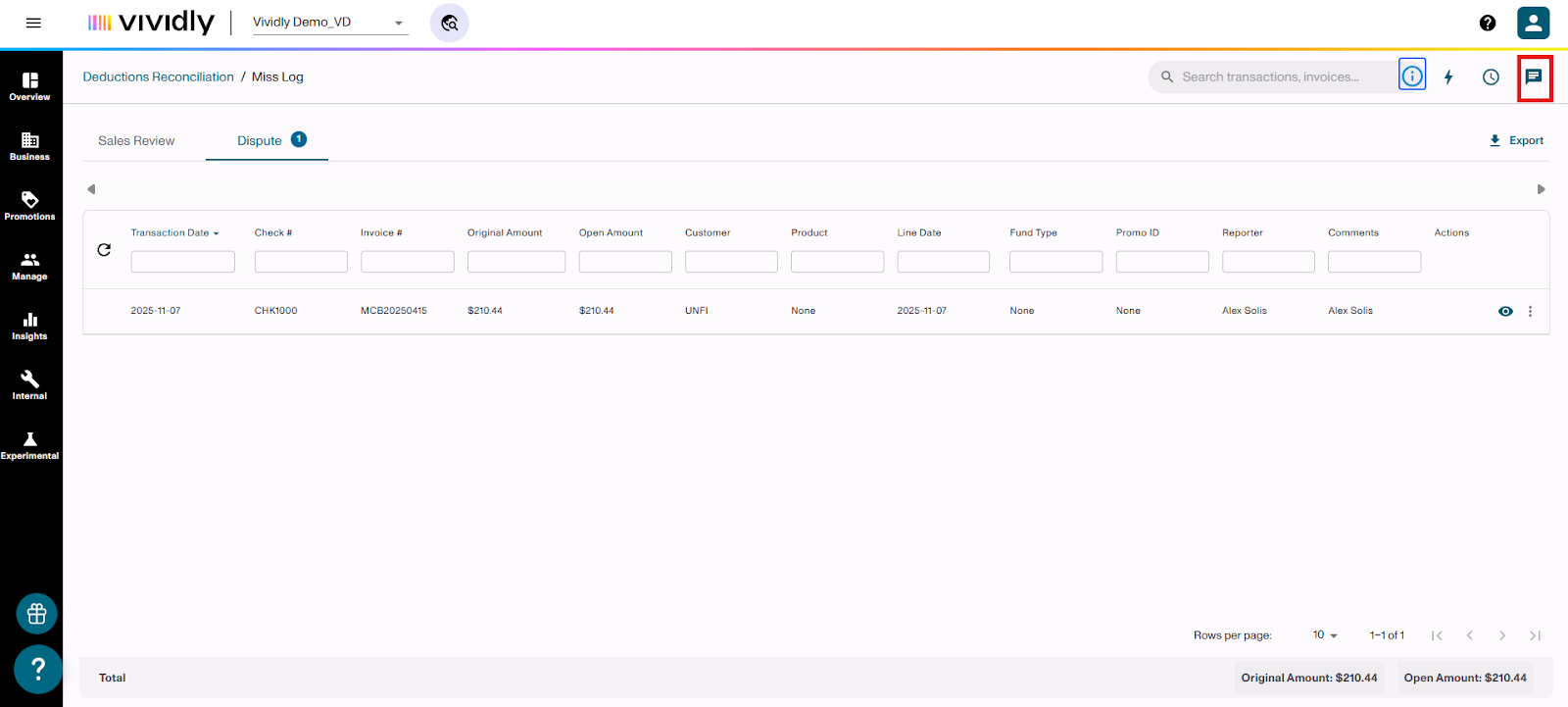
- Look for the User Mentions icon in the top right corner (comment/speech bubble icon)
- Click to see all mentions where people have tagged you
- Each mention shows:
- Who tagged you
- The message/comment
- Date and time
- A direct link to the transaction
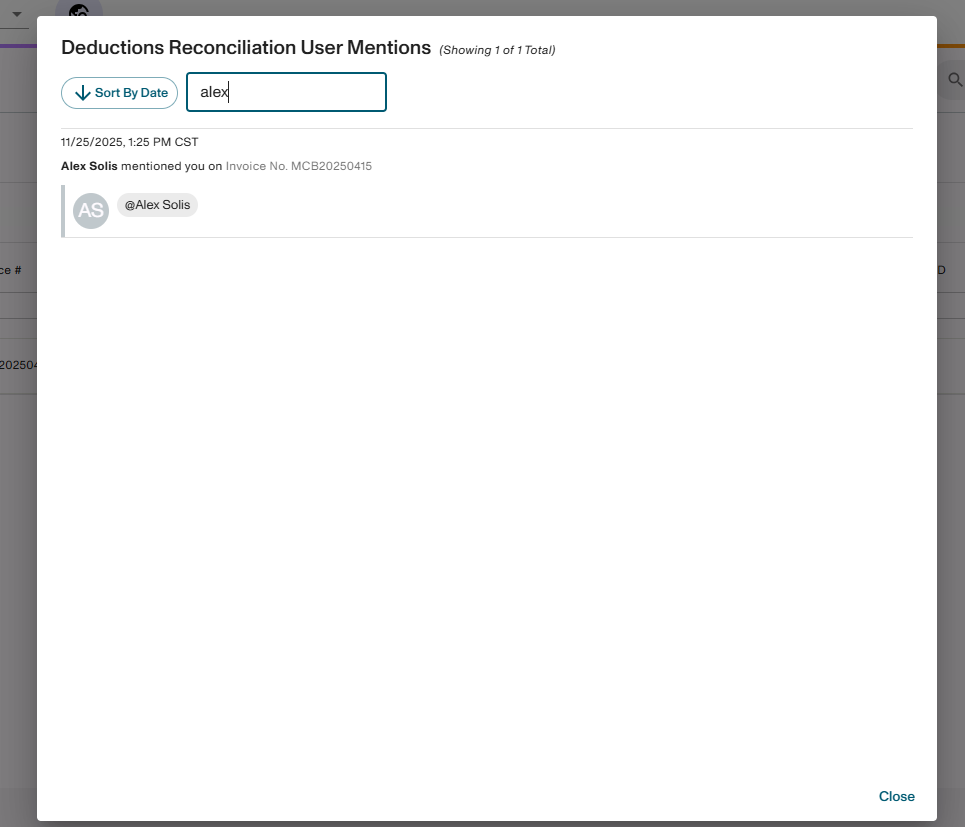
Where to Find User Mentions
- Available in both the Backups section and ERP Transactions section
- Can sort by date or filter as mentions accumulate
- Common examples: Asking a salesperson about promotion details, manager approval requests
Best Practices
✅ Do:
- Populate all relevant fields before flagging for sales review or dispute (product group, customer, spend rate, etc.)
- Be specific in your comments
- Tag the person responsible for that customer or account
- Use the Miss Log to keep deduction days outstanding low
- Review the Miss Log regularly to ensure timely reconciliation
- Set thresholds for what dollar amounts warrant sales team review (e.g., don't have sales chase $6 deductions)
❌ Don't:
- Flag items without providing adequate context
- Leave important fields blank before flagging
- Forget to check if the sales team already added the promotion
Recommended Threshold Approach
Consider setting a threshold for what requires sales review:
- Clear any promotion lines below a certain amount (e.g., $50) to a "below threshold" promotion
- Review that promotion quarterly to assess materiality
- Adjust the threshold over time based on your needs
- This allows your sales team to focus on dollars that drive your bottom line, not just selling
Tips for Success
- Keep your deduction days outstanding low by resolving flagged items quickly
- Involve your sales team and brokers - Vividly has unlimited users, so getting them in the system to review expenses is a great use of time
- Use aggregation to handle multiple similar lines efficiently
- Export data when you need to work with information internally
- Maximize your trade line opportunity by reconciling timely and safeguarding cash flow