
What Are Automations in the Deductions Reconciliation Module (DRM)?
Automations eliminate manual invoice setup and reduce repetitive data entry. When enabled, automations handle invoice header creation, backup file linking, and detail population automatically — so your team can focus on reviewing and clearing deductions rather than building them from scratch.
Where To Find Them?
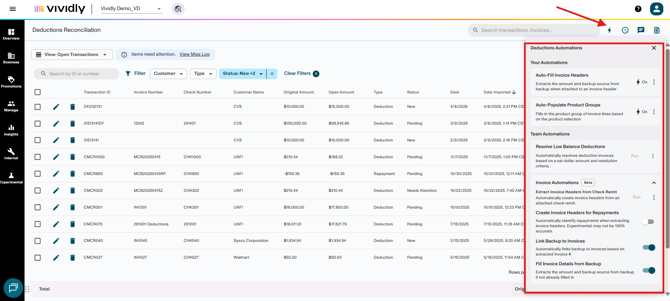
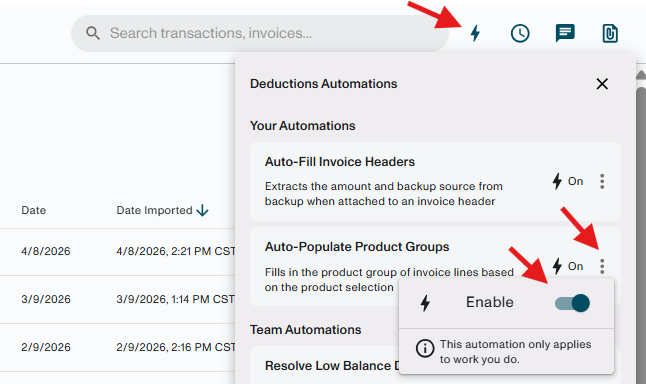
DRM automations are split into two categories based on who controls them. Access automations by clicking the lightning bolt icon in the upper right corner of the DRM module.
- Your Automations are user-specific settings that each individual user controls and enables for themselves. These settings do not impact other users, so each team member must enable them independently.
- Team Automations are configured by a Team Admin and for all users.
Before processing deductions, review the automation settings and ensure all relevant automation toggles are turned ON.
Your Automations
Your Automations are individual, per-user settings. Each user must enable them separately via the Settings icon in the DRM module — they are not controlled by an Admin and do not affect other users.
1. Auto-Fill Invoice Headers
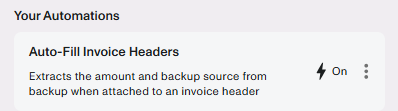
When a backup file is attached to an invoice header, this automation automatically extracts and populates the amount and backup source fields on the invoice header if backup template exists. Key behaviors:
-
Applies to all transactions while the automation is on.
-
Fields are only populated if no pre-existing value exists.
-
This setting specifically targets the amount and backup source on the invoice header when a backup is attached to it.
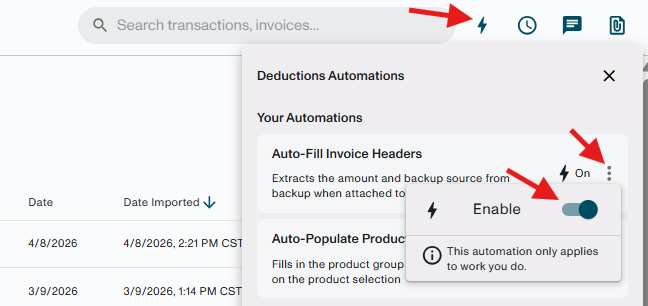
How to enable: In the DRM module, go to your Deduction Automations icon ⚡→ Go to "Auto-fill all invoice headers" → Click on the three dots icon → Enable the toggle ON.
Caution: If you are not using the Team Automation Invoice Automations, or if invoice lines were manually added before attaching backup, and Auto-fill All Invoice Headers is enabled, invoice amounts may be zeroed out when there is not a supported backup template available.
Click here to view the List of Supported Deduction Scanning Backup Source Templates.
2. Auto-Populate Product Groups
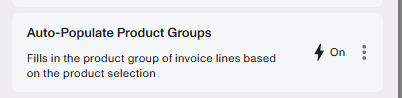
When a product SKU is selected on an invoice line, this automation automatically fills in the product group field based on which product group that product belongs to in Vividly. Also triggers when product SKU information is pulled in via the backup scanner. Key behaviors:
- Eliminates the need to manually look up and enter the product group for each invoice line.
- Helps ensure invoice lines are correctly set up for the Auto-matcher, which relies on product group to find accurate promotion matches.
How to enable: In the DRM module, go to your Deduction Automations icon⚡→ Go to Auto-Populate Product Groups → Click on the three dots icon → Enable the toggle ON.
Caution: Enabling Auto-Populate Product Groups may not be recommended if promotions are primarily planned at the product level rather than the product group level, as it may reduce matching accuracy.
Team Automations
Resolve Low Balance Deductions
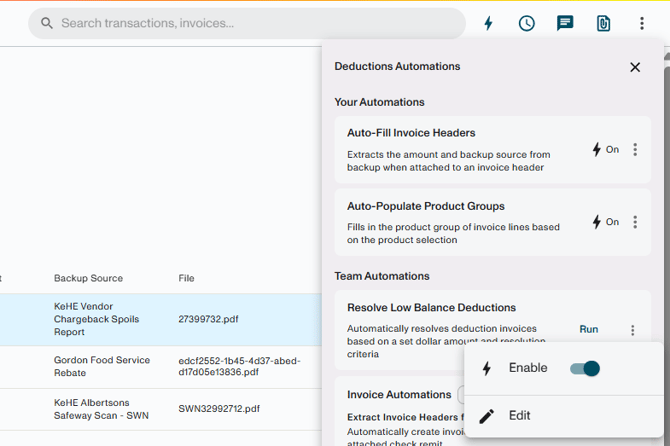
The Low Balance automation clears invoice lines that fall below a defined dollar threshold — directly to a selected promotion or write-off fund type — without manual review. Set the threshold and clearing method using the Deduction Automations icon⚡, then click Run from within any transaction to resolve all qualifying lines instantly.
Prerequisites before running:
- All invoices must be in New status.
- The transaction must have no differential — the original amount must equal the sum of all invoice header amounts.
For full setup and configuration instructions, see Resolve Low Balance Deductions (Automatically).
Invoice Automations
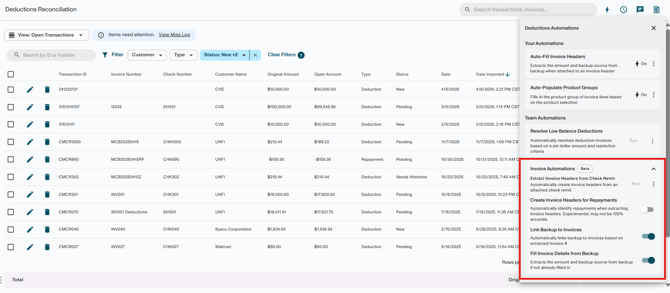
The four core Invoice Automations work together to move a transaction from remit upload to fully populated invoice headers with minimal manual input.
1. Extract Invoice Headers from Check Remit
When a check remit is attached to a transaction, this automation reads the remit and creates one invoice header per deduction line — automatically. Click Run from the automation center to trigger it.
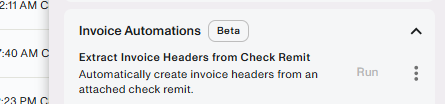
Important behavior: Any default invoice headers on the transaction are deleted when this automation runs. Manually created invoice headers are preserved.
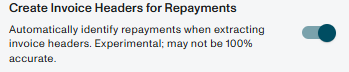
2. Create Invoice Headers for Repayments
This automation detects repayments during invoice header extraction based on the following patterns in the invoice number or description:
-
Invoice number contains:
REPAY -
Invoice number begins with:
RP -
Invoice number ends with:
PB,-R,RP,-RP,-PB -
Description contains:
REPAY
When these patterns are detected, repayment invoice headers are created automatically.
3. Link Backup Files to Invoices
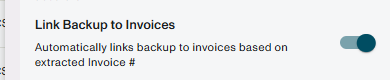
After invoice headers are created, this automation links backup files already attached to the transaction to the correct invoice header — matched by invoice number. Backup source is also automatically populated.
Note: Some backup files will not automatically attach if there is not a supported backup template available. In these cases, backup will need to be manually attached if desired using the paper clip icon.
Manual attachment is primarily recommended when:
- Flagging for Sales Review
- Scanning deduction backup
Otherwise, for audit purposes, the backup will still be available at the transaction level.
4. Fill Invoice Details from Backup
When backup files are uploaded, the system scans each file and extracts customer and check number information to pre-populate invoice header fields. Key behaviors:
-
Customer and check number are only populated if no pre-existing value exists.
-
If a backup file has an invoice number but no check number, the system cross-references any uploaded remit for a matching invoice number and auto-fills the check number.
-
Remit files are automatically labeled as "Remit" if a remit template is available.
-
Files automatically link to an existing transaction when customer + check number match.
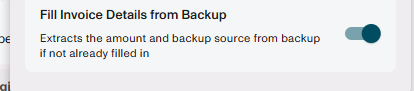
Tip: It is recommended to enable all four Invoice Automations when using the invoice automation workflow.
Troubleshooting
Problem: Cannot Create Invoice Headers from a Remit
Likely cause: Automation toggle is off, remit has no template, file was uploaded before the feature was enabled, or more than one remit is linked to the transaction.
Fix: Confirm all four conditions: automation toggle ON, remit template available, file uploaded after feature activation, only one remit linked.
Problem: Backup Files Are Not Automatically Linking to Invoices
Likely cause: Toggle is off, remit has no template, file was uploaded before feature activation, or the invoice number in the backup file does not match the invoice header.
Fix: Verify all four conditions, then re-name and re-upload the file if needed.
Problem: Amount and Backup Source Are Not Auto-Filling When Attaching a Backup to an Invoice Header
Likely cause: The "Auto-Fill Invoice Headers" user-level setting is not enabled for your account.
Fix: Go to the DRM module → Deduction Automations icon → Go to "Auto-fill all invoice headers" → Click on the three dots icon → Enable the toggle ON.
Remember: This is a per-user setting — each user must enable it individually.
Problem: Product Group Is Not Populating When Selecting a Product on an Invoice Line
Likely cause: The "Auto-Populate Product Groups" user-level setting is not enabled, or the selected product is not assigned to a product group in Vividly.
Fix:
-
Go to the DRM module → Deduction Automations icon → Go to "Auto-Populate Product Groups" → Click on the three dots icon → Enable the toggle ON.
-
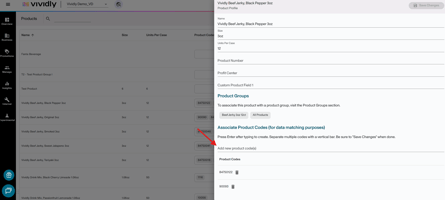
If the field still does not populate, verify the product is assigned to a product group in Manage → Products.
Key Terms
- Team Automations — DRM automations enabled by an Admin that apply to all users in the portal. Accessed via the lightning bolt icon or the Team Automations menu.
- Your Automations — Individual, per-user settings each user enables for themselves via the Settings icon in the DRM module. Do not affect other users.
- Invoice Automations — DRM's suite of automated tools for creating invoice headers, linking backup files, and populating invoice details.
- Autofill — The team automation that scans uploaded backup files and pre-populates invoice header fields (customer, check number) for file-to-transaction linking.
- Auto-Fill Invoice Headers — A user-level setting that automatically extracts the amount and backup source from a backup file when it is attached to an invoice header.
- Auto-Populate Product Groups — A user-level setting that automatically fills in the product group field on an invoice line when a product SKU is selected.
- Auto-Assign — Feature that creates invoice headers from selected backup files in a single bulk action — one header per file.
- Low Balance Automation — Rule-based automation that automatically clears invoice lines below a defined dollar threshold.
- Remit Template — A scanning configuration that enables Vividly to read and extract data from a specific check remit format.
- Differential — The difference between a transaction's original amount and the sum of its invoice header amounts. Must be $0 for the Low Balance automation to run.