
What Is Deductions Reconciliation?
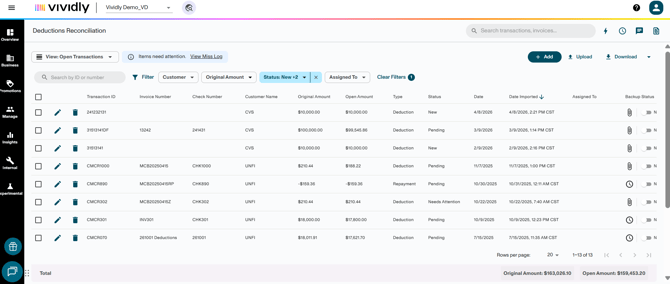
The Deductions Reconciliation Module (DRM) is Vividly’s one-stop-shop solution for deduction validation and processing.
Deductions are amounts retailers or distributors withhold from payments for promotions, shortages, pricing discrepancies, or chargebacks. DRM centralizes these transactions by connecting your ERP data, backup documentation, and promotion plans in one place.
The primary benefit is transforming your promotional plans into validated financial results, providing clean deductions tied to specific promotions. It also serves as a central repository where all deductions and supporting backup are stored, improving auditability and accessibility.
Where To Find It
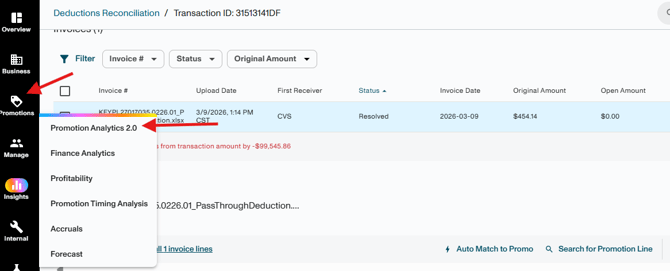
Navigate to Business → Deduction Reconciliation 2.0.
Why Brands Use DRM
DRM supports the following core workflows for CPG brands:
- Validate deductions by matching them to approved promotions created by sales team
- Uncover unplanned or invalid expenses
- Provide visibility into trade spend by product group and indirect customer
- Flag and track spend for internal review
- Strengthen communication between Accounting, Finance, and Sales
Who Uses DRM?
-
Finance and accounting teams — reconcile open deductions and post resolved items back to the ERP.
-
Sales teams — review flagged items, confirm valid charges, or initiate disputes on invalid ones.
The End-to-End Workflow
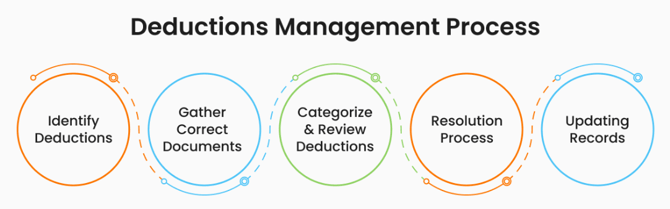
DRM follows a structured process from transaction intake to resolution:
-
Upload Transactions — Import ERP data into DRM. Each transaction represents one check. Transactions can be uploaded manually, imported in bulk, or synced automatically via ERP integration.
-
Attach Backups — Link supporting documents (check remits, deduction invoices) to each transaction. Vividly can automate this step by scanning uploaded files and matching them to transactions by customer and check number.
-
Create Invoice Headers — Break each transaction into individual deduction items based on the check remit. Invoice Header Automation can create and populate these headers automatically from the remit.
-
Scan Invoice Lines — Extract product-level details from backup files to build invoice lines. These lines capture product, customer, date, and spend rate — the key details needed for promotion matching.
-
Match to Promotions — Use the Auto-matcher to find planned promotions that explain each deduction. It compares customer, product, promotion type, timing, and spend rate. Fund type recommendations can also be auto-suggested based on invoice number patterns.
-
Resolve — Review each match and take action. See Resolution Options below.
-
Report — Download the Settlement Report (resolved items) or Open Deductions Report (unresolved items) for ERP reconciliation and month-end close.
Resolution Options
Each invoice line is resolved using one of three actions:
-
Clear or Clear Exact — Confirms the deduction matches a planned promotion and closes the line.
- Write-Off — Closes minor amounts, or non-trade deductions, by routing them to a designated GL account.
- Offset — Link a deduction to a related repayment
Or flag lines for further review using one of two action:
-
Sales Review — Flags the item for your sales team when no matching promotion exists.
-
Dispute — Flags for team to summit a formal dispute for charges that appear invalid or unsupported by documentation.
Items flagged for Sales Review or Dispute are tracked in the Miss Log for team collaboration and follow-up.
Click here to view a detailed walkthrough of the end-to-end workflow.
Setting Up for Success
-
Establish the Right Financial Setup
-
Create a clearing (suspense) account in your ERP for open deductions and repayments
-
Define write-off accounts, handling rules and thresholds for non-trade deductions
-
Ensure customer and product mappings are accurate
-
- Define your process and scope
-
Determine which deductions will be processed (all vs. select customers)
-
Choose how deductions will entered as transactions:
- Lump sum by check (recommended) – simplifies credit memo creation in ERP, enables automation and grouping
-
-
-
- Individual deductions – aligns with ERP workflows but increases volume
- Individual deductions – aligns with ERP workflows but increases volume
-
-
-
Define how to handle non-trade deductions (fees, allowances, shortages):
- Write-off method - fast, GL-focused)
- Placeholder promotions - adds visibility and reporting
-
-
Plan Your Cutover
-
Set a go-live date and scope (historical vs. forward-looking)
-
Allow time for:
- Upload historical data (if applicable)
- Clear backlog of open deductions
- Practice in training/sandbox environments
-
Document and align internally before switching processes
-
-
DRM is most effective when:
- Sales enters accurate, approved promotions ahead of execution
-
Accounting follows a consistent reconciliation process
-
Teams actively manage:
-
Open deductions
-
Missed Log items
-
Data accuracy
-
-
Leverage Best Practices
- Use automation tools (scanner, auto-assign, auto-matcher)
- Monitor exceptions in the Miss Log
- Use the Settlement Report as your ERP source of truth
What DRM Connects To
-
Promotions — Deductions are matched against planned promotions in Vividly.
-
Promotion Analytics — Resolved deductions flow into analytics, improving promotion ROI accuracy.
-
Your ERP/Accounting System — The Settlement Report is used to post resolved deductions back to your ERP.
Key Terms
-
Transaction — The top-level object representing a check or payment from a retailer/distributor. Each Transaction contains one or more Invoices.
-
Invoice — A single deduction item from a check remit, nested within a Transaction. Each Invoice contains one or more Invoice Lines.
-
Invoice Line — The lowest-level object, representing a product-level breakdown of a deduction within an Invoice.
-
Backup — Any supporting file (deduction invoice, check remit).
-
Fund Type — Category of trade spend used to filter and match promotions (e.g., MCB, EDLP, scan-back).
- Deduction Scanner — Vividly's OCR-based tool that reads backup PDFs and extracts invoice line data (customer name, UPCs, dates, rates, amounts) automatically. The scanner populates invoice lines without manual entry
-
Auto-matcher — Vividly's tool that suggests promotion matches for invoice lines.
- Clearing — The resolution action of confirming a promotion match on an invoice line, formally closing it as valid and planned spend. Cleared invoice lines flow into Promotion Analytics and the Settlement Report.
- Write-Off — A resolution action used to close an invoice line by attributing it to a GL/fund type account — without matching it to a promotion.
- Sales Review — A flag for invoices lines that need input from the Sales team (e.g., to verify if a promotion was planned). Items flagged for Sales Review surface in the Miss Log for the sales team to review.
- Miss Log — Queue for items flagged for Sales Review or Dispute.
- Dispute — A flag for invoices lines that may indicate an invalid or unauthorized deduction from a retailer/distributor
- Repayment — A negative-value transaction representing money returned by a retailer/distributor after a dispute is resolved
-
Settlement Report — Export of all resolved deductions for ERP posting.
-
Open Deductions Report — Export of all unresolved deductions.
- Below Threshold — Automation to auto-clear small-dollar deductions below a configured amount.