
Overview
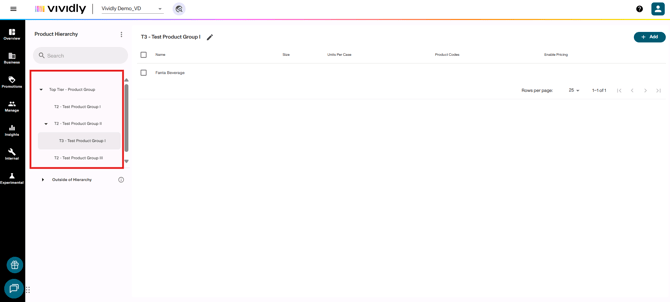
Customer Hierarchy and Product Hierarchy are features that enable Vividly to use a structured hierarchy to roll customers and products up (for example, in the case of products: SKU → Product Group → Brand or Segment).
In comparison to Product Groups and Customers, these features allow the following:
-
Creation of product hierarchies and customer hierarchies that consist of groups and items (Customers/Products).
-
Users can have as many tiers in a product or customer hierarchy as they would like, with the condition that the same name cannot exist at different levels.
-
Promotion Analytics supports hierarchical filtering and rollups in the Spend, Unit, and ROI tabs.
-
Accruals supports hierarchical filtering — the data returned will match the filter applied.
Clarifications on Hierarchy Limitations
-
Product Group dropdown menus in the Planning and Budget pages will only show groups that have direct product descendants or any Product Group that is outside of hierarchies.
-
Products and customers can only be deleted in the Customers and Products sections in Manage.
Steps on how to manage your Hierarchies
Configure Hierarchies
First of all, ensure hierarchies feature is turned on in your portal. The easiest way to check is to click “Manage” and if “Customer Hierarchy” and “Product Hierarchy” are there it IS turned on.
-
Go to Manage > Customer Hierarchy or Product Hierarchy to access the specific Hierarchy page.
-
Create the highest level Customer Hierarchy or Product Hierarchy then work your way down to the lowest level. To do this, go to + Add button and select Customer/Product Group option to create your Customer/Product Groups.
-
You can create other tiers of the hierarchy, make sure to select the group in the left side of the Groups Hierarchy in order to open its content and create Groups or items within it.
Note: For Product Hierarchy, existing Product groups will appear in the “Out of Hierarchy Groups” section.
Adding new groups and items to existing Hierarchy
-
Navigate to Manage → Customer Hierarchy or Product Hierarchy.
-
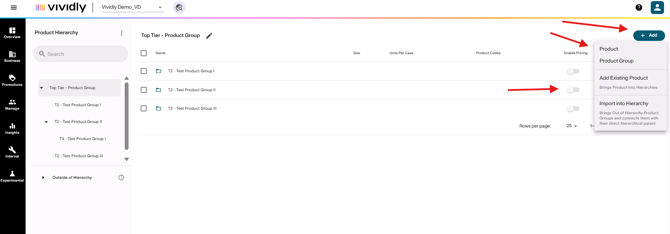
Select the folder where you want to add the new group — double-click the folder in the left panel.
-
Once you have opened the folder, click + Add at the top right to add a Customer/Product Group.
-
Add the Group Name and other details (Alternative Name and Product Margin, if creating Product Groups).
-
Click Save.
-
Enable the Pricing toggle if needed.
Note: To add products or customers, repeat steps 1–6, but make sure to add the item (Customer/Product) within the group you want to assign it to and select Customer/Product instead of Customer/Product Group.
Import Hierarchies Data
For large-scale hierarchy management, use bulk upload tools:
-
Navigate to Manage → Customer Hierarchy or Product Hierarchy.
-
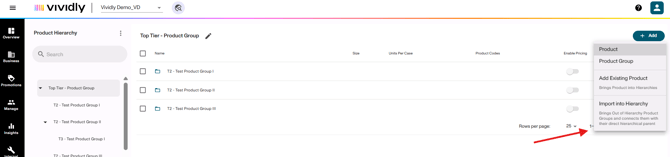
Click + Add → Import Into Hierarchy.
-
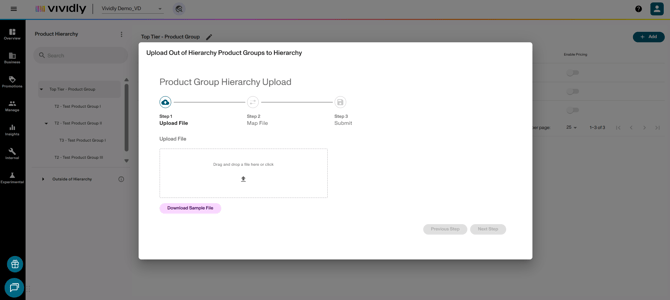
Click Download Sample File.
-
Enter the data into the sample file and save it.
Required fields:
-
Product Group Name
-
Parent Product Group Name (level directly above the product group)
-
Pricing Enabled (Yes/No)
-
-
Drag and drop the file into the Upload Box.
-
Click Next Step.
-
Map the fields such as Group Name, Parent Customer/Product Group Name, and Pricing Enabled.
-
Check for errors and warnings, correct them if needed, and click Submit.
-
Export Hierarchies Data
For large-scale hierarchy management, use bulk-export tools:
-
Navigate to Manage → Customer Hierarchy or Product Hierarchy.
-
Go to three-dots button in the left-side column of the page.
-
Select any of the following option depending on what you need to export:
-
Export to CSV
-
Export to Excel
-
Export Out of Hierarchy CSV (For Product Groups Hierarchy)
-
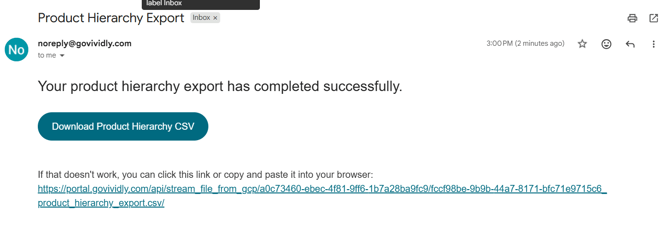
- Go to your email inbox to find the download link and click on it
Tips & Best Practices
-
No duplicate names — Products cannot belong to multiple groups or hierarchy levels.
-
Users should start from the highest level and work their way down when creating a hierarchy.
-
If you have an existing “All Products” Product Group, do not move it into the hierarchy.
-
Pricing must be enabled for the pure Product Group level once hierarchies are enabled.