
Summary
Vividly lets Admins control who can approve or decline a promotion by assigning approval conditions to custom roles — total expected spend, promotion duration, and trade rate %. These conditions apply only when a promotion is moved to Approved or Declined status; they do not restrict Submitted status. Admins can also chain multiple roles into an ordered, multi-tier approval sequence so a promotion routes automatically from junior to senior approvers as needed.
When To Use This
- Your organization requires tiered approval authority (e.g., field reps up to $5,000; managers up to $50,000).
- You want to prevent users from approving promotions beyond a set budget, duration, or trade rate threshold.
- You are setting up the promotion approval workflow for the first time.
- You want to filter the Approval interface by role-level conditions.
- Your approval process has more than one level of sign-off and you want promotions to route automatically through ordered tiers instead of tracking sign-offs manually.
Prerequisites
- Role required: Admin
- The custom role must already exist in Account Settings > Permissions > Roles tab
- Any role that should participate in approvals also needs the Promotion Approval permission
Steps To Assign Approval Conditions
Step 1 — Navigate To The Roles Tab
- Click the “Profile icon” in the top-right corner of Vividly.
- Go to “Account Settings” > “Permissions” > “Roles” tab.
Step 2 — Set Approval Conditions On A Role
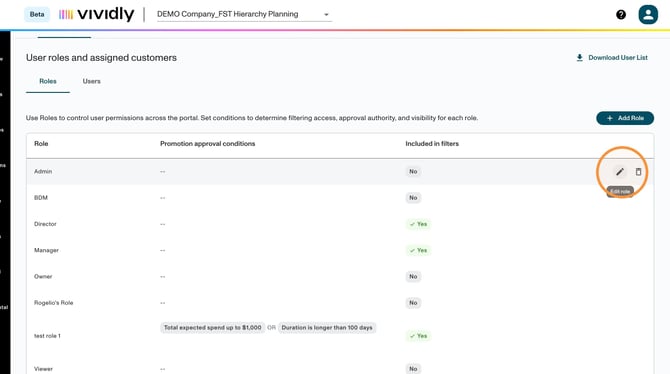
- Locate the custom role you want to configure in the “All Available Roles” list.
- Click the “Edit role” icon for that role. A side panel opens showing “Promotion approval conditions.”
- Click “Add condition” and choose a metric, then enter its value:
| Metric | What you enter | Behavior |
|---|---|---|
| Total Expected Spend | A Min and/or Max dollar amount, or select “No limit” to remove the maximum cap | Max is the approval ceiling. Min only affects the Planning approval-role filter — it does not block approval below it. |
| Duration | Number of days | Measured from the earliest promotion line start date to the latest line end date. |
| Trade Rate % | A percentage | Calculated as total spend ÷ revenue × 100 for the whole promotion. |
- Repeat “Add condition” to add up to two more condition types (one of each metric per role, three maximum). Conditions on the same role combine with OR — a role can approve a promotion that matches any of its conditions, so adding a condition always widens what the role can approve.
- Optionally, click “Include in filters” so the condition is available in the Planning approval-role filter.
- Click “Save Changes”.
Note: At least one role must have a “No limit” spend condition. If every role is capped, promotions above the highest configured cap have no eligible approver and get stuck. A red banner appears on the Roles page if every role is capped; fix it with the “Set no upper limit” button in the conditions cell.
Step 3 — Assign The Role To Users
- Navigate to the “Users” tab.
- For each user who should have this role, click their “Assigned Roles” dropdown and select the role.
Step 4 — Chain Roles Into A Multi-Tier Approval Sequence (Optional)
Use this if your approval process has more than one level of sign-off.
- Plan your tiers. Write down each level of approval your process requires, from lowest authority to highest, and what each level should be allowed to approve (e.g., up to $10,000, up to $20,000, then unlimited).
- Confirm a role exists for each tier. Each tier maps to exactly one role; create a role for any level you don’t already have (see Steps 1–2). Every role in the chain needs the Promotion Approval permission.
- Set each role’s approval conditions, working from lowest to highest (Step 2). Conditions must increase in value as you move up the chain, and the highest role must have a “No limit” spend condition.
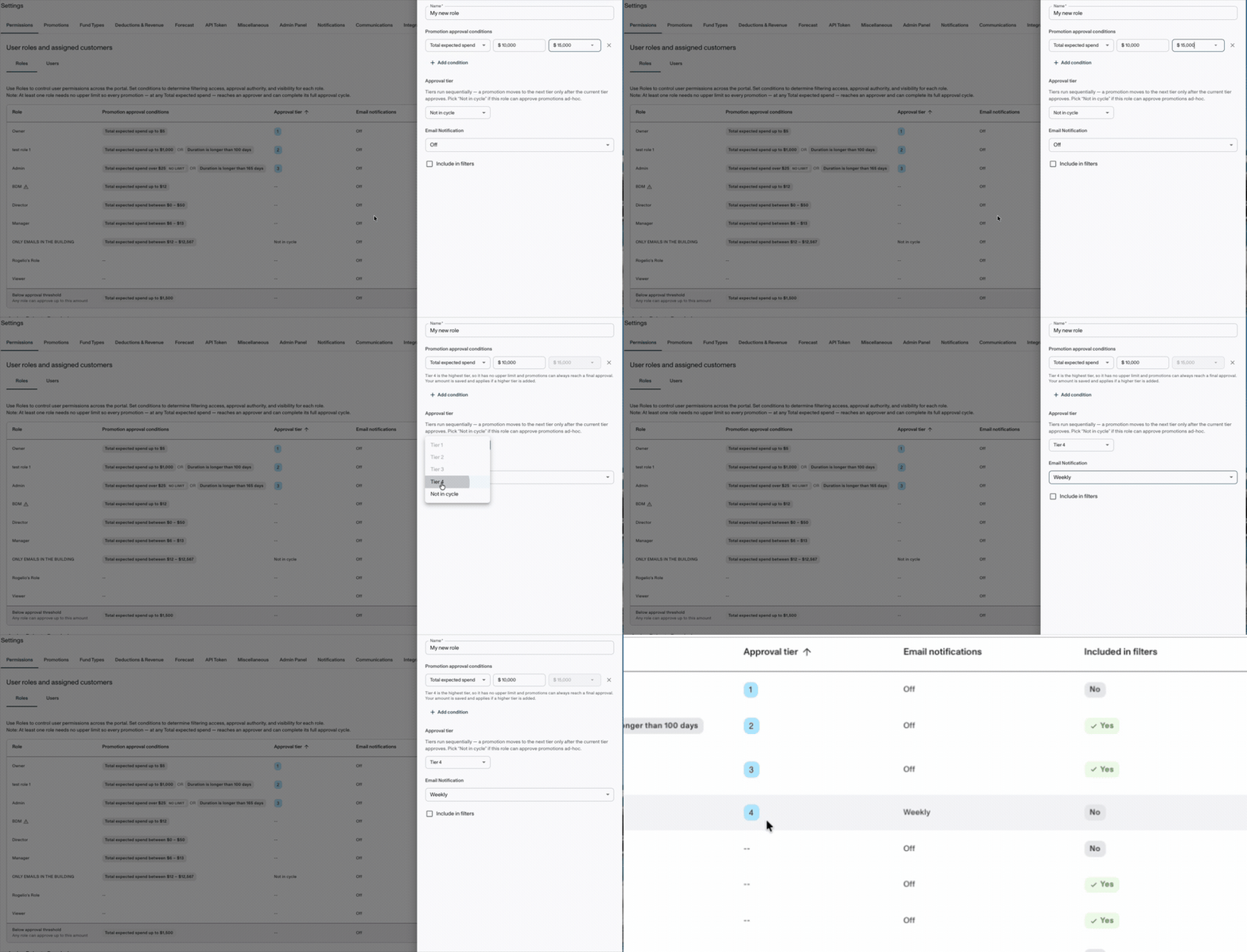
- In “Account Settings” > “Permissions” > “Roles”, assign each approver role its tier position — 1 for the first reviewer, 2 for the next, and so on. Leave a role without a tier position if it should approve on its own conditions rather than as part of the chain.
- Click “Save Changes”.
- Submit a test promotion and confirm it appears only in the first tier’s approval queue.
You should see the promotion move to the next tier automatically once the current tier approves, and become fully approved as soon as it reaches the first tier whose conditions cover it.
If you don’t see tier position fields, multi-tier approvals may not be enabled for your company — contact your Customer Success Manager.
⚠️ Note: Editing a promotion after a tier has approved it resets all tier approvals for that promotion — it restarts from Tier 1.
Step 5 — Set Approval Notifications For A Role (Optional)
- In “Account Settings” > “Permissions” > “Roles”, open the role.
- Set the notification option to “No emails” (default), “Daily digest”, or “Weekly digest”.
- Click “Save Changes”.
Notifications are configured per role, not per user, and only the currently active tier’s eligible approvers are notified. An in-app count also shows how many promotions are awaiting the current user’s approval.
Expected Result
- Users assigned a role can only approve or decline promotions that satisfy at least one of that role’s conditions (spend, duration, and/or trade rate %). Promotions matching none of a role’s conditions are not actionable for that user.
- This restriction applies only to the Approved/Declined transition — it does not affect the Submitted status.
- For multi-tier chains: a submitted promotion appears only in the first tier’s queue, moves to the next tier once approved, and is fully approved as soon as it reaches the first eligible tier. Higher tiers never see it.
- Approvers with a digest enabled receive an email listing promotions pending their review; the in-app count reflects the same.
Troubleshooting
- Problem: Saving a role’s approval conditions fails or is rejected. Likely cause: The user making the change does not have the Users permission. Fix: Grant the Users permission (or use an Admin account), then retry.
- Problem: An approver lost access to promotions they used to approve. Likely cause: A spend condition on their role was replaced with a duration or trade rate % condition instead of being added alongside it. Fix: Add the spend condition back in addition to the other condition(s) — conditions combine with OR.
- Problem: A promotion is stuck with no one able to approve it. Likely cause: Every role (or, in a chain, every tier) is capped below the promotion’s spend. Fix: Give at least one role — or the top tier — a “No limit” spend condition.
- Problem: All tier approvals disappeared / a partly-approved promotion is back at Tier 1. Likely cause: Someone edited the promotion mid-cycle; edits reset every tier’s approval by design. Fix: This is expected behavior; re-approve from Tier 1. Set expectations with approvers in advance.
- Problem: A later tier (e.g., Tier 2) never got notified. Likely cause: The earlier tier hasn’t approved yet — only the active tier is notified. Fix: Confirm whether the prior tier has approved; notification triggers automatically once it does.
Frequently Asked Questions
Q: Do Approval Conditions Apply When A Promotion Is Moved To “Submitted” Status?
No. Approval conditions only apply to users moving a promotion to Approved or Declined status via the PROMOTION_APPROVAL permission. They do not restrict the Submitted status, which is controlled by the PROMOTION_SUBMISSION permission.
Q: Can Approval Conditions Be Set On Predefined Roles (Owner, Admin, Viewer)?
Approval conditions apply to custom roles only. Admins and Owners have full access and are not restricted by approval conditions.
Q: Does Every Promotion Go Through Every Tier In A Multi-Tier Chain?
No. A promotion stops at the first tier whose conditions cover it. With tiers at $10,000, $20,000, $30,000, and unlimited, a $25,000 promotion is fully approved once the $30,000 tier signs off and never reaches the final tier.
Q: Can A Role Approve Promotions Without Being Part Of A Multi-Tier Chain?
Yes. Leave that role without a tier position and it will approve based on its own conditions, independently of the chain.