
Formally resolve invoice lines either to promotions or directly to GL/fund types.
How to resolve invoice lines in Vividly’s Deduction Reconciliation Module (DRM) using the available clearing and write-off methods. It covers:
- Clearing invoice lines to promotions
- Using Clear Exact vs. Clear
- Bulk clearing multiple invoice lines
- Writing off deductions directly to GL accounts/fund types
- Best practices and recommended workflows
Resolution Methods
Clearing to a Promotion
Clearing is the final step in the DRM reconciliation workflow. When you clear an invoice line, you formally resolve a deduction by confirming and applying its dollar amount to the matched promotion that authorized the spend.
Once cleared:
- The invoice line status updates to Cleared
- The open amount drops to $0
- The transaction moves toward Resolved status
Two clearing methods are available for both single and bulk operations:
-
Clear Exact — Clears exactly the original dollar amount of the invoice line. The most common method — no manual entry required.
-
Clear — Allows you to enter a custom amount equal to or less than the original line amount. Use this option only when a partial clear is needed. You can also add comments when using Clear. These comments will appear on the Settlement Report.

Write-Off to a Fund Type/GL
A write-off is an alternative resolution method used when a deduction should not be matched to a promotion.
Instead of clearing to a promotion, the deduction is resolved directly to a Fund Type / GL Account such as:
- Admin Fees
- Freight
- Damages
- Spoilage
- Terms Discounts
- Non-Trade
Write-offs are typically used for non-trade deductions, fees, penalties, or edge cases where promotion-level visibility is unnecessary.
Where To Find It?
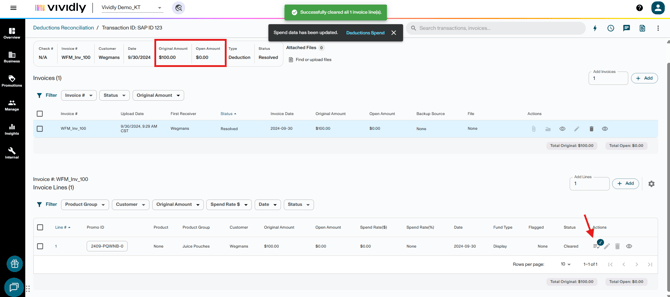
Navigate to Business → Deduction Reconciliation and open any transaction. Invoice lines are located in the invoice lines section, below the invoice header table.
How To Clear Invoice Lines
Use this process to clear one or multiple invoice lines to matched promotions.
- Open the deduction transaction.
- Scroll to the Invoice Lines section.
- Confirm each line is ready to clear:
- Promotion Line ID is populated
- Status is Match Confirmed
- Select the invoice line(s) using the checkboxes.
- Select one line for a single clear
- Select multiple lines for bulk clearing
- Use filters, such as Match Confirmed, to isolate clearable lines before selecting
- Choose the clearing method:
- Clear Exact — Clears the full original invoice line amount
- Clear — Allows entry of a custom amount equal to or less than the original line amount and add comments if needed. Comments will appear on the Settlement Report.
- Review the confirmation message.
- Click Submit or Confirm.
Once submitted, the selected invoice line(s) update to Cleared, and the open amount updates.
Note: Lines that are already cleared or have no matched promotion are automatically ignored when using Clear Exact. A warning message confirms lines were skipped.
How To Write Off Invoice Lines
Use this process to write off one or multiple invoice lines directly to the a Fund Type / GL Account.
- Open the deduction transaction.
- Scroll to the Invoice Lines section.
- Select the invoice line(s) using:
- The checkbox action bar for bulk write-offs
- Or the Resolve Line button for a single invoice line
- Select Write Off.
- Enter:
- Fund Type
- Required Comment
- Review the information entered.
- Click Submit.
Once submitted:
- The invoice line status updates to Cleared
- The selected Fund Type appears on the invoice line
- Resolution history is updated for audit tracking
Note: Bulk write-offs follow the same process as single-line write-offs. The only difference is that multiple invoice lines are selected and processed together..
Tips & Best Practices
-
Default to Clear Exact. Use Clear only when partial clearing is specifically required — it accounts for the majority of clears.
-
Verify promotions before clearing. Click the Promotion Line ID to confirm the correct match before proceeding.
- Filter before selecting. Use the Match Confirmed status filter to isolate clearable lines before selecting all — this prevents accidentally selecting lines not yet ready.
-
Check transaction totals first. Verify that the sum of matched invoice lines equals the transaction amount before clearing.
-
When to use write-offs vs. promotion matching: Use write-offs for non-trade items, fees, and edge cases; always try to match working trade deductions to promotions for better visibility
-
Be granular when needed: You can have highly specific fund types (e.g., "Non-Trade Spoils," "Non-Trade Damages") or keep it simple (e.g., "Non-Trade")
- Always add comments: Even when not required, meaningful comments help during audits and month-end reviews
- Write-offs lose detail: Unlike promotion matches, write-offs don't show product-level detail, so avoid using them for working trade when possible
- Multiple lines at once: You can select multiple invoice lines (using checkboxes) and write them all off simultaneously to the same or different fund types
Key Terms
-
Clear — Clearing method that allows entry of a custom amount up to the invoice line's original value.
-
Clear Exact — Clearing method that resolves the invoice line at exactly its original amount.
-
Cleared — Invoice line status indicating the deduction has been fully resolved and applied to a promotion.
-
Resolved — Transaction status reached when all invoice lines are cleared and the open amount is $0.
-
Match Confirmed — Invoice line status indicating a promotion has been assigned and the line is ready to clear.
-
Write-Off — Resolves directly to a GL/Fund Type