
Workflow
Purpose
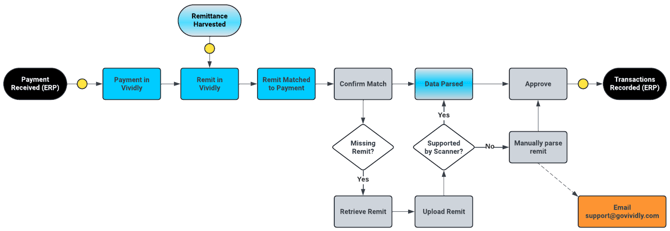
To centralize remittance data from portals, emails, and documents, automate payment matching and deduction classification, and seamlessly sync reconciled payments back to the ERP for accurate financial records.
Navigation
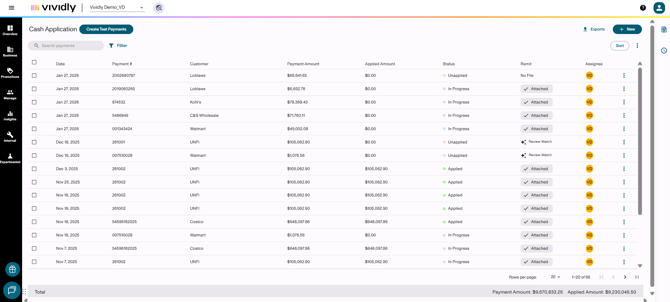
- Go to Business → Cash Application
- This opens the Cash Application Dashboard, where imported payments are displayed.
Cash Application Dashboard Overview
At the payment level, you will see:
- Payment Date
- Payment Number / Check Number
- Customer
- Payment Amount
- Applied Amount
- Status (Unapplied, In Progress, Applied)
- Remit Status (No File, Attached, Review Match)
Step 1: Review Remittance Availability
- Focus on payments with a status of In Progress or Unapplied.
- Review the remittance status:
- Review Match → Remittance backup is available.
- No File → Remittance backup is missing.
- If Status = No File, the remittance backup is missing. You can either:
- Wait for Backup Retrieval Services to retrieve it, or
- Upload the remittance manually if it is available.
Step 2: Upload Remittance Backup (If Needed)
- Click the paperclip icon in the top-right corner labeled Check Remits.
- Open the side panel.
- Drag and drop the remittance file into the panel.
- If a template is available, the system will auto-scan and populate:
- File name
- Check number
- Check date
- Customer name
- Amount
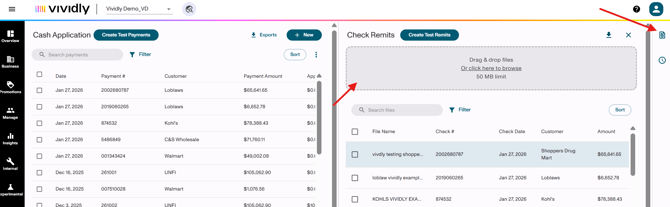
Once uploaded, the payment should update to Review Match by matching on customer and amount.
Note: If the remittance does not auto-scan, this likely means no template exists for that remittance. Please send new template requests to support@govividly.com with at least 3 example files.
Step 3: Attach Remittance to Payment
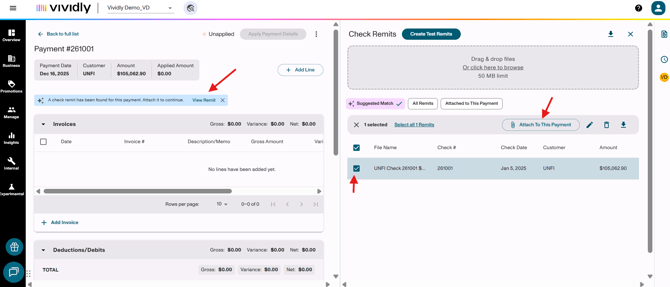
- Click into the payment transaction.
- A blue message will appear:
“A check remit has been found for this payment. Attach it to continue.” - Select View Remit.
- Preview the remittance to confirm it is correct by clicking the remittance line.
- If the suggested remittance is not correct, select View All Remittances and filter by any of the following:
- Check Date
- Customer
- Amount
- Status
- If the suggested remittance is not correct, select View All Remittances and filter by any of the following:
- Select the correct remittance by the check box and click “Attach To This Payment”.
Step 4: Review Scanned Payment Details
Once attached, the system scans the remittance and breaks it into three sections:
- Invoices
- Deductions (Debits)
- Repayments / Credits
Note: At this time, the system cannot automatically distinguish repayments from invoices. All repayment lines initially appear under Invoices.
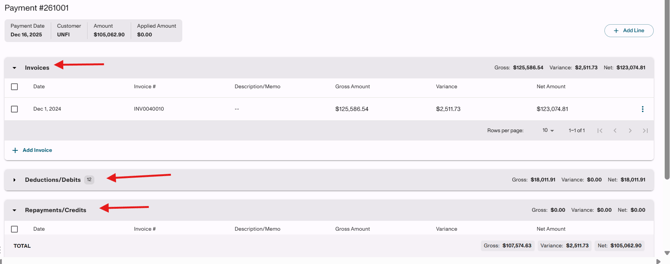
Step 5: Reclassify Repayments (If Needed)
- Identify any repayment lines incorrectly listed under Invoices.
- Click the three dots on the right side of the line.
- Select Turn into Repayment / Credit.
- The line will move to the Repayments section and be reclassified correctly.
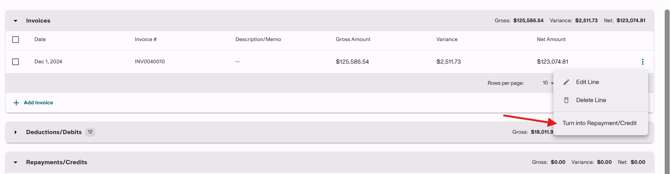
Step 6: Validate & Adjust
- Review all three sections:
- Invoices
- Deductions
- Repayments
- Confirm totals balance to the payment amount.
- Any discrepancies will be noted when Amount at the header (loaded from ERP) and Net amounts do not match.
- Early pay / terms discounts will appear in the Variance column.
- If needed, you can:
- Add lines manually
- Edit existing lines
- Delete incorrect lines
Step 7: Apply Payment
- Once everything is reviewed and balanced, click Apply Payment Details (top-right corner).
- Status will update from In Progress to Applied.
- All transactions in Applied status for that day will be pushed back to the ERP via integration.
- During the overnight run, the payment will be sent to the ERP system.
- Payments will be applied to invoices, and credit memos/JEs will be created for deduction/repayments
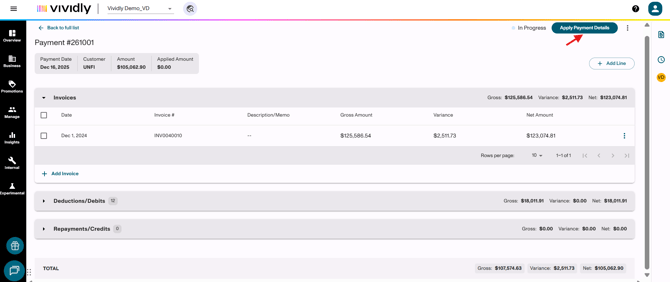
Key Notes / Best Practices
- Always confirm the remittance is correct before attaching.
- Repayments must be manually reclassified if present.
- Do not apply payment details until all amounts balance correctly.
- Missing or incorrect remittance data should be resolved before applying payment.