
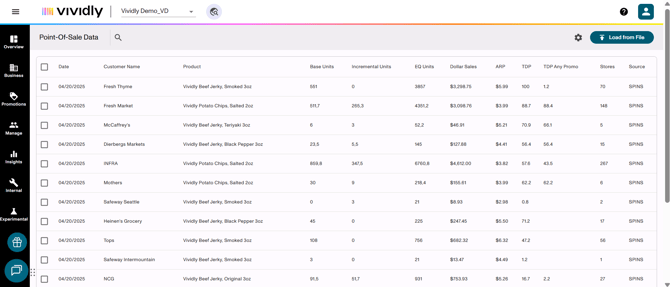
Context: What's the Point-of-Sale (POS) Data interface about?
Point-of-Sale Data is Vividly's consumer purchase tracking and promotional performance analysis interface that enables CPG brands to upload, visualize, and analyze actual retail scan data (what consumers purchase at the register). Located within the Business section (accessible via Business icon in the left-side navigation menu), Point-of-Sale Data serves as the foundation for measuring promotional lift, store compliance, baseline versus incremental sales, and overall retail execution effectiveness.
The primary purpose of Point-of-Sale Data is to provide visibility into what's actually happening on the retail shelf—how much product is selling, at what price, in how many stores, and whether promotional activities are generating the expected incremental sales lift. Unlike Revenue Dollars (which tracks shipment data to first receivers), Point-of-Sale Data represents consumer takeaway—the actual units scanned through registers at retail locations.
Users upload POS data from syndicated data providers (SPINS, Nielsen, IRI/Circana) or retailer-specific portals (Walmart Luminate, Kroger 84.51, Target, Whole Foods, Amazon, etc.) into Vividly on a regular cadence (typically weekly or monthly). Once uploaded, this data powers the Bump Chart—Vividly's signature promotional performance visualization tool that displays three interactive graphs when creating promotions:
-
Compliance Graph showing what percentage of stores executed the promotion.
-
Bump chart visualization displaying base units (blue), incremental units (pink/purple peaks), and average retail price (green line).
-
Promotion Timing showing planned promotions as pink rectangles to validate alignment between planned and actual promotional execution.
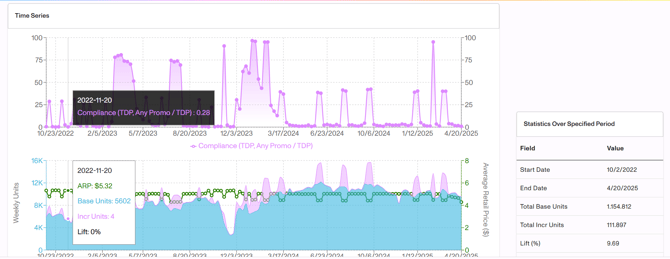
This feature is essential for post-promotion analysis, ROI calculations, buyer negotiations, and continuous improvement of promotional strategies.
Key Capabilities
Within Point-of-Sale Data and with its connection to the Bump Chart, the following capablities are included:
-
Uploading syndicated or retailer-specific POS data via Excel template.
-
Viewing bump chart analytics by customer and product group.
-
Calculating actual promotional lift percentages.
-
Analyzing store compliance rates.
-
Identifying promotional timing alignment or misalignment.
-
Measuring base versus incremental sales
-
Tracking average retail price (ARP) during promotional periods.
-
Exporting POS data for external analysis.
-
Validating whether promotional forecasts match actual retail performance.
Important Limitations
-
Point-of-Sale Data must be uploaded manually or via integration—Vividly does not automatically capture POS data without proper setup or data feeds from syndicated providers/retailer portals.
-
POS data is most meaningful when uploaded weekly (aligned to week-ending Sunday); monthly uploads provide limited granularity for analyzing promotions that run for shorter durations (1-2 weeks).
-
Required fields for full bump chart functionality: Date, Customer Name, Product (individual products, not product groups), Base Units, Incremental Units—without base/incremental breakout, compliance and lift calculations cannot be performed.
-
Date fields are automatically rounded to week-ending Sunday by Vividly's system (e.g., if upload date is Monday 1/06/25, it rounds to Sunday 1/12/25) to standardize weekly reporting across all data sources.
-
POS Data uploaded should be at the individual product level, not product group level, to ensure accurate aggregation and analysis.
-
Retailer-direct POS data (e.g., from Whole Foods portal) may have limited metrics compared to syndicated data (might only include units and average retail price without base/incremental split).
-
Bump charts and lift calculations rely on consumer-facing promotions only (scan deals, TPRs, digital coupons)—backend deals like off-invoice or fixed fees do not generate consumer lift and should not be analyzed via bump chart.
Navigation
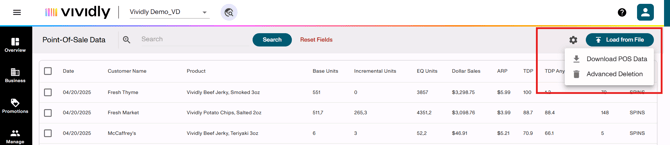
Input and output data functionalities.
-
Download Sample File Link: Located within upload dialog; downloads Excel template showing required column headers and example data for POS uploads including Date, Customer Name, Product, Base Units, Incremental Units, Stores, Region, and optional fields.
-
Load from File Button: Primary upload function that opens a dialog to select and upload an Excel file containing POS data; supports both syndicated data formats and retailer-specific data structures.
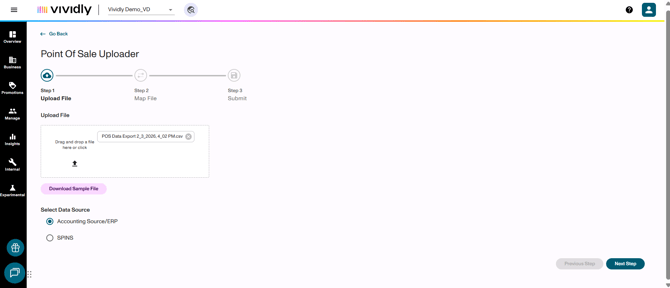
Upload process - Step 1: Upload File
-
Uploader box (Upload File box): Box where you can select or drag and drop your file to upload.
-
Download Sample File button: Button that allows you to download the file that shows the format your file should have to prevent upload errors. You can use it as a template where to add your POS data on and then upload it.
-
Data Source Selector (Data source select list): Data source list below the "Upload File" box where users indicate the source of POS data being uploaded (options include: SPINS, Nielsen, IRI/Circana, Kroger, Amazon, Walmart, or other retailer-specific sources); ensures proper data processing and formatting.
Upload Process - Step 2: Map File
-
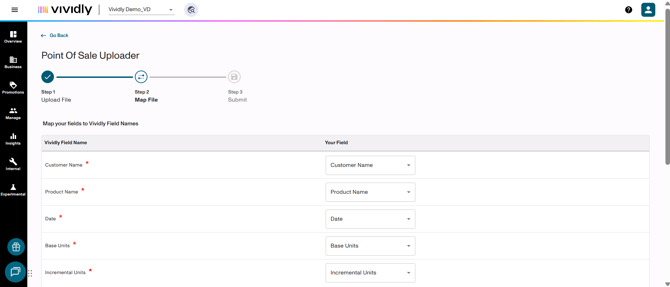
Upload field mapping interface: During upload, users confirm which columns in their Excel file correspond to required Vividly fields (Customer Name, Product, Date, Base Units, Incremental Units, Stores); system remembers previous mappings for repeat uploads from same source. There's only two columns to define here:
-
Vividly Field Name column: Self-explanatory, these are the fields in Vividly.
-
"Your Field" column: Excel columns identified in your file that should be selected in a dropdown of each Vividly Field in order to map it to it.
-
Upload Process - Step 3: Submit
-
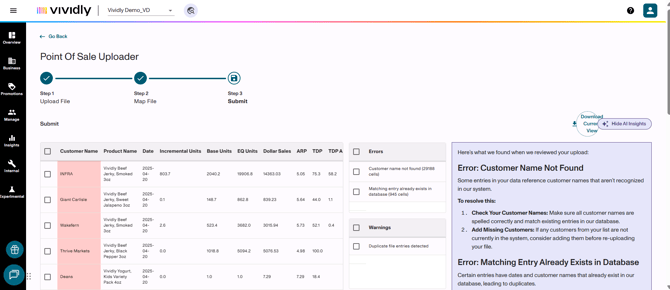
Submit chart: Chart that shows all the data that will be submitted in Vividly and how it will look.
-
Red cells in "Submit chart": Cells whose data has an error or warning according to the system.
-
-
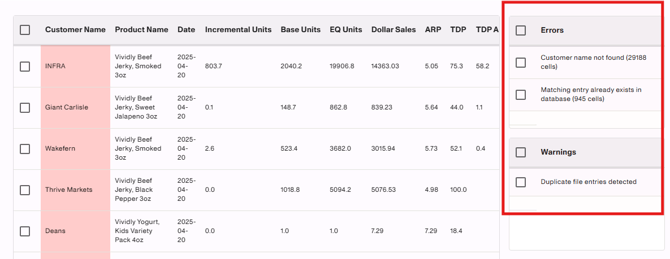
Warnings and Errors lists: Two different lists that shows errors and warnings in the data set that will be submitted. Check the box next to each error to filter data according to that specific error.
Note: The data set can still be uploaded independently of these errors and warnings, but data sets with errors will be omitted and data sets with warnings will be uploaded but there are potential errors that could appear in other sections of the system after uploading this data set.
-
Download current view button: Button that allows to download all the data displayed in the "Submit chart" according to how is filtered using the Warnings and Errors lists. This allows you to identify sets of data to correct either within the file or within Vividly accordingly.
-
Show/Hide AI Insights: Button that allows you to receive feedback from our AI on how to fix the encountered errors and warnings.
Data & Metrics

-
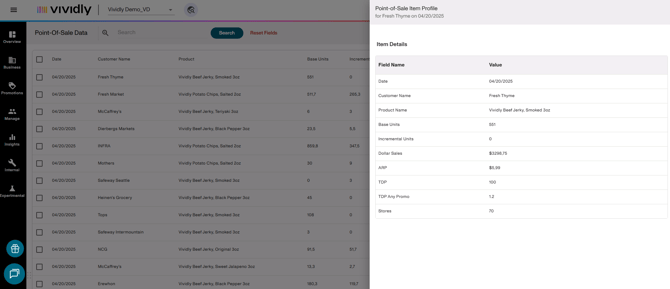
Date: The weekly or time-period timestamp for when the point-of-sale activity occurred. This represents when products were scanned at the retail register and purchased by consumers. POS data is typically structured at a weekly level and reported in weekly buckets (e.g., quad-weekly periods).
-
Customer name: The retail banner or store name where the sales activity occurred (e.g., Whole Foods, Kroger, Target, Sprouts). This field identifies which retailer's point-of-sale data is being reported and allows you to filter and analyze performance by specific retail partners.
-
Product name: The specific product SKU/UPC being reported. This field typically contains the UPC (Universal Product Code) identifier rather than a descriptive product name, allowing Vividly to match POS data to the corresponding products in your product catalog. But it can also contain the product's name. That's up to you.
-
Base Units: The number of units sold at regular (non-promotional) pricing during the time period. Base units represent the "baseline" sales volume your product would achieve without any promotional activity or price discounts. This is your steady-state, non-promoted sales velocity.
-
Incremental Units: The additional units sold beyond the baseline due to promotional activity (price discounts, displays, ads, etc.). Incremental units represent the "lift" or extra volume generated when products are sold at a discounted/promoted price. This is calculated as: Total Units Sold - Base Units = Incremental Units.
-
Dollar Sales: The total retail revenue generated from consumer purchases during the time period, measured in dollars. This represents the total amount consumers paid at the register for your products (not what you shipped to the retailer). Also referred to as "revenue" in syndicated data sources.
-
ARP (Average Retail Price): The average price point (in dollars) that consumers paid for your product during the time period. ARP is calculated by dividing total dollar sales by total units sold. This metric helps you understand the effective shelf price and identify when promotional pricing was in effect (lower ARP indicates discounted pricing).
-
TDP (Total Distribution Points): A metric measuring the overall distribution breadth of your product, calculated as the sum of ACV (All Commodity Volume) percentages across all SKUs in a product group. If you have one item at 50% ACV, your TDP is 50. If you have two items—one at 50% ACV and one at 30% ACV—your TDP is 80. TDP is useful for comparing distribution across brands or product groups with different numbers of SKUs.
-
TDP Any Promo: The Total Distribution Points measurement specifically for stores that sold the product at a discounted/promotional price during the time period. This represents the distribution breadth where promotional pricing was executed. TDP Any Promo is used to calculate promotional compliance—the percentage of stores that actually ran your promotion as planned. Compliance = (TDP Any Promo ÷ TDP) × 100.
-
Stores: The total number of individual retail store locations that scanned/sold your product during the time period. Also referred to as "number of stores selling" or "store count." This field indicates how many physical stores had sales activity for your product, which is critical for calculating velocity metrics and understanding distribution execution.
Error Handling & Validation
-
-
"Customer Not Found" Error: Indicates customer name in upload file doesn't match any customer or alt name in Manage > Customers; requires adding customer alt name (often with "syndicated data" tag for clarity) or creating the customer.
-
"Product Not Found" Error: Indicates product UPC/code in upload file doesn't match any product or product code in Manage > Products; requires adding product code to appropriate product profile or create the product.
-
"Pricing Not Found" Error: Less common for POS data (more relevant to Revenue Dollars syndicated uploads); may appear if system attempts revenue calculation without pricing configured. Need to go to pricing and add it to its respective product.
-
"Duplicate Data" Warning: Alerts user when attempting to upload POS data that already exists for same customer-product-date combination; prevents double-counting of units and metrics. Consider deleting this data from the file before submitting it.
-
Data Flow and Connectivity
Point-of-Sale Data serves as a critical validation and performance measurement layer connecting planned promotional activity to actual consumer behavior and retail execution. In order to do that, it uses the following sources:
Incoming data sources
-
From Syndicated Data providers: SPINS, Nielsen, IRI/Circana aggregate POS data from thousands of retail locations and provide reports (typically weekly) with base units, incremental units, stores selling, ACV, TDP, ARP, and other retail metrics.
-
From Retailer-Specific portals: Direct POS data from individual retailers via their analytics platforms: Walmart Luminate, Target, Kroger 84.51, Whole Foods internal portal, Sprouts, Amazon Vendor Central, etc.; may have more limited metrics (units and price only) but provides retailer-specific granularity.
-
From Manage > Customers: Customer mappings and alternative names must be pre-configured to successfully upload POS data; syndicated data often uses different customer naming conventions (e.g., "Publix Corp-RMA") requiring alt name setup with "syndicated data" tag.
-
From Manage > Products: Product mappings, UPCs, and alternative product codes must exist for POS data upload validation; POS data must be uploaded at individual product level (not product group), so each UPC needs proper mapping.
-
From Pricing Section (Limited): For some POS data scenarios where units need conversion to revenue, system may reference pricing; however, most POS analysis focuses on units rather than revenue calculations.
Outgoing Data Connections
-
To Promotion Analytics / Bump Chart: All uploaded POS data feeds directly into bump chart visualizations, enabling interactive analysis of base vs. incremental sales, compliance, lift, and promotional timing alignment.
-
To Promotion Side Panel (Actual Lift): When viewing individual promotions, Vividly displays "Actual Lift" metrics calculated from POS data that corresponds to the promotion's time period; enables planned vs. actual comparison.
-
To Insights & ROI Analysis: POS-derived lift percentages and actual incremental units feed into ROI calculations, allowing finance teams to evaluate whether promotional spend generated sufficient incremental sales to justify the investment.
-
To Forecasting & Planning: Historical lift data from POS uploads informs future promotional forecasts; sales teams can reference past bump charts when planning similar promotions to set realistic lift expectations.
Critical Integration Note: The power of Point-of-Sale Data is unlocked through its connection to Promotions. When promotions are properly created in Vividly with accurate timing and fund types, the bump chart's third section (promotion timing) displays those promotions as pink rectangles. This visual alignment allows users to:
-
Validate that promotions executed when planned (or identify timing delays/early execution).
-
Correlate promotional mechanics (price depth, fund type) with actual lift achieved.
-
Identify compliance issues that may have limited promotional performance.
-
Self-serve answers to questions like "Why did we only receive $50K in deductions when we forecasted $100K?" (Answer visible in bump chart: only 50% store compliance or 50% of expected lift).
Note: Point-of-Sale Data is most effective when uploaded on a weekly cadence matching syndicated data release schedules, ensuring bump charts reflect near-real-time retail performance for timely decision-making and course correction during active promotional periods.