
Overview
The Auto-Fill Dates and Copy Dates to Other Lines feature in Vividly's promotion Master Edit workflow are time-saving tools designed to eliminate repetitive date entry when creating promotions with multiple promotion lines. When building a promotion that includes several fund types (such as an MCB allowance plus a coupon, or a scan allowance combined with an advertising fee), or when planning across multiple product groups within the same promotional event, these features allow you to set the promotional dates once and instantly apply them across all promotion lines—ensuring consistency and reducing the risk of data entry errors. Instead of manually entering start dates, end dates, scan back performance dates, and in-store performance dates for each individual line (which can be tedious when dealing with 3, 4, 5, or more lines in a single promotion), users can leverage two simple icon buttons: the clock/watch icon (Auto-Fill Dates) and the Calendar icon (Copy Dates to Other Lines).
Steps to Use Auto-Fill and Copy Dates
-
Navigate to Promotions > Planning to access the Planning page.
-
Access the creation or editing (Master Edit) process pages.
-
Option A - Creating a new promotion:
-
Click the "+ New Promotion" button or similar.
-
Enter basic promotion details in Step 1: Customer, Product Group, Start Date, End Date, Promotion Type/Fund Type.
-
Click "Next" or "Continue" to proceed to Step 2 (Master Edit page).
-
-
Option B - Editing an existing promotion:
-
Locate an existing promotion in the Columns View, List View, or Calendar View.
-
Click on the promotion to open it.
-
Click "Edit" to enter edit mode.
-
Navigate to Step 2 of the editing workflow (if not already there).
-
-
-
You should now be on the Step 2 / Master Edit page where you configure promotion lines, lift, pricing, and volume details.
-
On the Step 2 / Master Edit page, you'll see the main promotion configuration area, which displays each promotion line as a row with multiple input fields, among them Buy-In, Scan-Back and In-Store. Navigate to these type of fields.
-
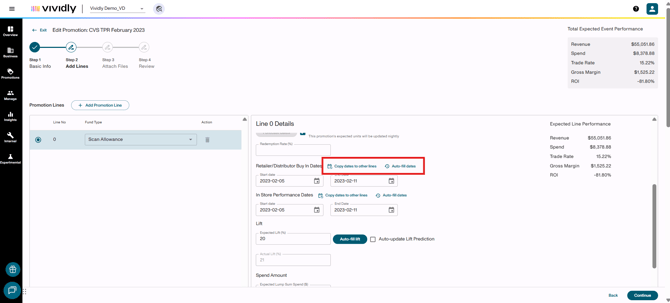
Above each of these fields you'll find the following buttons:
-
Copy dates to other lines - Calendar icon = Will copy the dates and paste it to other lines with the same fund type
-
Autofill dates - Clock/watch icon = Will copy the dates of another date field set up before and paste it in these other fields within the same promotion line
-
- Click on each button according to your needs.
Tips & Best Practices
- Always set Line 1 dates first: Establish the dates on your first line before adding additional lines—this prevents repetitive work.
- Use calendar icon proactively: Click the calendar icon on Line 1 immediately after setting dates and creating the following lines.