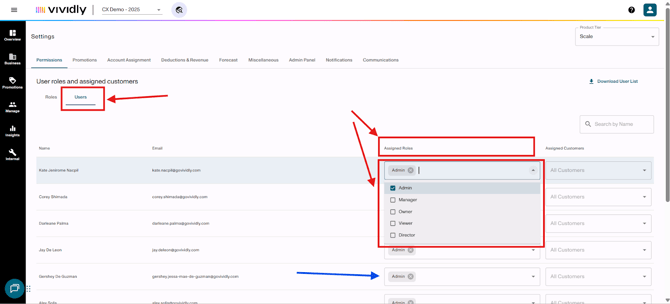
There are 3 steps to assign a user a role permission:
- Create a role, or choose an existing one
- Define which permissions apply to the role
- Assign the role to a specific user
Navigate to and click on Account button > Account Settings button. Click on the "Permissions" tab.
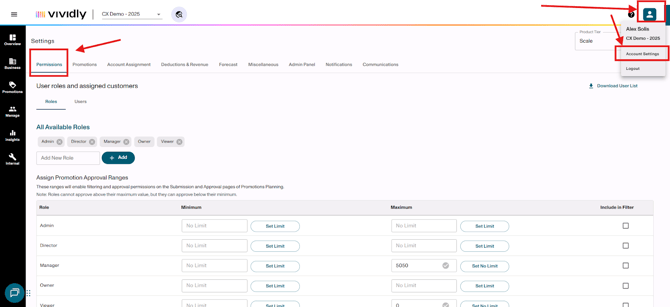
1) Create a role:
-
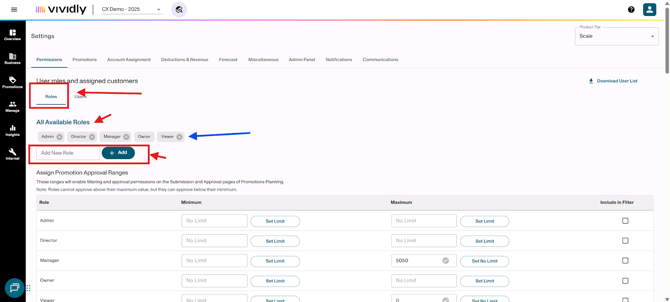
Click on “Roles” tab
-
Navigate to “All Available Roles” section
-
Click on “Add New Role” textbox and type the name of the role
-
Click on “+ Add”
-
The role should appear between the “All Available Roles” title and the “Add New Role” textbox
Define which permissions apply to the role:
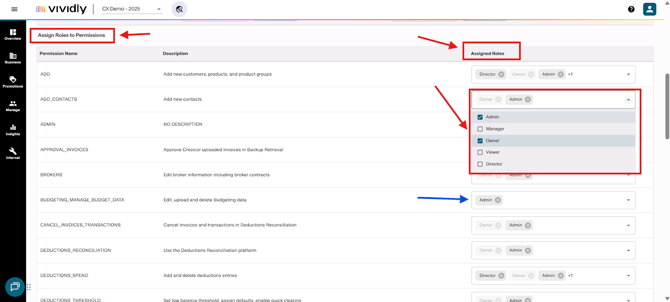
- After creating the role, scroll down to the “Assign Roles to Permissions” subsection
- Go to the “Assigned Roles” column
- Select the created role in each of the permissions that you´ll enable for such user
Assign the role to a specific user:
- Navigate to and click on the “Users” tab
- Navigate to the “Assigned Roles” column
- Click on the “Assigned Roles” dropdown that´s on the same level of the user who will be assigned the role
- Select the roles that apply to the user