
What Is Invoice Line Aggregation?
Large invoices — especially MCB and scan deductions — often contain many individual lines for different SKUs within the same product group and customers with multiple store locations. The Aggregate Similar Invoice Lines feature simplifies review and resolution by automatically grouping similar lines together based on shared product group, customer, spend rate, and dates. This allows users to work more efficiently at a summarized level while still retaining access to the underlying individual invoice line details whenever needed.
Where To Find It?
This feature is available in two locations in Vividly:
-
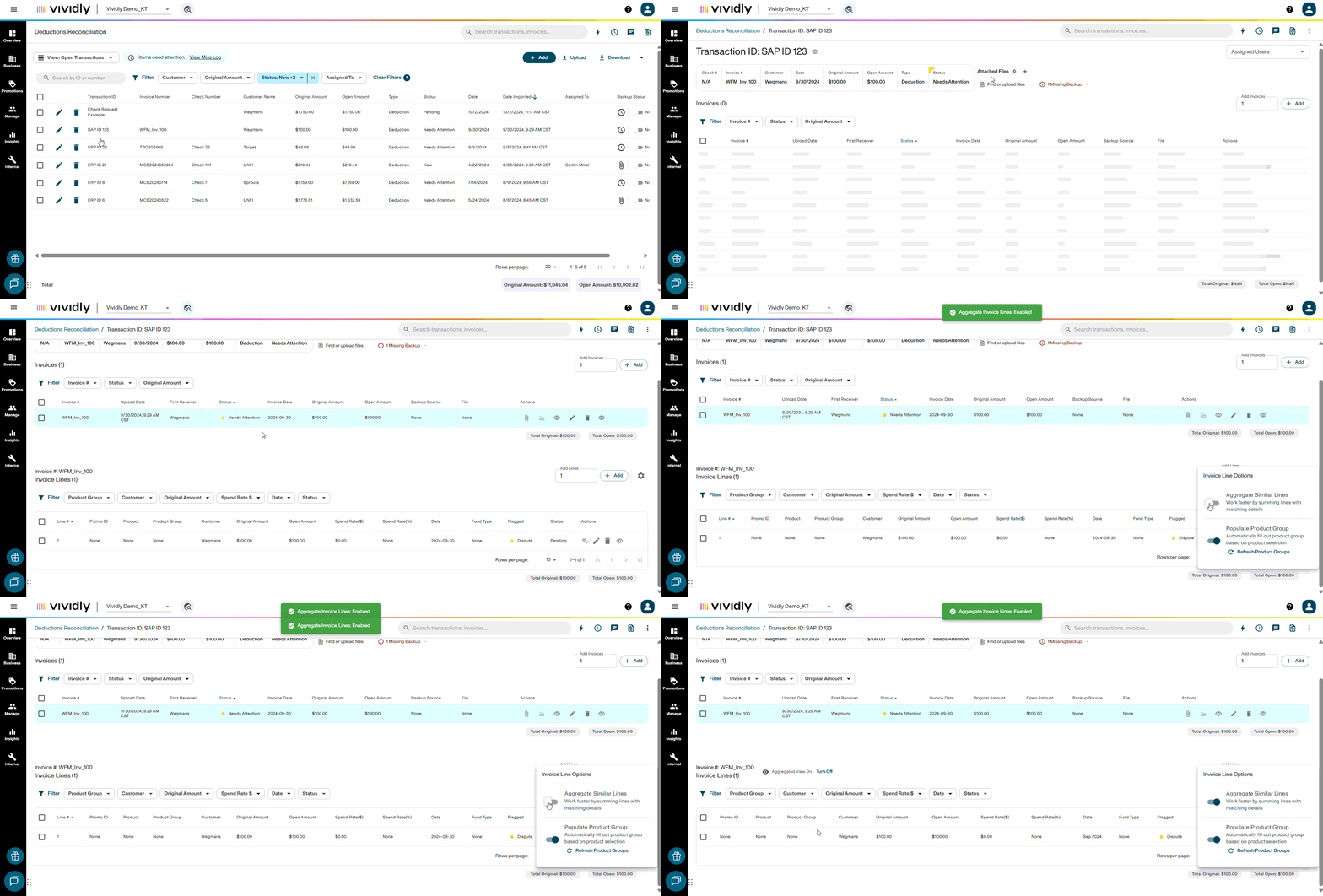
Within a transaction — Business → Deduction Reconciliation → open any transaction → toggle icon in the invoice lines section
-
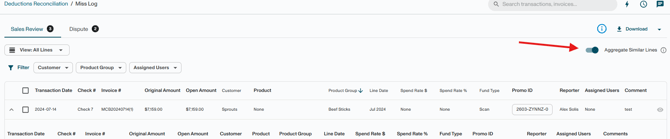
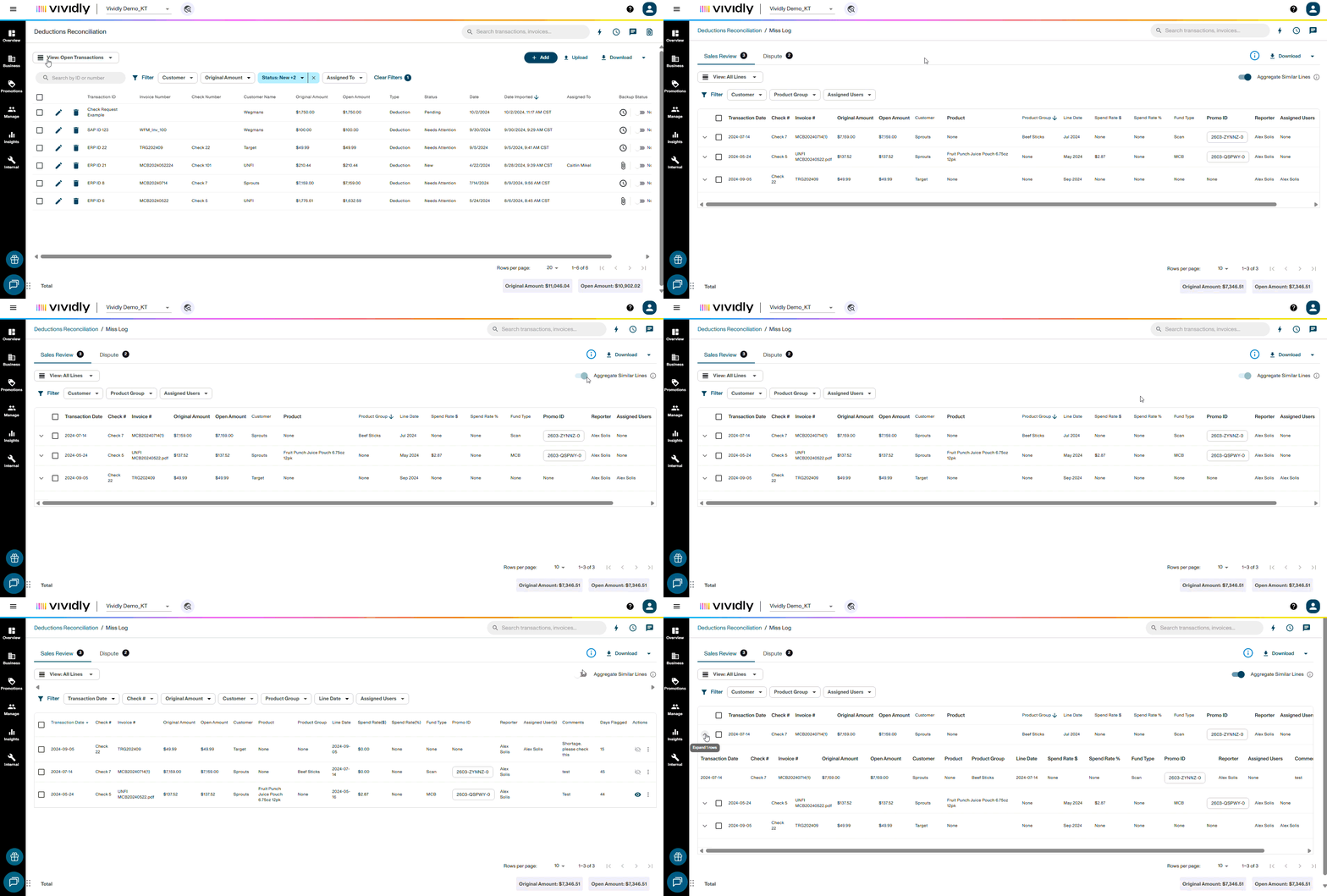
In the Sales Review Miss Log — Business → Deduction Reconciliation → View Miss Log → Sales Review tab → "Aggregate Similar Lines" toggle (upper right)
How Lines Are Grouped?

Invoice lines are aggregated when all of the following fields match:
-
Customer
-
Product Group
-
Date (month and year of invoice line date)
-
Fund Type
-
Spend Rate ($) or Spend Rate (%)
Lines sharing all criteria are consolidated into a single aggregated row with the total amount summed. Individual lines remain accessible by expanding the group at any time.
Steps to Aggregate lines in Deduction Reconciliation (DRM)
-
Within a transaction, scroll to the invoice lines section, below the invoice header table.
-
Locate the gear icon in the upper right area of the invoice lines table and click it.
-
Select "Aggregate Similar Lines."
-
The invoice lines table refreshes. Lines sharing the same criteria are consolidated into aggregated rows.
-
Click the arrow icon (▼) to the left of any aggregated row to expand it and view the individual lines — product names, UPCs, and individual amounts — included in that group.
-
Take action on the aggregated row as you would on any individual invoice line: promotion matching, write-off, clear, repayment, dispute, or sales review. All individual lines within the group are affected.
-
To return to the line-by-line view, click the gear icon again and select "Turn Off Aggregated View." All individual lines are restored.
Note: After promotions are assigned to aggregated invoice lines, any bulk action applied to the group — Clear, Clear Exact, Write Off, etc. — applies to all individual lines within it. Settlement reports always reflect the granular, individual line data regardless of how the aggregated view is used.
Steps to Aggregate lines in the Miss Log
-
Within the Miss Log opens in the Sales Review tab.
-
Enable the "Aggregate Similar Lines" toggle in the upper right corner of the page.
-
The table refreshes and consolidates invoice lines sharing the same criteria into aggregated rows.
-
Click the arrow icon (▼) to the left of any row to expand it and view the individual lines within that group.
-
Take action on the aggregated row: assign a promotion, flag for dispute, confirm validity, or any other available action. All individual lines within the group are affected.
Tips & Best Practices
-
Start with aggregation on. Enable aggregation first to get a high-level view of what needs review, then turn it off for specific groups that require granular attention as needed.
-
Most valuable for large invoices. MCB and scan deductions with many individual product lines per group benefit most from this feature. For small invoices, the non-aggregated view may be sufficient.
-
You never lose granularity. Turning off the aggregated view restores all individual lines at any time. Settlement reports always show individual line-level data regardless of how the aggregated view was used.
Key Terms
-
Invoice Line Aggregation — A feature that groups similar invoice lines by shared criteria (customer, product group, date, fund type, spend rate) for bulk review and action.
-
Aggregated Row — A grouped view representing multiple individual invoice lines, showing a combined total amount.
-
Expand / Collapse — The arrow icon (▼) that reveals or hides the individual lines within an aggregated group.
-
Sales Review Miss Log — Vividly's queue of invoice lines flagged for sales team review, accessible from the DRM homepage.