
Keywords
-
Revenue Source: Origin system or method for revenue data (ERP, manual upload, etc).
-
Accounting Source: Primary system of record for financial data
-
Deduction Source: Origin of deduction files (retailer portals, email, etc.)
-
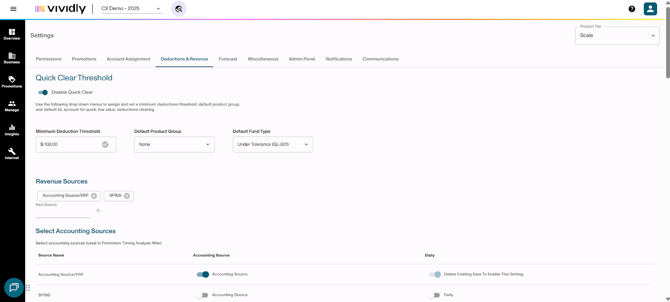
Quick Clear Threshold section: A feature that enables automated bulk processing of deductions below a specified dollar threshold, eliminating manual review of immaterial amounts to streamline the clearing workflow.
-
Minimum Deduction Threshold: The dollar amount that creates a filter to identify and bulk-clear low-value deductions (e.g., $200 or less) without individual review, treating them as immaterial write-offs.
-
Default Product Group dropdown: An optional pre-selected product group that automatically populates when clearing threshold deductions, reducing manual data entry during bulk clearing operations.
-
Default Fund Type dropdown: A pre-selected general ledger account that automatically assigns low-balance deductions to a specific GL account (like "Under Tolerance Write-off"), ensuring consistent accounting treatment.
-
Revenue Sources section: Configuration area for adding revenue data sources that become available during upload processes and drive reporting options in Finance Analytics and Promotion Timing Analysis.
-
Select Accounting Sources section: Pine+ and Aspen tier feature that maps data sources to users' ERP/accounting systems, enabling integration and populating dropdown options in Promotion Timing Analysis.
-
Deductions and Repayments section: Settings that control how deduction amounts are interpreted from ERP systems, with toggles determining whether incoming deductions are processed as positive or negative values.
-
Add a New Backup Source Group section: Interface for creating organizational groupings of backup documentation sources to support structured deduction validation and matching processes.
-
Backup Sources section: Management area for backup documentation sources from customers who submit deductions, making these sources available for Deduction Scanner and Matcher workflows.
-
Backup Source Group: Organizational structure that groups related backup sources by customer or distributor criteria to facilitate efficient management within the Deduction Scanner and Matcher.
-
Assigned Backup sources: Mapping system that connects specific backup sources to corresponding customers and wildcard buckets, enabling automated deduction processing that the system remembers for future use.
Description
The Deductions & Revenue section manages all configuration related to deduction processing, revenue source management, and system thresholds. This is fundamental to proper deduction scanning, matching, and reconciliation processes.
List of Fields
Revenue Sources:
-
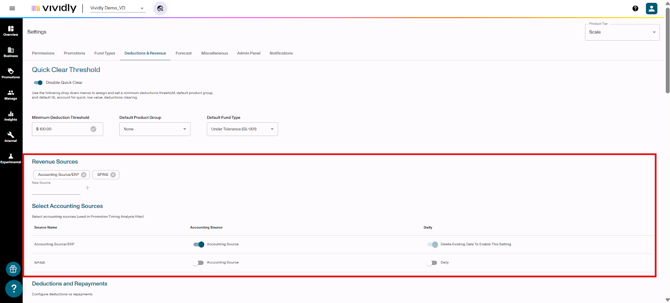
Add new source textbox: Textbox where the revenue source name is typed. (i.e. Quickbooks, SPINS, WFM, etc)
-
Select accounting sources subsection: Chart where a revenue source is set up as an accounting source or not, which is the information that derives from this chart is used for the promotion timing analysis filter.
-
Source name column: Column within the “Select accounting sources” subsection where the name of the revenue sources is allocated.
-
Accounting source column: Column within the “Select accounting sources” subsection which includes a toggle that, when enabled, indicates the system that the revenue source at the same line level is set up as an accounting source.
-
Daily column: Column within the “Select accounting sources” subsection which includes a toggle that classifies whether a data source should be treated as daily data or weekly data. When on, it classifies the data as daily, and when off, weekly.
Deduction and Repayments
-
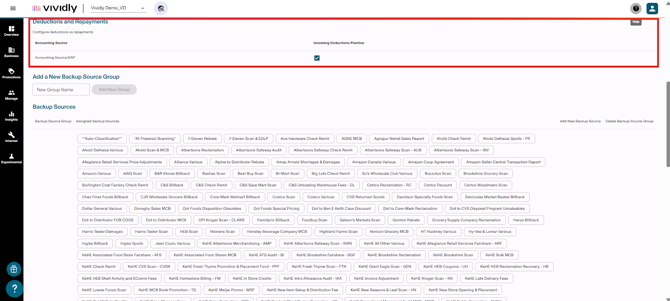
Accounting source column: Column that specifies the name of all the revenue sources so they can be set up as an ERP/accounting system data source where the deduction file comes from. This identifies the data source for deduction files and determines how positive/negative values are interpreted.
-
Incoming deductions positive column: Column that includes a checkbox per accounting source line level, such checkbox tells the system whether deductions in your ERP/accounting source file are formatted as positive or negative numbers. If checked, denotes that the corresponding Accounting Source (ERP) sends deductions as positive. Otherwise, it sends deductions as negative.
Backup Sources
-
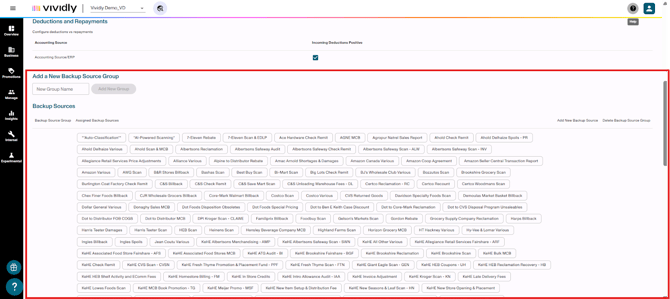
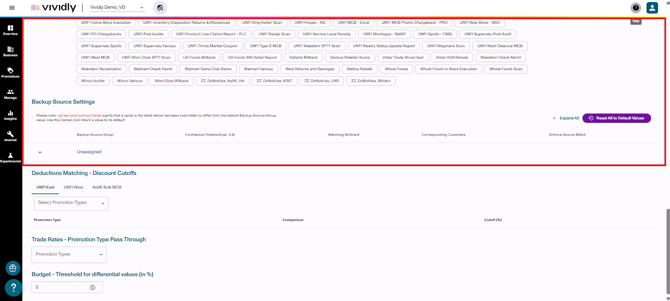
Add new backup source group: Textbox and button that allow to create new backup source grouping for organizing backup templates. Type the name of the backup source in the textbox and then click on the “Add New Group” button to create.
-
Backup sources subsection: Subsection that displays all available backup source templates that the scanner can recognize.
-
Backup source group and Assigned Backup Sources tabs: Groups that organize backup sources depending on which sources are assigned to each group (unassigned group if they aren’t assigned to any).
-
Backup source settings subsection: Chart that displays the following set of settings for each Backup source: Backup source group, Confidence threshold column, matching wildcard, corresponding customers and enforce source match.
-
Backup source group column: Column that shows which group each backup source belongs to for organizational purposes.
-
Confidence threshold columns: Used in the "Auto-Match" feature of Deductions Reconciliation. Column that sets the percentage variance allowed for spend rate matching before a match is considered "low confidence”. Invoice Lines can be matched to Promotions planned with a Spend Rate percentage or dollar rate.
- Spend Rate $ Confidence Threshold
- Dollar rates are prioritized over percentage rates when matching
- Spend Rate % Confidence Threshold
- If there are no high confidence matches for Spend Rate ($), then the auto-match will use Spend Rate (%) to find the next best match
- Spend Rate $ Confidence Threshold
-
Matching wildcard: Column that allows flexible matching when backup source names vary slightly (e.g., "UNFI" vs "United Natural Foods").
-
Corresponding customers column: Column that maps backup source customers to your internal customer names for proper matching.
-
Enforce source match column: Column that includes a toggle that indicates the system if exact backup source matching is required or if the system is allowed to find similar sources.
Deductions Matching - Discount Cutoffs
-
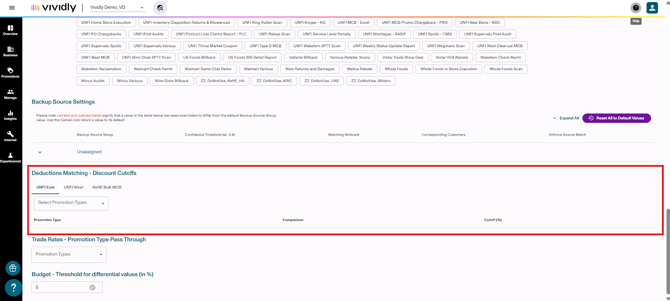
UNFI East, UNFI West and KeHE Bulk MCB and other tabs: Distributor-specific settings that manage discount percentage thresholds for automatic promotion type classification.
-
Select promotion types dropdown: Dropdown that defines which promotion types the scanner should look for when processing backups from each distributor. These promotion types are selected specifically in the “Promo type” column of the Invoice line when editing it in a “Transaction ID” specific page.
Trade Rates - Promotion Type Passthrough:
-
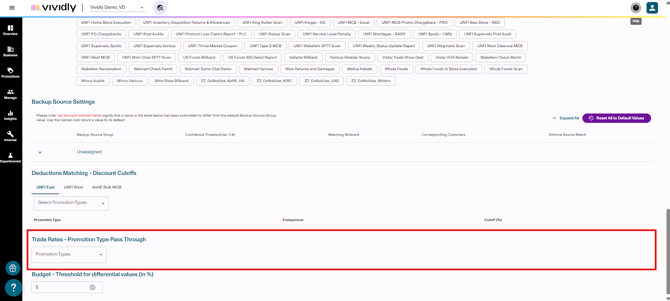
Promotion types dropdown: Dropdown that allows you to select which promotion types should be included in Finance Analytics calculations.
Budget - Threshold for Differential Values (%)
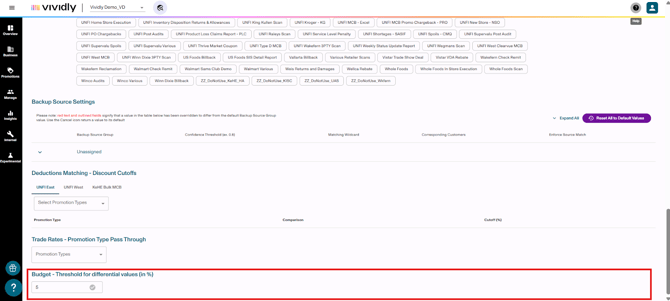
- Enter value textbox: Textbox that sets up the percentage threshold that determines what gets highlighted in the Budgeting section when viewing DIFF (NET) values.